Device not match image error in MSM Download Tool [Fixed]
In this guide, we will show you the steps to fix the ‘Device not match image’ error in MSM Download Tool. When it comes to custom development, then the devices from OnePlus have still occupied the top-most position. And there are two major reasons for the same. First off is its underlying Qualcomm chipset that allows you to access the secondary download mode known as Emergency Download Mode. Next up, is the leaked MSM Download Tool that allows you to flash the OPS firmware to unbrick your device, in a locked bootloader.
While the flashing process is pretty straightforward, there is still a high chance of the tool throwing out an error or two. And this is what seems to be the case as of now. Various users have voiced their concern that they are getting the ‘Device not match image’ error in MSM Download Tool. If you are also on the same page, then fret not. In this guide, we will make you aware of a nifty workaround to resolve this bug. So without any further ado, let’s get started.
Fix Device not match image error in MSM Download Tool
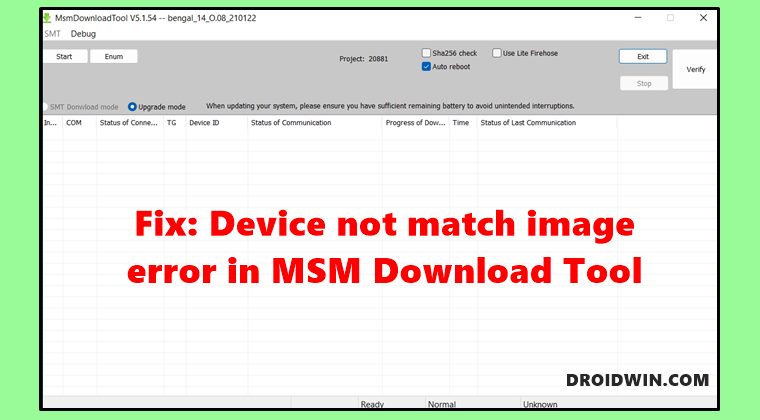
The reason for this error is the fact that you have downloaded the incorrect version of the tool. For example, if you use the OnePlus 9 Pro firmware on your OnePlus 9 device, then the tool will straightaway show this error message and prevent you from flashing. So make sure you get hold of the correct version of the tool and then retry with the flashing procedure.
However, if you were intentionally carrying out this task of flashing the incorrect firmware [this was done by some OnePlus 9 Indian variant users- they had to first flash the firmware using the MSM Tool for OnePlus 9 Pro before they could use the modded version of the MSM Tool for their OnePlus 9 ], then here’s what you need to do to bypass this error message.
The below process will only show you the steps to fix the ‘Device not match image’ error in MSM Download Tool. However, if you also wish to know other related flashing instructions then check out the guides on How to Boot any OnePlus Device to EDL Mode and How to Unbrick any OnePlus Device via MSM Tool .
- To begin with, launch the MSM Tool using its EXE file.
- Then select Other under User type and hit Next.
- After that, enable Sha256 Check but uncheck Use Lite Firehose.
- That’s it. You may now proceed with the flashing process and there will be no error now.
- No valid trg ID Error in MSM Download Tool: How to Fix
- How to Fix SMT Config Not Found in MSM Download Tool
- How to Fix Stuck in Param Preload error MSM Download Tool
- Fix Sahara communication failed error in MSM Download Tool

- Noble 2 years ago Reply Hi Iam getting this error failed to get HWVersion ,how to fix this error also i get this (memory size 238.367188G )
- muhammad abubkar 2 years ago Reply sir meny sbe version ke firmware download ke ha .kse sy b ni ho rha
(Cancel Reply)
Δ
