Directly switch to speaker in call without “speaker option” on iPhone
In this guide, we will show you the steps to directly switch to the speaker in the middle of a call without bringing up the Speaker Option on your iPhone. There has been a rather strange and infuriating bug going on with iPhones over the past couple of months that isn’t being talked about enough. When you receive a call and you wish to switch over to the speaker during a call, then the direct flow should have been to simply tap on the speaker button.
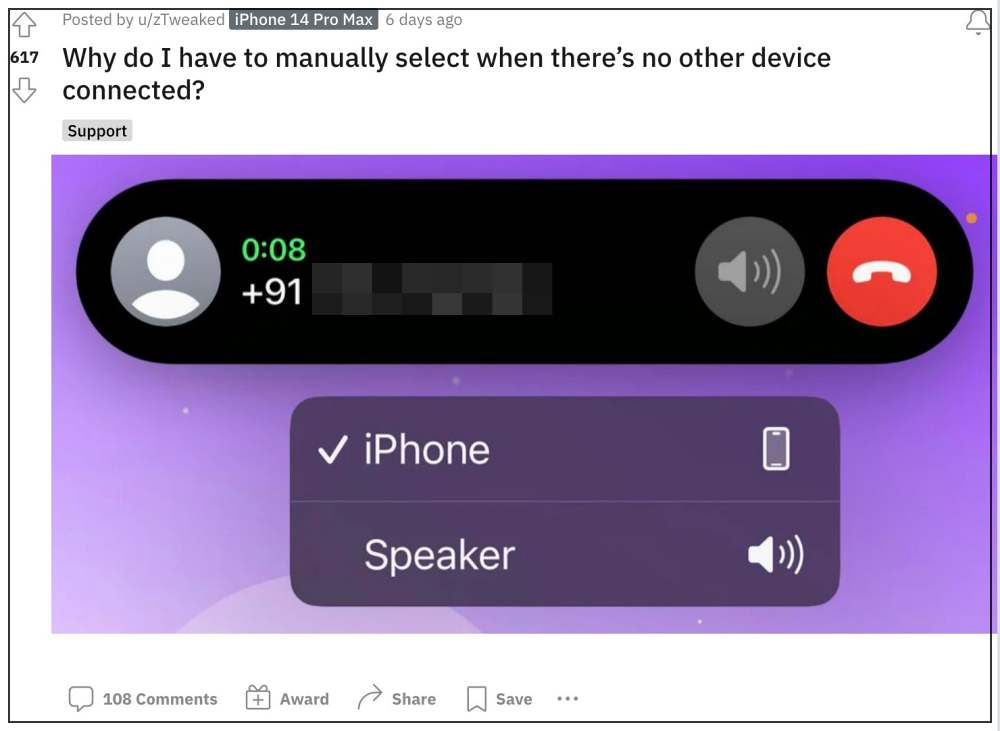
However, that flow seems to be currently broken . If you now tap on the speaker button, then it will first bring up the Speaker Options menu from where you will then have to select Speaker. This flow should only be bought up when you have an additional Bluetooth speaker or earbuds connected as at that point in time you will have the option to switch between other audio sources.
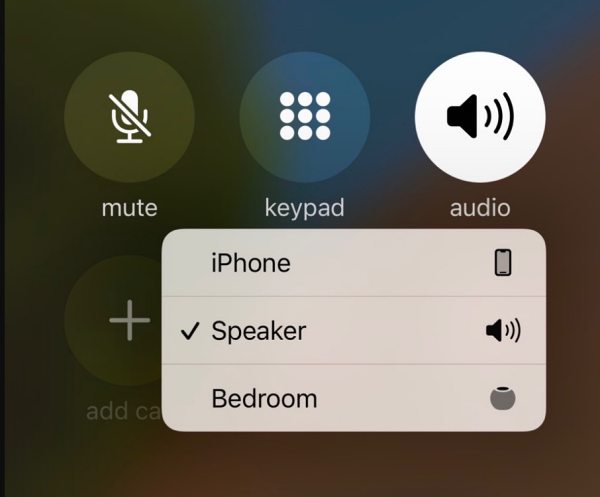
However, since currently we do not have any other audio sources, the device should automatically switch over to the speaker upon tapping on that option. Unfortunately, that is no longer the case. But we did manage to find a nifty workaround that should help you mitigate this issue. So without further ado, let’s check it out.
Directly switch to a speaker in call without the “Speaker Option” on iPhone
- Head over to Settings > Accessibility > Touch.
- Then go to Call Audio Routing > Set to > Speakers.
- This should fix the underlying speaker issue.
- iPhone Low Volume on iOS 16/16.1.1: How to Fix
- iPhone 14 Pro Max No 5G Network & Call Drop: How to Fix
- Network and Call Drops on iOS 16: iOS 16.1 Beta 4 [Fixed]
- iPhone/iPad rear camera displays mirror image in Duo video calls

(Cancel Reply)
Δ
