Disable Microsoft Edge Tabs in Alt-Tab on Windows 11
In this guide, we will show you the steps to disable the Microsoft Edge tabs from the Alt-Tab screen on your Windows 11 PC. Being the Redmond giant’s favorite son has its own set of perks. Being shipped in with the OS itself, the inability to uninstall it the normal way, and the constant prompt to make it the default browser if you haven’t done so are just some of the pushes that Microsoft makes to push it up the priority chart of every user.
Along with that, there is another pretty intrusive behavior of this Chromium-based browser that isn’t in sync with some users’ requirements. Whenever you bring up the Alt-Tab switcher, then rather than showing just a single instance of that browser, it will display the 5 opened browser tabs in 5 different sections. For some, it might spell out a plus from the ease of user experience, however, for me, it only makes the UI more compact. Fortunately, Microsoft does give us an option to customize this screen.
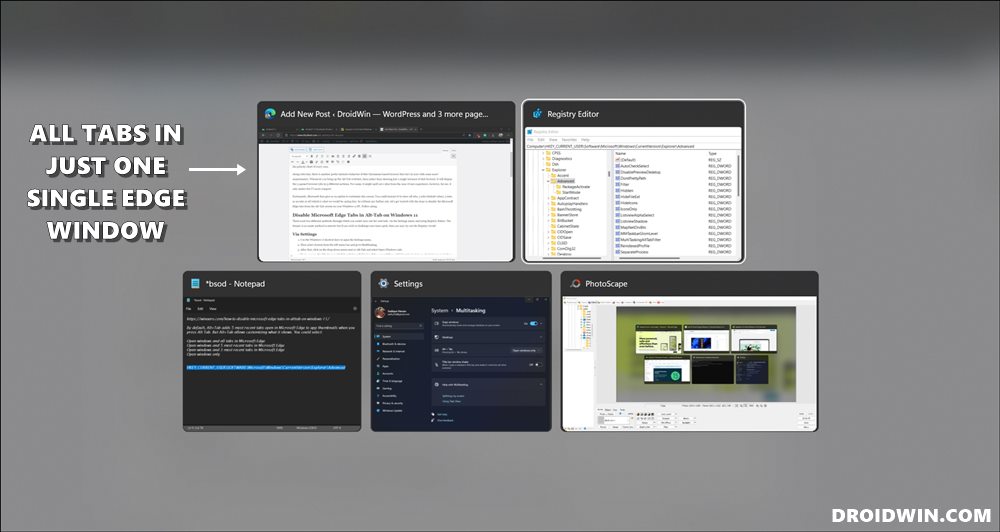
Our Ultimate Goal!
You could instruct it to show all tabs, 5 tabs (default value), 3 tabs, or no tabs at all (which is what we would be opting for). So without any further ado, let’s get started with the steps to disable the Microsoft Edge tabs from the Alt-Tab screen on your Windows 11 PC. Follow along.
- Disable Microsoft Edge Tabs in Alt-Tab on Windows 11 Method 1: Via Settings Method 2: Via Registry Editor
Disable Microsoft Edge Tabs in Alt-Tab on Windows 11
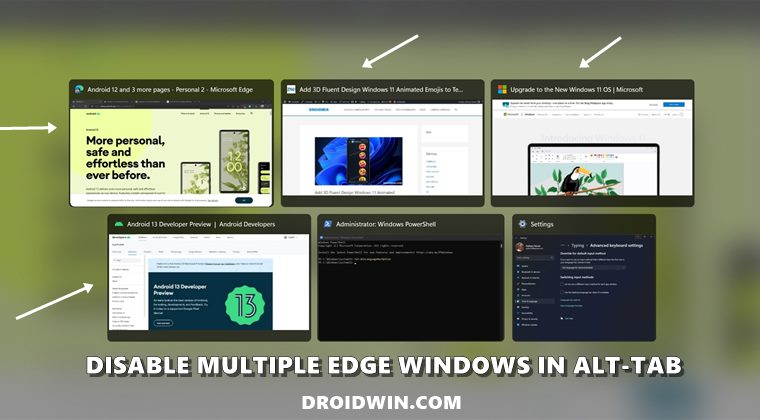
There exist two different methods through which you could carry out the said task- via the Settings menu and using Registry Editor. The former is an easier method to execute but if you wish to challenge your inner geek, then you may try out the Registry tweak!
Method 1: Via Settings
- Use the Windows+I shortcut keys to open the Settings menu.
- Then select System from the left menu bar and go to Multitasking.
- After that, click on the drop-down menu next to Alt-Tab and select Open Windows only.
- From now on, the Windows 11 Alt-Tab switcher will display all the opened Microsoft Edge tabs in just one single browser window.
Method 2: Via Registry Editor
- To begin with, launch Registry Editor from the Start Menu.
- Then copy-paste the below location in its address bar and hit Enter. HKEY_CURRENT_USER\SOFTWARE\Microsoft\Windows\CurrentVersion\Explorer\Advanced
- Now check if MultiTaskingAltTabFilter is present on the right-hand side or not. If it is, then double-click to open it.
- Otherwise, right-click on the Advanced folder and select New > DWord 32-bit Value. Name it MultiTaskingAltTabFilter and double click to open it.
- Finally, type in 3 in its Value Data field and click OK to save it. For Reference: 0= Show All Tabs, 1= Show 5 Tabs, 2= Show 3 Tabs, 3= Show No Tabs
- How to Uninstall Microsoft Edge in Windows 11
- Microsoft Edge Not Working in Windows 11: How to Fix [10+ Methods]
- Microsoft Edge Slow or Laggy in Windows 11: How to Fix [13 Methods]
- How to Bring Back the Old Download Menu in Microsoft Edge

(Cancel Reply)
Δ
