Disable Quick Settings on Lock Screen [Non-Root]
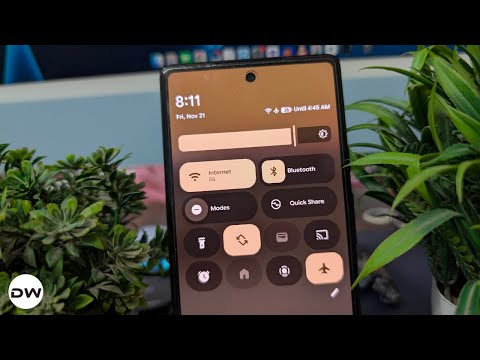
Quite a few OEMs give you the option to disable Quick Settings on the Lock Screen, including Samsung. However, Pixel does not belong to this list. So if anyone gets their hand on your device, they can easily enable/disable Airplane Mode, toggle WiFi, enable DND, and carry out other related tweaks even without your intervention. This might prove to be a privacy risk in some cases. While one can easily address this issue via rooting, however, that isn’t the best course of action to get this job done.
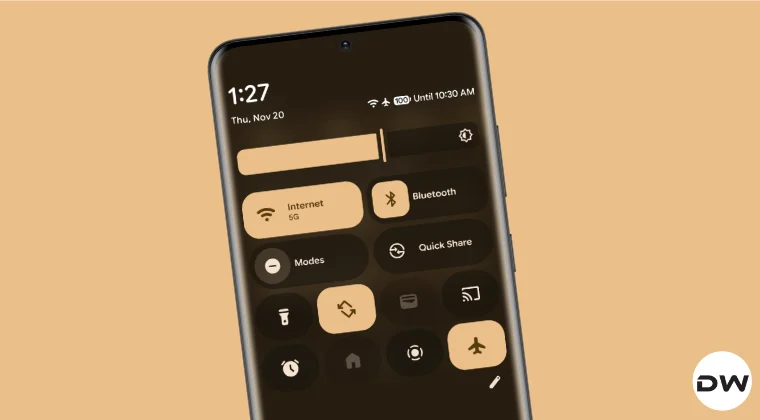
So what else can be done? Well, I gave a shot at MacroDroid, Tasker, and Shizuku-related tweaks, but wasn’t able to achieve success. This is when I stumbled upon an Accessibility service that was able to disable the Quick Settings on the Lock Screen on my Pixel device, though it required a slight modification. So without any further ado, let’s make you aware of this method right away.
Disable Quick Settings on Lock Screen on Android
- Download and install Cerberus Lock Screen Protector from the Play Store.
- Then launch it and tap on “Tap here to enable Device Administration”.
- Now tap on Activate this Device Admin app.
- Then enable Block Quick Settings > Accept and Continue.
- You’ll be taken to the Accessibility page, tap on Lock Screen Protector > Allow.
- Then enable the toggle next to Use Lock Screen Protector.
- Now enable Block Quick Settings and see if it works [this didn’t work for me].
- If it doesn’t, tap on Quick Settings Block Method and choose 2 [this worked for me].
- How to Remove Lock Screen Password without Format Data
- How to Remove Fingerprint Icon from Lock Screen on Android
- Swipe on Lock Screen to open Camera is the worst iPhone Gesture
- How to Disable Ads on Lock Screen on Motorola

- Razvan Scarlat 3 months ago Reply This didn’t work for me at all. I tried both modes. Sadique Hassan 3 months ago Reply Well, that’s strange. It’s [Method 2] working well and good on my Pixel running Android 16 Canary .. If Extend Unlock is enabled, can you temporary disable it and see if it works.
(Cancel Reply)
Δ
How to Remove Fingerprint Icon from Lock Screen on Android
In this guide, we will show you the steps to remove the fingerprint icon from the lock screen on your Android device. Thanks to the open-source nature of the OS, you can carry out a plethora of tweaks on your device. While most of them tend to add new features or remove the unnecessary ones, there are a few that might leave some of your heads scratching. And the one which we are discussing here is just that.
There’s no use case or benefit as such for removing the fingerprint icon from the lock screen on your Android device [well, apart from giving you a cleaner lock screen!], but after all, not every tweak deserves an explanation, and some are done just for fun. And the one which we are discussing here falls in this category. So, on that note, let’s hop onto this intriguing journey and show you the steps to get this job done right away!
- How to Remove the Fingerprint Icon from the Lock Screen on Android
- How to Remove the Fingerprint Icon from the AOD Screen on Android
- How to Bring Back the Fingerprint Icon
How to Remove the Fingerprint Icon from the Lock Screen on Android

This tweak has been tested on Samsung devices, including the latest S25 series. It may or may not work on other Android devices, though you may still give it a try because there’s nothing to lose!
- First off, download and install the SetEdit app from the Play Store.
- Now download & extract Android SDK Platform Tools on your PC.
- Then enable USB Debugging on your device and connect it to your PC.
- Now open Command Prompt inside the platform-tools folder and type: adb shell pm grant by4a.setedit22 android.permission.WRITE_SECURE_SETTINGS
- Now launch SetEdit and select Secure Table from the right-hand side.
- Finally, set the value of the “fingerprint_screen_on_icon_lock” to 0.
How to Remove the Fingerprint Icon from the AOD Screen on Android

Change the value of “fingerprint_screen_off_icon_aod” to 0 from 2 to remove the fingerprint icon from the AOD screen.
How to Bring Back the Fingerprint Icon
Change the value of “fingerprint_screen_on_icon_lock” back to its default value, which is 2, and the fingerprint icon will be back in the lock screen. Likewise, change the value of “fingerprint_screen_off_icon_aod” to 2 to bring back the icon on the AOD screen.
- WhatsApp Fingerprint Lock not working [Fixed]
- How to Add Genshin Fingerprint Animation on OnePlus
- Google Wallet crashes via Fingerprint on Lock Screen [Fixed]
- Fix Fingerprint Sensor not working on Pixel Android 14
(Cancel Reply)
Δ
