Disable Send Feedback Popup on Android Devices
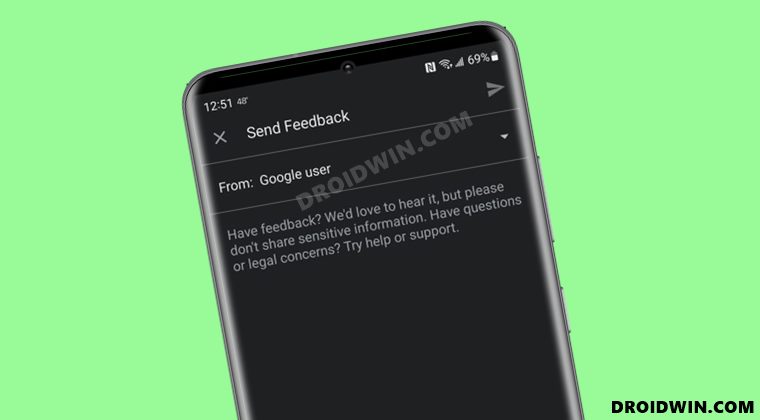
In this guide, we will show the steps to disable the send feedback popup on Android devices. While OEMs mold the Android OS in line with their underlying skin (such as Samsung OneUI, OnePlus Oxygen/ColorOS), they still incorporate some useful functionalities directly without making any changes to it. One of them is the ability to send feedback to the developers. In this regard, both Samsung and Pixel have incorporated the ability to send feedback directly from the device’s built-in settings.
One major benefit of doing so is the fact that you have the option to attach the logs as well. In that log will be all the useful information such as all the background apps and processes that were running at that point in time when the issue came to light. This gives the developer in-depth information at hand and helps them to debug the issue in a more comprehensive manner, which will ultimately lead to the rectification of that issue at a much faster rate. While all that is well and good, what isn’t is when these popups appear all of sudden.
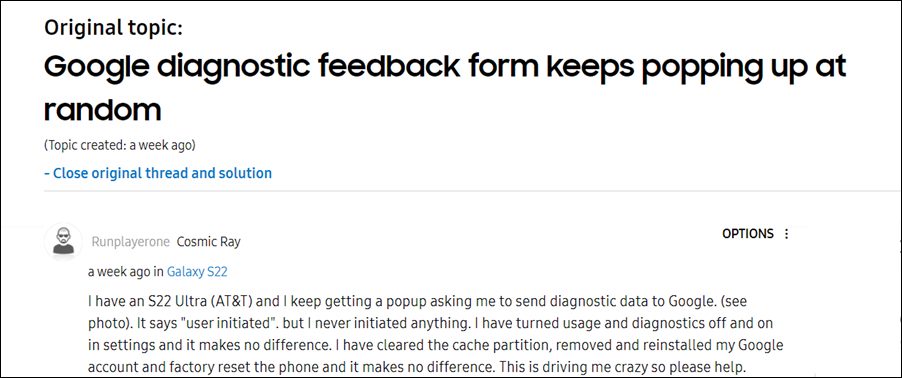
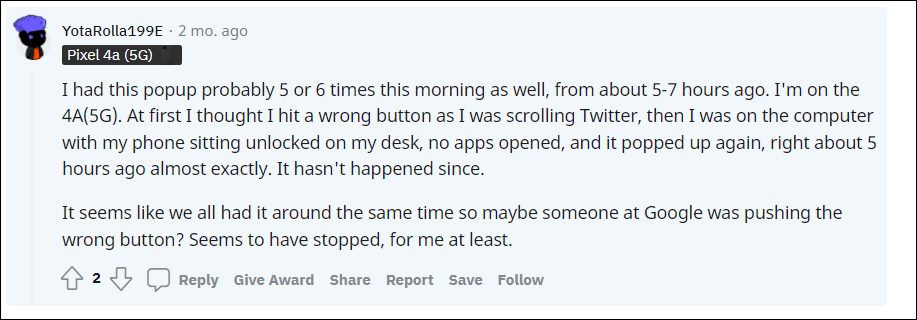
This is what seems to be the case with Pixel 4/5/6 and the Galaxy S22 series in particular. Many users have voiced their concern these persistent feedback popups are coming up after every few minutes without any manual intervention from the users. This is proving to be a great deal of inconvenience to the end-users and is also conflicting with their normal workflow. If you are also in the same boat, then this guide shall help you disable the send feedback popup on your Android device. Follow along.
- How to Disable Send Feedback Popup on Android Devices STEP 1: Disable Help to improve Messages STEP 2: Disable Feedback Requests
How to Disable Send Feedback Popup on Android Devices
In order to resolve this issue, you will have to disable two features, namely “Help to improve Messages” and “Feedback Requests”. Here’s how it could be done:
STEP 1: Disable Help to improve Messages
- To begin with, launch the Google Messages app on your device.
- Then tap on the overflow icon situated at the top right and select Settings.
- After that, scroll to the Help to improve Messages
- Finally, disable the toggle next to it.
STEP 2: Disable Feedback Requests
- To begin with, head over to the Settings menu on your device.
- Then go to Apps > See All Apps and select the Google app from the list.
- After that, go to its Notifications section.
- Finally, disable the toggle next to Feedback Requests.
- How to Turn off Google Assistant Voice Feedback
- Pixel 6/Pro Device was locked manually: Enter PIN instead of Fingerprint
- How to Uninstall Google App on Android via ADB Command
- How to Fix Google App Excessive Battery Drain Issue on Android

(Cancel Reply)
Δ
Pixel 6/Pro Device was locked manually: Enter PIN instead of Fingerprint
The sixth iteration of the Pixel series beholds quite a few nifty features up its sleeves. Right out of the box, you will witness completely redesigned hardware and camera modules. On the software side, you get the latest Android 12 and a ton of Pixel exclusive goodies. Moreover, these devices are the first in the lineup to have an in-display fingerprint scanner, which is itself giving quite a hard time to the end-users.
While the clouds of uncertainty regarding its inefficient optical scanner were about to settle, there has been a new entry in this list. Quite a few Pixel 6/Pro users have voiced their concern that they are getting the Device was locked manually prompt on their device. As a result, they have to use their PIN/Password instead of their fingerprint. Just to get things straight- this prompt appears on nearly every Android device.
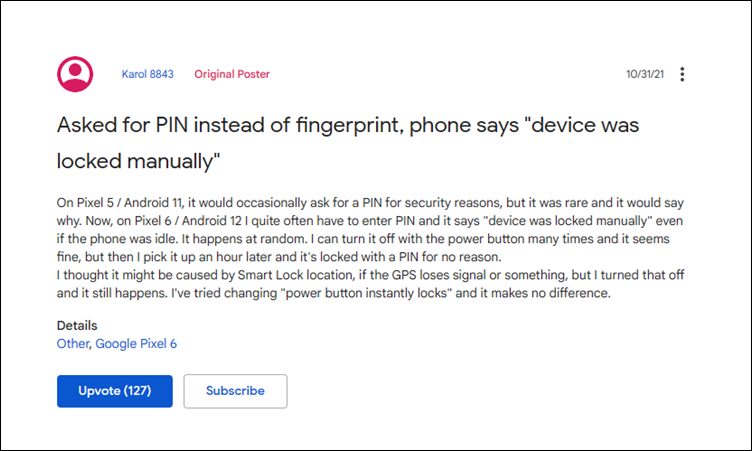
As soon as you restart your device, the OS would prevent the usage of fingerprint and would rather ask you to type in your password or pin. This is done from the security point of view. However, the thing is this only happens the first time your device boots up after a. But that isn’t the case with the latest Pixel series. All the users who are currently facing this issue have reported that they are seeing this prompt randomly after every few hours, even though their device hasn’t undergone a reboot.
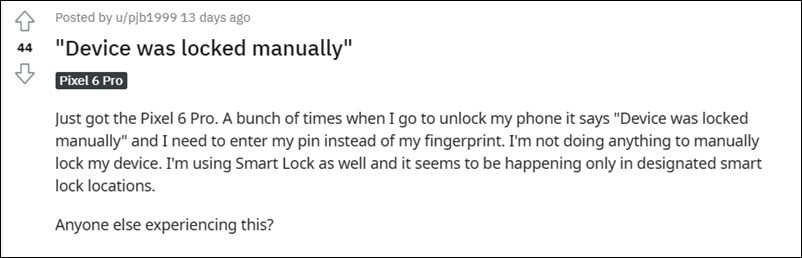
So is there any method to fix the issue of the Pixel 6/Pro “Device was locked manually” wherein you are required to manually type in your PIN/Password instead of using the fingerprint? Unfortunately, the answer is in a negative tone as of now. Though some users have reported that disabling the Smart Lock location did work out in their favor, but the majority of them spelled out a disappointment. Anyways, if you wish to try it out, then proceed ahead with the below-listed steps.
How to Fix Pixel 6/Pro Device was locked manually
- To begin with, head over to the Settings menu on your device.
- Then go to Security and select the Smart Lock option.
- After that, type in your password/pin to verify the credentials.
- Now disable the toggle next to On-body detection, Trusted Places, and Trusted devices.
- Check if it manages to fix the Pixel 6/Pro “Device was locked manually” issue.
Send Feedback to Google from your Pixel 6/Pro
If you are still getting bugged with this issue, then the only way out is to send the feedback to Google, right from your device itself. Here’s how:
- To begin with, head over to the Settings menu.
- Then scroll to the end of the page and go to Tips and Support.
- Now tap on the Send Feedback option situated at the end.
- Explain the issue in detail and then tap on the Send button situated at the top right.
The Silicon Valley giant might take a couple of days to respond to your query. In the meantime, you could also share your queries or just upvote the OP in the first and second Google Support Forums that have been made specifically for this issue.
So with this, we round off this guide on the Pixel 6/Pro “Device was locked manually” issue. As and when there’s further development regarding this issue or any related workaround makes its way, we will update this post accordingly.
- Fix: Google Assistant Quick Phrase not available in Pixel 6/Pro
- Fix: Pixel 6 Screen randomly wakes up even if AOD is Disabled
- How to Install OTA Updates on Unlocked Verizon Pixel 6/6 Pro
- Pixel 6 Fingerprint Sensor Not Working: How to Fix
- How to Use Pixel 6 Magic Eraser on older Pixels Devices
(Cancel Reply)
Δ
