Disable/Turn off Flash Messages in Android [2 Methods]
In this guide, we will show you two methods to permanently turn off/disable the Flash Messages on your Android device. As if the pesky notification from various third-party apps weren’t enough, we now have our beloved carrier constantly bugging us with alerts. Truth be told, none of these prompts are useful- but they do their job for what they were created for in the first place- and that is to intrusively get abode your device’s screen and catch your attention.
From the live scores of a sport that you would never watch to sending random promotional messages, they could encompass a wide range of domains, none of which would actually be beneficial to the end-users. So it’s time we put an end to these non-sensical alerts once and for all. And in this guide, we will show you two different methods through which you could carry out the said task. So without further ado, let’s get started with the steps to permanently turn off/disable the Flash Messages on your Android device.
- Disable/Turn off Flash Messages in Android via App Turn off Airtel Flash Messages Turn off Vodafone Idea [VI] Flash Messages Turn off BSNL Flash Messages Turn off JIO Flash Messages
- Disable/Turn off Flash Messages in Android via ADB Commands STEP 1: Install Android SDK STEP 2: Enable USB Debugging STEP 3: Establish ADB Shell Connection STEP 4 Find Cell Broadcast Apps STEP 5: Disable Cell Broadcast Service App via ADB
Disable/Turn off Flash Messages in Android via App

In this section, we will show you the steps to disable these prompts via the carrier’s respective apps that get installed on your device the first time you active the SIM.
Turn off Airtel Flash Messages
There exist two different methods for Vodafone Idea users to get this job done. You may refer to the approach that is in sync with your requirement.
METHOD 1: Using Airtel App
- Launch the Airtel Services app on your device
- Then tap on ‘airtel Now!
- After that, tap on Start/Stop, and finally, tap Stop.
- This should disable the Airtel Flash Messages on your Android device.
METHOD 2: By Sending SMS
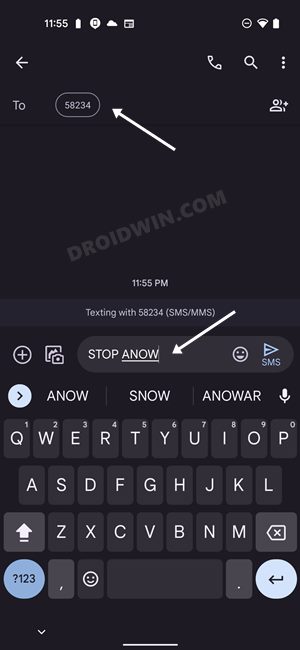
Send Message STOP ANOW to 58234
Turn off Vodafone Idea [VI] Flash Messages
As for Vodafone, there are three different methods to stop these pesky alerts. Try out the one that you find easier to carry out.
METHOD 1: Using Vodafone App
- Launch the Vodafone SIM Toolkit/Vodafone Services app.
- Then tap on Flash! followed by ‘Activation’,
- Finally, tap on ‘Deactivate’.
- This should disable the Vodafone Idea Flash Messages on your Android device.
METHOD 2: For Vodafone Postpaid Numbers
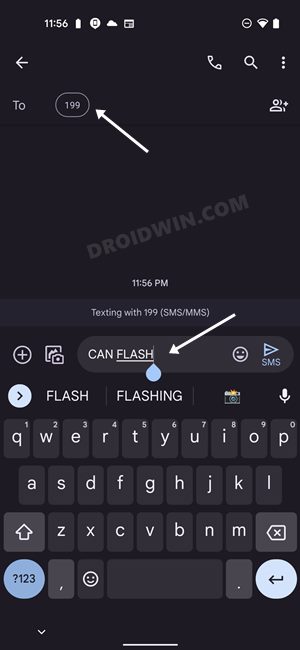
Send a message CAN FLASH to 199.
METHOD 3: For Vodafone Prepaid Numbers
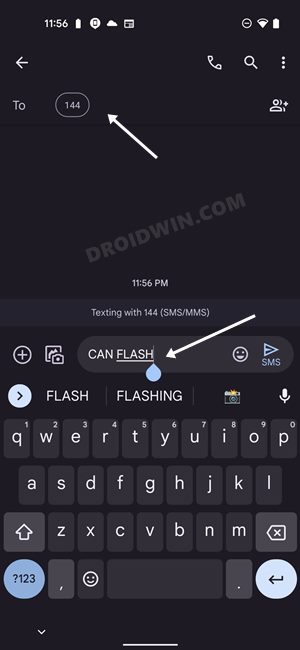
Send a message CAN FLASH to 144.
Turn off BSNL Flash Messages
- Open the BSNL Mobile app on your device.
- Then tap on ‘BSNL Buzz Service’
- After that, tap on Activation, and finally, tap Deactivate.
- This should disable the BSNL Flash Messages on your Android device.
Turn off JIO Flash Messages
- To begin with, head over to Settings Apps All Apps.
- Then scroll to the My Jio app and tap Uninstall.
- Finally, tap OK in the confirmation dialog box.
- It should disable the Jio Flash Messages on your Android device.
Disable/Turn off Flash Messages in Android via ADB Commands
This is a slightly technical and lengthier method in comparison with the first one but it comes with a higher success rate. This is because rather than instructing the carrier to disable the service, we will disable the app itself that is responsible for sending these alerts. So without any further ado, let’s get started.
STEP 1: Install Android SDK

First and foremost, you will have to install the Android SDK Platform Tools on your PC. This is the official ADB and Fastboot binary provided by Google and is the only recommended one. So download it and then extract it to any convenient location on your PC. Doing so will give you the platform-tools folder, which will be used throughout this guide.
STEP 2: Enable USB Debugging
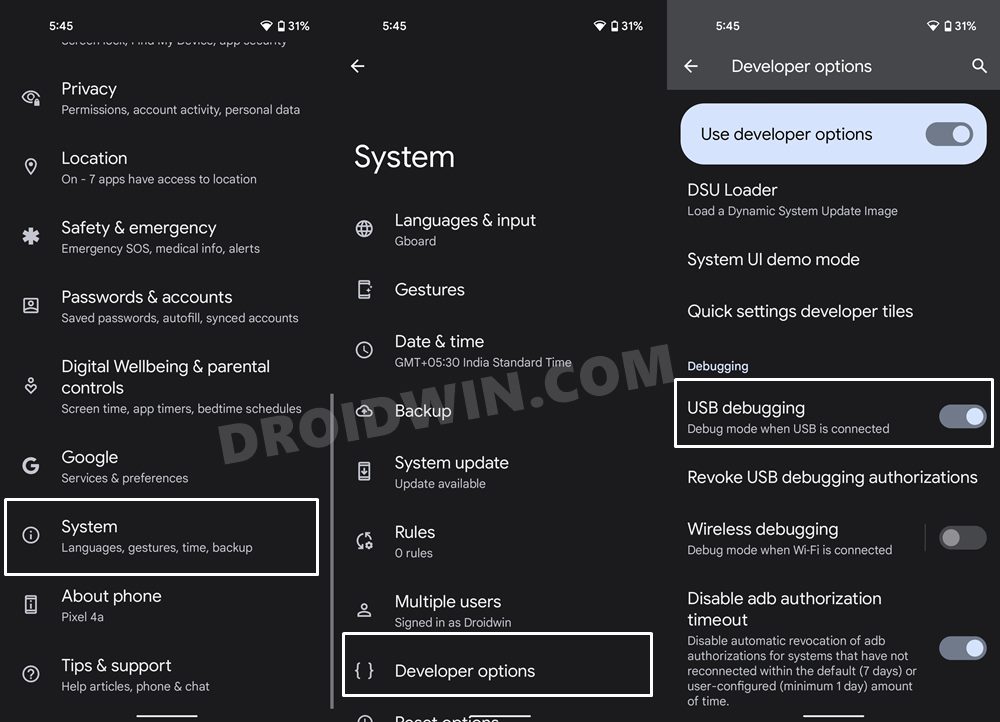
Next up, you will have to enable USB Debugging on your device so that it is recognizable by the PC in ADB mode. So head over to Settings > About Phone > Tap on Build Number 7 times > Go back to Settings > System > Advanced > Developer Options > Enable USB Debugging.
STEP 3: Establish ADB Shell Connection
- To begin with, connect your device to the PC via USB cable. Make sure USB Debugging is enabled.
- Then head over to the platform-tools folder, type in CMD in the address bar, and hit Enter. This will launch the Command Prompt.
- Now in the following command in the CMD window to verify the ADB connection: adb devices
- If you get the device ID, then the connection stands successful. Now type in the below command to open the Shell environment: adb shell
- It will now list out your device codename, which means that the shell connection has been successfully established.
STEP 4 Find Cell Broadcast Apps
- Execute the below command to get a list of all the system apps installed on your device. pm list packages
- After that, right-click on the command prompt icon situated at the top left and select Edit > Find.
- Now type in cellbroadcast and click Find Next. Note down all the app names that have this keyword.
- In our case, we found the following four apps with cellbroadcast, so we will be disabling them- com.android.cellbroadcastservice.overlay.pixel com.android.cellbroadcastreceiver com.google.android.cellbroadcastservice com.google.android.cellbroadcastreceiver
- Do note that this list might be different for different devices [for example, the first app is only present in Pixel].
STEP 5: Disable Cell Broadcast Service App via ADB
- Execute the below command in the CMD window which is opened in the platform-tools folder. pm disable-user -–user 0 app-name
- Make sure to replace the app-name with the actual names of the app that you found from the above step.
- For example, in our case, the above command will transform into the following four commands- pm disable-user -–user 0 com.android.cellbroadcastservice.overlay.pixel pm disable-user -–user 0 com.android.cellbroadcastreceiver pm disable-user -–user 0 com.google.android.cellbroadcastservice pm disable-user -–user 0 com.google.android.cellbroadcastreceiver
- Moreover, if you ever wish to re-enable these apps, then just use the below command [replace app-name accordingly] pm enable -–user 0 app-name
- SIM Disconnecting on OnePlus 10 Pro How to Fix
- WhatsApp Message Notifications not Showing on Android [Fix]
- Games and Apps Crashing/Not Working on Android 12: How to Fix
- How to Change CSC Codes in Samsung Devices

- Ravi Sharma 2 years ago Reply Uninstalling MY JIO did not help. I have OPPO F7. I get Flash Messages regarding: 1. Junglee Rummy Type 2. Video Chat Type – With Pix & Video of Girls 3. Promo of Apps like Swiggy. Uninstalling Swiggy did not help.
- Ravi Sharma 2 years ago Reply Uninstalling MY JIO did not help. I have OPPO F7
(Cancel Reply)
Δ
