“Disk Not Ejected Properly” message after waking Mac from Sleep [Fixed]
In this guide, we will show you various methods to fix the “Disk Not Ejected Properly” message right after waking the Mac from sleep. Right after updating their Mac to Monterey 12.1, many users have voiced their concern that they are getting constant prompts regarding the disk not being ejected properly. Along with the notification, they get the message to “Eject
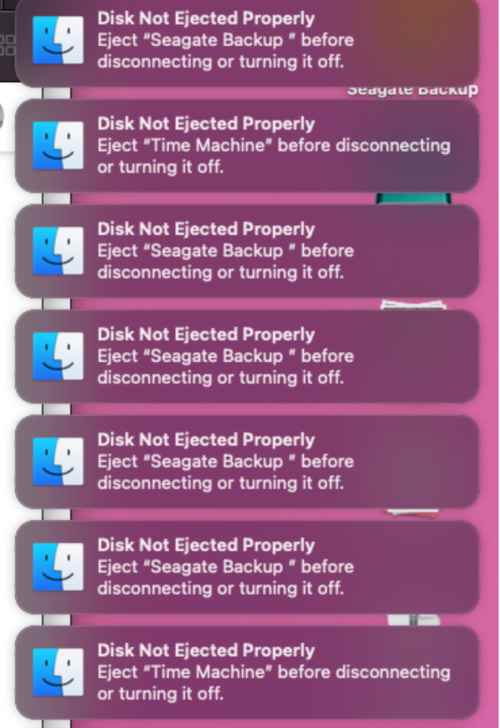
Likewise, some are also getting the “Eject Time Machine before disconnecting or turning it off” alert. All this tends to happen as soon as they wake their Mac from sleep. Moreover, the number of notifications is also quite extensive with some reporting around 15-20. If you are also getting bugged with the “Disk Not Ejected Properly” message right after waking your Mac from sleep, then this guide shall help you out. Follow along for the fixes.
- Fix “Disk Not Ejected Properly” message after waking Mac from Sleep FIX 1: Prevent your Mac from automatically sleeping FIX 2: Disable “Put hard disk to sleep whenever possible” FIX 3: Avoid USB Hubs
Fix “Disk Not Ejected Properly” message after waking Mac from Sleep
It is recommended that you try out each of the below-mentioned workarounds and then see which one spells out success for you. So with that in mind, let’s get started.
FIX 1:Prevent your Mac from automatically sleeping
Your first course of action should be to stop your Mac from automatically going to sleep. Here’s how it could be done:
- To begin with, bring up the System Preferences menu and go to Energy Saver.
- Then checkmark Prevent your Mac from automatically sleeping when the Display is off.
- Check if it fixes the “Disk Not Ejected Properly” message after waking the Mac from sleep.
FIX 2:Disable “Put hard disk to sleep whenever possible”
Next up, you should also consider disabling the “P ut hard disk to sleep whenever possible” feature to mitigate this issue. Here’s how:
- To begin with, bring up the System Preferences menu and go to Energy Saver.
- Then uncheck “P ut hard disk to sleep whenever possible”.
- Now check if it fixes the “Disk Not Ejected Properly” message after waking the Mac from sleep.
FIX 3: Avoid USB Hubs
Many users have reported that the issue only tends to happen when they connect their external drive via a USB Hub and there’s no issue as such when they directly connect their drive to their Mac. So if possible, opt for the latter approach and then check if it fixes the underlying issue.
- Mac automatically downloads the “Install macOS Monterey.app” [Fixed]
- A required firmware update cannot be installed on Mac [Fixed]
- Cannot Format External SSD using Disk Utility on Mac [Fixed]
- Fix Time Machine couldn‘t complete the backup: Disk image already in use

(Cancel Reply)
Δ
