Downgrade Motorola Edge 20 from Android 12 to Android 11
This guide will show you the steps to downgrade your Motorola Edge 20 from Android 12 to Android 11. This device from Motorola has just been blessed with the twelfth iteration of the OS. The update rollout began from Brazil with version number and has slowly made its presence felt across other regions of the globe. However, it seems to have hit a few roadblocks in between. Users who have recently installed the said update have reported that the 5G functionality has gone missing from their device.
They have double-checked the Preferred Network Type section, but 5G isn’t listed there either. Henceforth, to resolve this issue, users have already tried resetting the APN as well as the network settings, but none of them spelled out success. If you are also in the same boat, then, fortunately [or unfortunately, depending on which side of the coin you are on] there’s only one handy way out- downgrade your Motorola Edge 20 from Android 12 to Android 11. And in this guide, we will show you how to do just that. Follow along.
- Downgrade Motorola Edge 20 from Android 12 to Android 11 STEP 1: Install Android SDK STEP 2: Download Motorola Edge 20 Stock Firmware STEP 3: Enable USB Debugging and OEM Unlocking STEP 4: Unlock Bootloader STEP 5: Boot to Fastboot Mode STEP 6: Downgrade Motorola Edge 20 to Android 11 via Fastboot Commands
Downgrade Motorola Edge 20 from Android 12 to Android 11
The process will wipe off all the data from your device, so take a complete device backup beforehand. Droidwin and its members wouldn’t be held responsible in case of a thermonuclear war, your alarm doesn’t wake you up, or if anything happens to your device and data by performing the below steps to downgrade Motorola Edge 20 to Android 11.
STEP 1: Install Android SDK
First and foremost, you will have to install the Android SDK Platform Tools on your PC. This is the official ADB and Fastboot binary provided by Google and is the only recommended one. So download it and then extract it to any convenient location on your PC. Doing so will give you the platform-tools folder, which will be used throughout this guide.

STEP 2: Download Motorola Edge 20 Stock Firmware
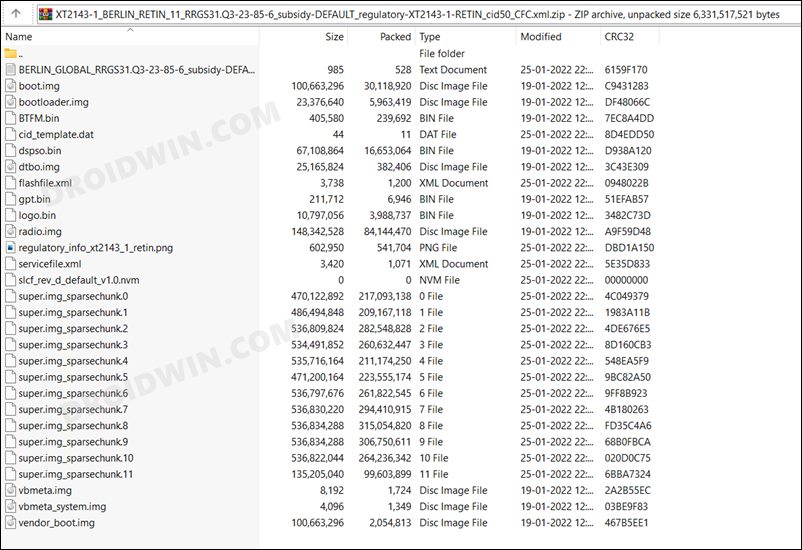
Next up, get hold of your device’s stock firmware corresponding to your region from the Loliinet Servers . once downloaded, extract it inside the platform-tools folder.
STEP 3: Enable USB Debugging and OEM Unlocking
Next up, you will have to enable USB Debugging and OEM Unlocking on your device. The former will make your device recognizable by the PC in ADB mode. This will then allow you to boot your device to Fastboot Mode. On the other hand, OEM Unlocking is required to carry out the bootloader unlocking process.
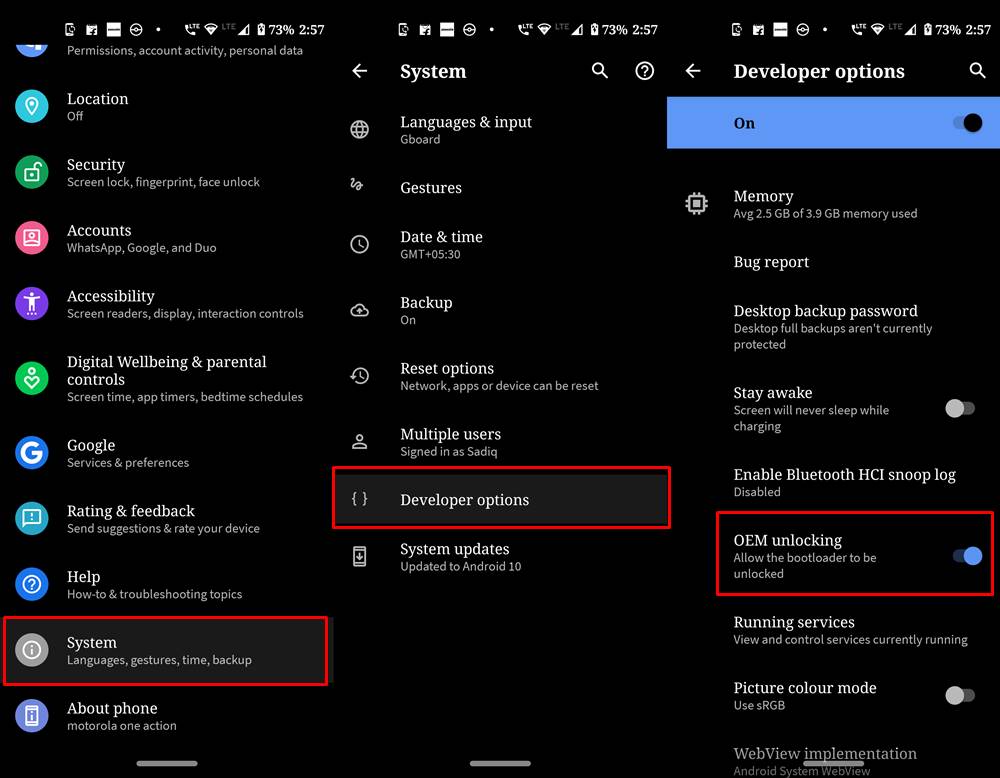
So head over to Settings > About Phone > Tap on Build Number 7 times > Go back to Settings > System > Advanced > Developer Options > Enable USB Debugging and OEM Unlocking.
STEP 4: Unlock Bootloader
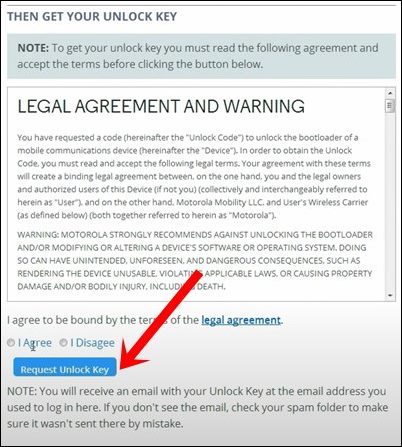
Next up, you will also have to unlock the device’s bootloader in order to downgrade your Motorola Motorola Edge 20 from Android 12 to Android 11. Do keep in mind that doing so will wipe off all the data from your device and could nullify its warranty as well. So if that’s all well and good, then please refer to our detailed guide on How to Unlock Bootloader on any Motorola Device .
STEP 5: Boot to Fastboot Mode
- Connect your device to the PC via USB cable. Make sure USB Debugging is enabled.
- Then head over to the platform-tools folder, type in CMD in the address bar, and hit Enter. This will launch the Command Prompt.
- After that, type in the following command in the CMD window to boot your device to Fastboot Mode adb reboot bootloader
- To verify the Fastboot connection, type in the below command and you should get back the device ID. fastboot devices
STEP 6: Downgrade Motorola Edge 20 to Android 11 via Fastboot Commands
Now execute each of the below commands in the CMD window that is opened in the platform-tools folder. Make sure to execute one command at a time. Moroever, if you get an error, then don’t leave the process midway, rather execute the rest of the commands till the end. And as soon as you execute the last command, your Motorola Edge 20 will automatically boot to the downgraded Android 11 OS.
fastboot flash partition gpt.bin

fastboot flash bootloader bootloader.img

fastboot flash vbmeta vbmeta.img

fastboot flash vbmeta_system vbmeta_system.img

fastboot flash radio radio.img

fastboot flash bluetooth BTFM.bin

fastboot flash dsp dspso.bin

fastboot flash logo logo.bin

fastboot flash boot boot.img

fastboot flash vendor_boot vendor_boot.img

fastboot flash dtbo dtbo.img

fastboot flash super super.img_sparsechunk.0

fastboot flash super super.img_sparsechunk.1

fastboot flash super super.img_sparsechunk.2

fastboot flash super super.img_sparsechunk.3

fastboot flash super super.img_sparsechunk.4

fastboot flash super super.img_sparsechunk.5

fastboot flash super super.img_sparsechunk.6

fastboot flash super super.img_sparsechunk.7

fastboot flash super super.img_sparsechunk.8

fastboot flash super super.img_sparsechunk.9

fastboot flash super super.img_sparsechunk.10

fastboot flash super super.img_sparsechunk.11

fastboot erase carrier

fastboot erase userdata

fastboot erase metadata

fastboot erase ddr

fastboot reboot
- Debloat/Remove Bloatware from Motorola Devices via ADB Commands
- How to Unbrick Motorola Device via BlankFlash
- OEM Unlock Option Greyed Out in Motorola: How to Fix
- How to Extract Motorola PAC Firmware using SPD Flash Tool

- jan 3 years ago Reply my oem still remains locked no matter what i do
- Immac Reno 3 years ago Reply Hi. Thanks for such a wonderful article with detailed instructions. Will this work for Motorola edge 20 pro UK version or is there a separate instructions for edge 20 pro? If so, please could you provide a link. I’m ready to risk the warranty to go back to android 11. Your advice and help are appreciated. Thanks
- Immac Reno 3 years ago Reply Hi. Thanks for such a wonderful article with detailed instructions. Will this work for Motorola edge 20 pro UK version? I’m ready to risk the warranty to go back to android 11. Your advice and help are appreciated. Thanks
- Droid User 3 years ago Reply At step 2, I am looking for the folder corresponding to my region(North America, U.S.), but I do not see anything ending with NA. What folder do you believe would be appropriate for me?
- CJagd 4 years ago Reply Hi At Step 2, it said “corresponding to your region”, how do i determine which one is mine? I’m from canada Sadique Hassan 4 years ago Reply Usually, the last two alphabets denote the region. For Canada, it’s CA. In this regard, I have previously used its Retail version having the RETCA, however, as of now, there is no RETCA firmware hosted there. But they do have hosted the TIGCA firmware. While CA stands for Canada, I am not really sure what TIG means in this context. Will keep you updated as soon as I get hold of this information.
(Cancel Reply)
Δ
