Downgrade Motorola Moto G30 from Android 12 to Android 11
In this guide, we will show you the steps to downgrade Motorola Moto G30 to Android 11 via Fastboot commands. The latest iteration of the os has bought quite a few noteworthy features to the fore. Out of them, it is the Material You theming engine that has managed to grab the attention of the masses. so when you are about to get blessed with the latest os build, the hype and anticipation are totally justified. Unfortunately the same cannot be said for the G30 users.
As soon as they installed the Android 12 update, they were greeted with tons of bugs and issues. First off, the update seems to have completely ruined the display, with over-saturated colors, extreme contrast, image distortions, and the likes have made it literally unbearable to use the device even for 10 minutes. Along with that, the multi-volume is completely broken, and the one-tap mute from under the volume sliders is no longer there.
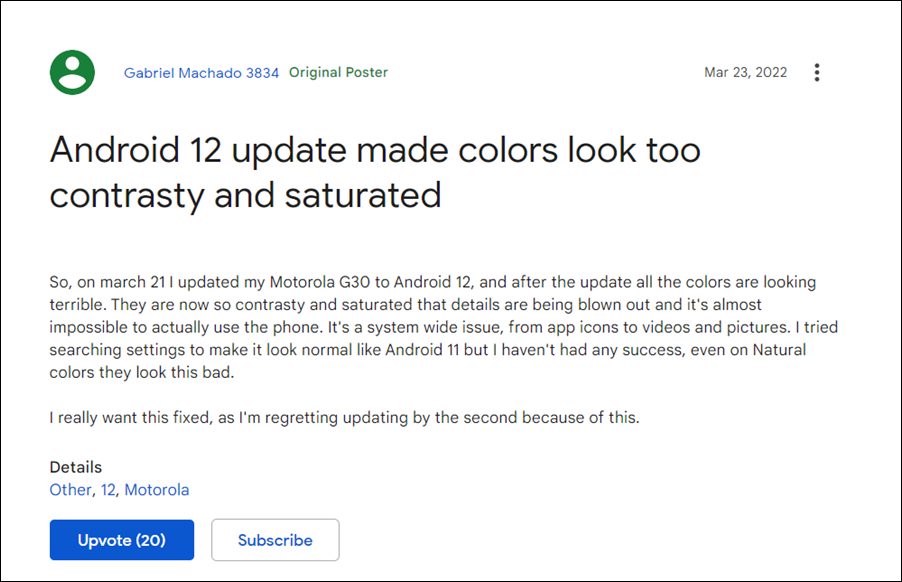
Moreover, using the physical volume buttons takes an additional few seconds for the phone to register. Likewise, in some instances, the graphics for the navigation keys don’t show up. All in all, it has been quite a few patchy and rough rides for the end-users. So is there a way out? Well, there is one and that involves downgrading your Motorola Moto G30 to the Android 11 firmware by flashing the firmware via fastboot commands. And in this guide, we will help you with just that. Follow along.
- How to Downgrade Motorola Moto G30 to Android 11 STEP 1: Install Android SDK STEP 2; Download Moto G30 Stock Firmware STEP 3: Enable USB Debugging and OEM Unlocking STEP 4: Unlock Bootloader STEP 5: Boot to Fastboot Mode STEP 6: Downgrade Moto G30 to Android 11 via Fastboot Commands
How to Downgrade Motorola Moto G30 to Android 11
The process will wipe off all the data from your device, so take a complete device backup beforehand. Droidwin and its members wouldn’t be held responsible in case of a thermonuclear war, your alarm doesn’t wake you up, or if anything happens to your device and data by performing the below steps to downgrade Motorola Moto G30 to Android 11.
STEP 1: Install Android SDK
First and foremost, you will have to install the Android SDK Platform Tools on your PC. This is the official ADB and Fastboot binary provided by Google and is the only recommended one. So download it and then extract it to any convenient location on your PC. Doing so will give you the platform-tools folder, which will be used throughout this guide.

STEP 2; Download Moto G30 Stock Firmware
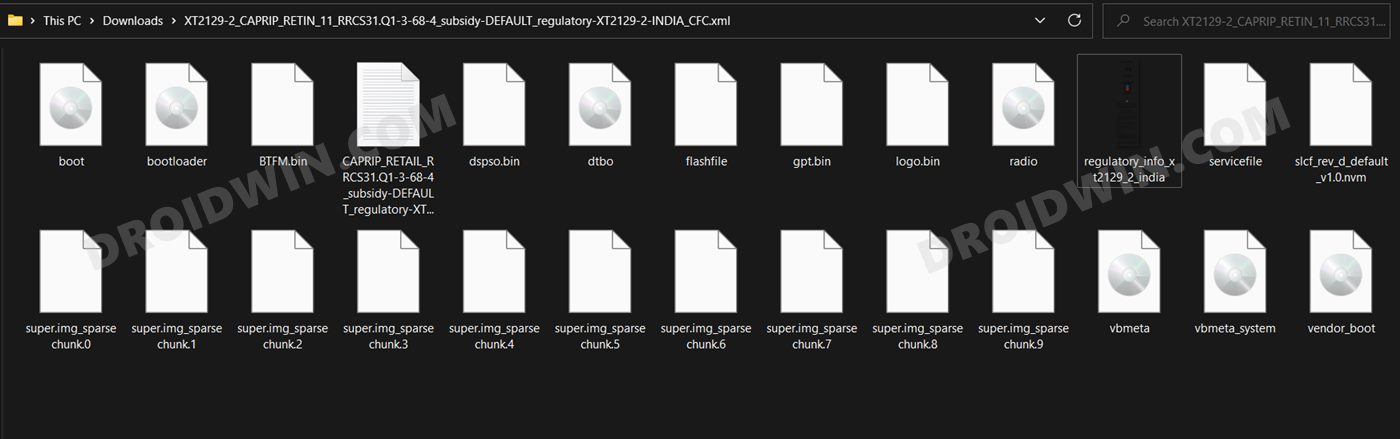
Next up, get hold of your device’s stock firmware corresponding to your region from the Loliinet Servers . once downloaded, extract it inside the platform-tools folder.
STEP 3: Enable USB Debugging and OEM Unlocking
Next up, you will have to enable USB Debugging and OEM Unlocking on your device. The former will make your device recognizable by the PC in ADB mode. This will then allow you to boot your device to Fastboot Mode. On the other hand, OEM Unlocking is required to carry out the bootloader unlocking process.
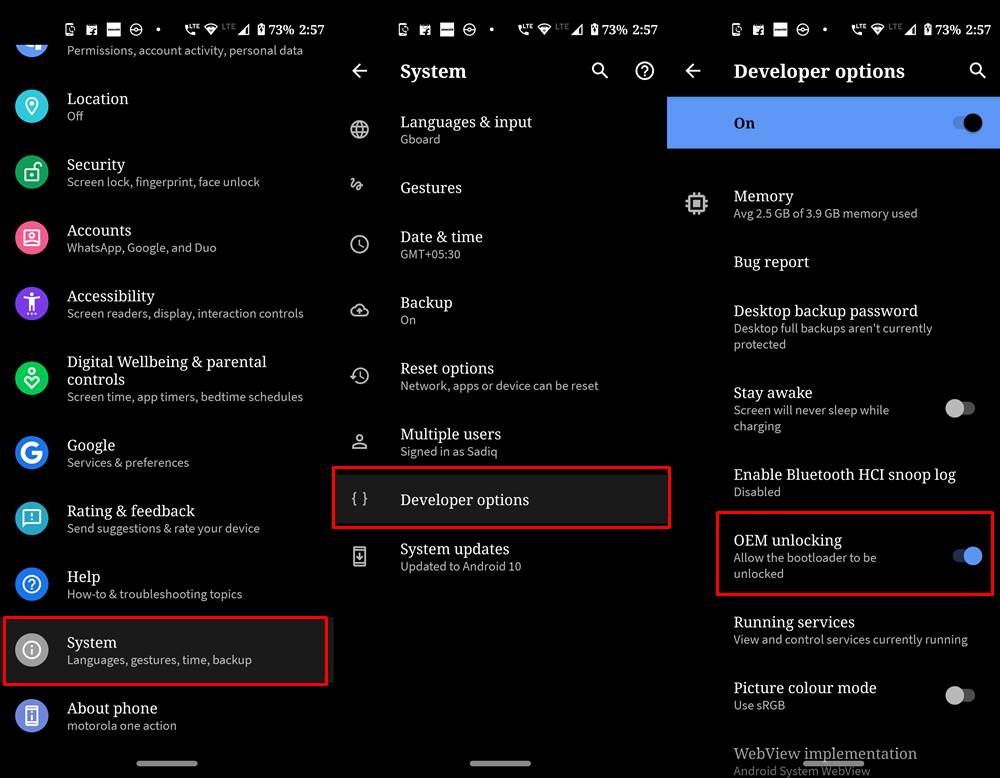
So head over to Settings > About Phone > Tap on Build Number 7 times > Go back to Settings > System > Advanced > Developer Options > Enable USB Debugging and OEM Unlocking.
STEP 4: Unlock Bootloader
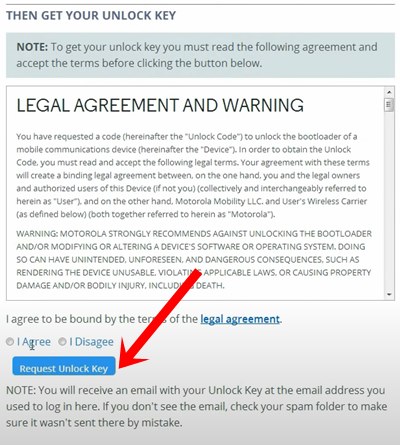
Next up, you will also have to unlock the device’s bootloader in order to downgrade your Motorola Moto G30 to Android 11. Do keep in mind that doing so will wipe off all the data from your device and could nullify its warranty as well. So if that’s all well and good, then please refer to our detailed guide on How to Unlock Bootloader on any Motorola Device .
STEP 5: Boot to Fastboot Mode
- Connect your device to the PC via USB cable. Make sure USB Debugging is enabled.
- Then head over to the platform-tools folder, type in CMD in the address bar, and hit Enter. This will launch the Command Prompt.
- After that, type in the following command in the CMD window to boot your device to Fastboot Mode adb reboot bootloader
- To verify the Fastboot connection, type in the below command and you should get back the device ID. fastboot devices
STEP 6: Downgrade Moto G30 to Android 11 via Fastboot Commands
Execute each of the below commands in the CMD window, one at a time. As soon as you execute the last command, your Motorola Moto G30 will automatically boot to the downgraded Android 11 OS.
fastboot flash partition gpt.bin

fastboot flash bootloader bootloader.img

fastboot flash vbmeta vbmeta.img

fastboot flash vbmeta_system vbmeta_system.img

fastboot flash radio radio.img

fastboot flash bluetooth BTFM.bin

fastboot flash dsp dspso.bin

fastboot flash logo logo.bin

fastboot flash boot boot.img

fastboot flash vendor_boot vendor_boot.img

fastboot flash dtbo dtbo.img

fastboot flash super super.img_sparsechunk.0

fastboot flash super super.img_sparsechunk.1

fastboot flash super super.img_sparsechunk.2

fastboot flash super super.img_sparsechunk.3

fastboot flash super super.img_sparsechunk.4

fastboot flash super super.img_sparsechunk.5

fastboot flash super super.img_sparsechunk.6

fastboot flash super super.img_sparsechunk.7

fastboot flash super super.img_sparsechunk.8

fastboot flash super super.img_sparsechunk.9

fastboot erase carrier

fastboot erase userdata

fastboot erase metadata

fastboot erase ddr

fastboot reboot
- Debloat/Remove Bloatware from Motorola Devices via ADB Commands
- How to Unbrick Motorola Device via BlankFlash
- OEM Unlock Option Greyed Out in Motorola: How to Fix
- How to Extract Motorola PAC Firmware using SPD Flash Tool

- Herman 4 years ago Reply There exist another metod?
- Sheila 4 years ago Reply Thanks for this guide. I followed step by step as you mentioned, but my G30 keeps restarting to the message about the boot loader being unlocked, and the to the fastboot mode, but nothing else. The phone is not starting. Any clue about what’s wrong?
- marcus 4 years ago Reply After downgrade my G30 only starts in fastboot, saying “Your device didn’t start up successfully…” and below “No bootable A/B slot, Failing to boot Linux, falling back to fastboot” Recovery does not work, when trying to recover with Rescue and Smart Assistant it recognizes the device and downloads firmware but fails to flash.
- Dirk 4 years ago Reply Dear Sadique, ever since the v12 update my Moto G30 keeps turning off randomly. Sometimes once every 24 hours, sometimes 2-3 times a day. This basically made my phone useless (missing calls, missing alarms, not ready to take a quick photo etc.). I did not want to buy a new phone as I am saving money for plans, so this guide really helped me a lot, thanks much! Dirk 4 years ago Reply Oh and I forgot to mention that Motorola is aware of the issue as it is related to the motherboard of the G30’s, tons of users are affected… No fix since 2 months.
- Bhansingh 4 years ago Reply Android 12 not working my fone moto g30
- Murray Snudge 4 years ago Reply Thanks for this guide. I’ve got a G30 and not installed the 12 update but the phone keeps nagging me to do so. In the unfortunate event of it somehow installing itself I will follow your instructions so nice one. Sadique Hassan 4 years ago Reply Thanks Murray for the appreciation.
(Cancel Reply)
Δ
