Downgrade OnePlus from Android 15 to 14: OxygenOS 15 to 14
In this guide, we will show you the steps to downgrade your OnePlus device from Android 15/OxygenOS 15 to Android 14/OxygenOS 14. The Silicon Valley giant has recently rolled out the red carpet calling out the OEMs over its latest Android 15 bandwagon. And quite a few OEMs have already accepted this offer, with OnePlus being the latest entry to this list. As a result of this, its flagships [and older devices over the due course of time] are about to be blessed with a slew of intriguing goodies.
In this regard, some of the noteworthy features include the likes of Partial Screen Sharing, Notification Cooldown, Lock Screen Widgets, Battery Health Percentage, App Archive, Bluetooth Menu, Private Space, and many more. However, one shouldn’t forget the fact that the OS is currently in the testing phase, hence a few bugs and issues are expected.
Moreover, issues like device overheating, excessive battery drainage, and system slowdown are literally the writing on the walls. This is the reason why it isn’t recommended to use the beta builds as a daily driver and are mostly intended for development and debugging purposes. However, if you are among those set of tech enthusiasts who like to test out the bleeding edge features before anyone else, then you might already have welcomed this latest OS release.
However, if these bugs and issues are proving to be quite an infuriating usage experience, then your best bet is to downgrade your OnePlus device from Android 15 OxygenOS 15 to Android 15 OxygenOS 14. And in this guide, we will show you how to do just that. So without further ado, let’s get started.
- Bugs in OnePlus Android 15 Update
- Download OnePlus Android 15 to Android 14 Downgrade Package OnePlus 10T OnePlus 10R OnePlus 10 Pro OnePlus 11 OnePlus 11R OnePlus 12 OnePlus 12R OnePlus Open Nord 3 Nord CE 3 Nord CE 3 Lite Nord 4 Nord CE 4 Nord CE 4 Lite OnePlus Pad OnePlus Pad 2
- Downgrade OnePlus from Android 15 to 14: OxygenOS 15 to 14 via Local Install For EU/IN/GLO For NA Region
- How to Downgrade from OxygenOS 15 to 14 via Fastboot Commands Why Choose Fastboot Method over Local Install Installation Steps
Bugs in OnePlus Android 15 Update
Being a beta update, you are always likely to face performance-related issues. Not only that, OnePlus has even listed in its forum that the chances of the device getting bricked shouldn’t be ignored either. Though some of you might think that how could installing an official release software result in the device getting bricked, but the past track record of the OEM suggests otherwise [especially since its merger with Oppo]!
With that said, let’s now make you aware of the bugs and issues that you are likely to face after welcoming abode this update onto your device so that you may then mold your installation decision accordingly. We will be listing the issues for each OS release [Beta 1, Beta 2, and so on] under separate sections for separate devices.
- There are some compatibility issues with the Bluetooth connection.
- In certain scenarios, Wi-Fi may not be able to connect to the printer
- The Smart Lock function cannot be used.
- Some camera functions display abnormally in certain scenarios.
- In some scenarios, the Multi-Screen Connect function is abnormal when connecting with PC or PAD.
- Some third-party applications have compatibility issues such as crashes
- Stability issues in specific scenarios.
- Personal hotspots may not work after modifying the security settings.
- The Auto Pixlate function fails during the screenshot preview.
- After taking a photo, the photo does not show the ProXDR button.
- The split screen function of the main screen is abnormal in some scenarios.
- Long-pressing the main body of a picture in Photos cannot trigger the smart select and cutout function.
- Creating the System Cloner and open, when input the main system password, it will crash to the desktop and the multitask button and home button of are unavailable.
- The size of the drop-down status bar quick switch is abnormal after the screen resolution is switched between Standard and High. You can switch to the original resolution to restore it. (Method:Settings > Display & brightness > Screen Resolution > Standard or High)
If you have installed this update and are unable to use the device normally due to the device being plagued with tons of aforementioned issues, then fret not. OnePlus has provided us with downgrade firmware through which you can now downgrade your device from Android 15 OxygenOS 15 to Android 14 OxygenOS 14. So without further ado, let’s use these firmware packages and rollback our device to the earlier stable build.
Download OnePlus Android 15 to Android 14 Downgrade Package
Grab hold of the downgrade firmware package from the below links. Make sure to download the one that corresponds to your device as well as your region [cross-flashing is not recommended].
NOTE: If any of the below downgrade firmware have been removed by OnePlus, then refer to this guide to bring them back: How to download OnePlus downgrade firmware when removed from servers
OnePlus 10T
- OnePlus 10T 5G (IN)
- OnePlus 10T 5G (EU)
- OnePlus 10T 5G (GLO)
OnePlus 10R
- OnePlus 10R 5G (IN: CPH2423)
- OnePlus 10R 5G (IN: CPH2411)
OnePlus 10 Pro
- OnePlus 10 Pro 5G (IN)
- OnePlus 10 Pro 5G (GLO)
- OnePlus 10 Pro 5G (EU)
OnePlus 11
- OnePlus 11 (IN)
- OnePlus 11 (NA)
- OnePlus 11 (EU)
- OnePlus 11 (GLO)
OnePlus 11R
- OnePlus 11 (IN)
- OnePlus 11 (NA)
- OnePlus 11 (EU)
- OnePlus 11 (GLO)
OnePlus 12
- OnePlus 12 NA Version: DOWNLOAD LINK
- OnePlus 12 IN Version: DOWNLOAD LINK
- OnePlus 12 EU Version: DOWNLOAD LINK
- OnePlus 12 GLO Version: DOWNLOAD LINK
OnePlus 12R
- OnePlus 12R (IN)
- OnePlus 12R (NA)
- OnePlus 12R (EU)
- OnePlus 12R (GLO)
- OnePlus 12R (IN Customized Version)
- OnePlus 12R (NA Customized Version).
- OnePlus 12R (EU Customized Version)
- OnePlus 12R (GLO Customized Version)
OnePlus Open
- OnePlus Open NA Version: DOWNLOAD LINK
- OnePlus Open IN Version: DOWNLOAD LINK
- OnePlus Open EU Version: DOWNLOAD LINK
Nord 3
- OnePlus Nord 3 (IN)
- OnePlus Nord 3 (EU)
- OnePlus Nord 3 (GLO)
Nord CE 3
- OnePlus Nord CE3 5G (IN)
Nord CE 3 Lite
- OnePlus Nord CE 3 Lite 5G (IN)
- OnePlus Nord CE 3 Lite 5G (EU)
- OnePlus Nord CE 3 Lite 5G (GLO)
Nord 4
- OnePlus Nord4 (IN)
- OnePlus Nord4 (EU)
- OnePlus Nord4 (GLO)
Nord CE 4
- OnePlus Nord CE4 (IN)
Nord CE 4 Lite
- OnePlus Nord CE4 Lite 5G (IN)
- OnePlus Nord CE4 Lite 5G (EU)
- OnePlus Nord CE4 Lite 5G (GLO)
OnePlus Pad
- OnePlus Pad (IN)
- OnePlus Pad (EU)
- OnePlus Pad (GLO)
OnePlus Pad 2
- OnePlus Pad 2 (IN)
- OnePlus Pad 2 (EU)
- OnePlus Pad 2 (GLO)
- OnePlus Pad2 (NA)
Downgrade OnePlus from Android 15 to 14: OxygenOS 15 to 14 via Local Install

Downgrading the OS will surely delete all the data from your device, so take a complete device backup beforehand. Droidwin and its members wouldn’t be held responsible in case of a thermonuclear war, your alarm doesn’t wake you up, or if anything happens to your device and data by performing the below steps. NOTE: Make sure to refer to the steps that correspond to your region.
For EU/IN/GLO
- To begin with, transfer the Android 14 downgrade package to your device.
- Then go to Settings > About device > Version -> Tap Build number 7 times
- Enter the password and with this, you have enabled the Developer Options.
- So go back to Settings > About device > Up to date > Tap on the overflow icon.
- Tap on Local Install> select the Android 14 update file > Extract > Upgrade.
- Wait for the update to complete [it will take some time]. Once done, hit Restart.
- Your device will now reboot to the downgraded Android 14 OS!
For NA Region
- To begin with, transfer the Android 14 downgrade package to your device.
- Now download and install OnePlus Local Downgrade Android 15 to 14 APK .
- Launch the app > tap the Settings icon > select the Android 14 downgrade file.
- Wait for the installation to complete [it will take a while] and then hit Reboot.
- Once the upgrade is done, click Restart. Your device will boot to Android 14!
How to Downgrade from OxygenOS 15 to 14 via Fastboot Commands
In this guide, we will show you the steps to downgrade your OnePlus device using Fastboot Commands. While the OEM is usually not the fastest player to roll out the OS upgrades, and nor does it provide an aggressive 7 years of updates [as opposed to the likes of Pixel and Samsung], yet it follows quite a streamlined update process.
First off, it tests the alpha builds among the chosen few in the form of Closed Beta build, which is then followed by the Open Beta build, and once all the issues are ironed out, the update is rolled out to the stable audiences. With that said, a few bugs might still manage to creep in the update, not just in the beta but even in the stable ones.
Along the same lines, there have been a few instances wherein users aren’t a fan of the revamped UI that the new update has to offer. Then with every upgrade, a few features face the axe as well, which again tends to infuriate the users. Fortunately, the answer to all these three problems is quite simple- rollback to the previous OS build. And in this guide, we will show you how to do just that. So without further ado, let’s get started.
Why Choose Fastboot Method over Local Install
There are quite a few reasons why you would want to go for the Fastboot Method over Local Install, but the best use case scenario is when your device is currently in a softbrick or bootloop state [as the latter will not work in such cases]. Likewise, if you wish to downgrade to two or more OS versions at one go, then Fastboot is the preferred way of doing it.
Installation Steps
Now that you are aware of the benefits of this method, you may get hold of the firmware from the above link and then refer to the below-linked guide for the flashing instructions [Check out the “Flash OnePlus Firmware via Fastboot Firmware Flasher Tool” section]:
How to Flash OxygenOS Firmware on any OnePlus [Video]
- OnePlus Stuck at Orange State Warning: How to Fix
- How to Backup ocdt and persist partition on OnePlus 12/12R
- How to Install OTA Updates on Rooted OnePlus 12
- How to Add Genshin Fingerprint Animation on OnePlus

- Sam 5 months ago Reply Woow It’s working bro Thanks buddy
- Sensei 5 months ago Reply Cannot download OnePlus open rollback package
- Sensei 5 months ago Reply Cannot download OnePlus open rollback package
- Saan 12 months ago Reply Hi, I have downloaded the file and am at the last step. When I download the apk, it gives an error that the app is not downloaded and it fails.
(Cancel Reply)
Δ
How to Add Genshin Fingerprint Animation on OnePlus
In this guide, we will show you the steps to add the Genshin fingerprint animation on your OnePlus device. The devices from the Chinese OEM house the OxygenOS/ColorOS and are well known for beholding a slew of customization tweaks. From themes to icon packs and even the likes of fingerprint animations, there’s a lot to look forward to. However, if we talk about the latter one, then OnePlus already beholds a slew of animations to choose from [7 to be precise].
These include the likes of Fizz, Bubble, Stardust, Cosmos, Ripple, Strikes, and Fireworks. While there’s no built-in option to add a custom fingerprint, but for many the preset ones should be enough to checkmark their requirement. Well, except for the die-hard Genshin fans! If you are among them, then fret not as we have got you covered! From this post, you can download and install the Genshin fingerprint animation on your OnePlus 12. So without further ado, let’s get started.
How to Add Genshin Fingerprint Animation on OnePlus
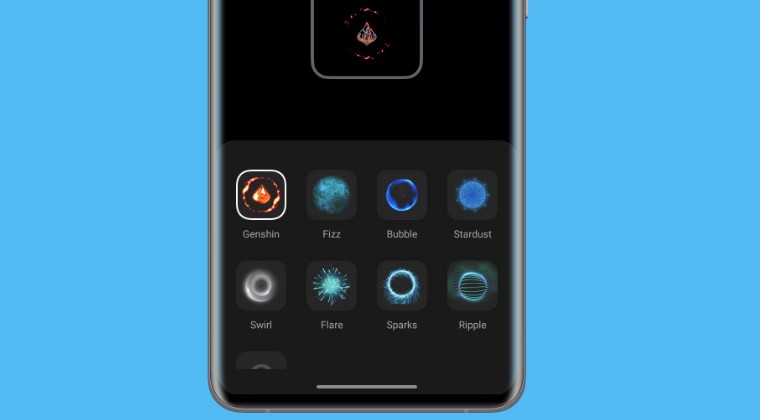
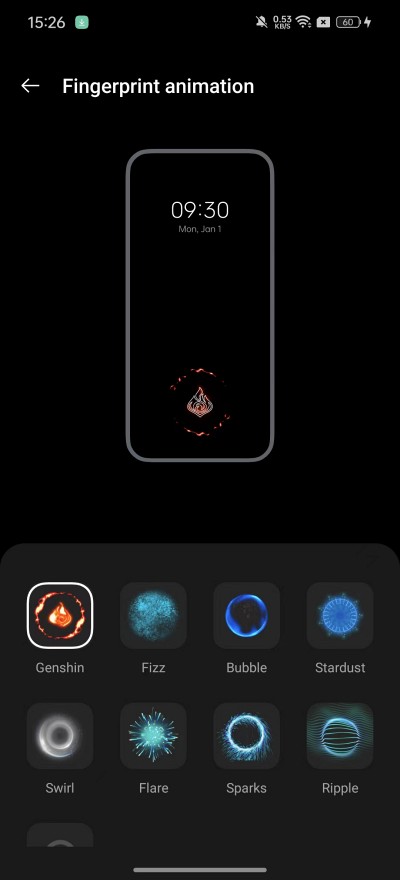
Carrying out this tweak requires a rooted device. So if you haven’t done so, then check out our guide on How to Root OnePlus 12 via Magisk Patched Init Boot [Video] . Once that is done, simply download and install the Genshin Fingerprint APK on your device. Then launch it and give it the SuperUser request. Once done, head over to the Fingerprint animation section from the Settings menu and Genshin should now be present there. Just select it and your task stands complete.
- How to Install Viper4Android on OnePlus 12
- How to Flash Custom Boot Animation on OnePlus 12
- How to Install Custom Boot Logo Splash Screen on OnePlus
- OnePlus 12 might actually be DSDS instead of DSDA!
(Cancel Reply)
Δ
