Download and Install Android 15 GSI ROMs [Video]
From this guide, you can download and install numerous Android 15 GSI ROMs on your device. When it comes to custom development, then not all devices are created equally. While the likes of Xiaomi and OnePlus usually tend to get blessed with tons of custom ROMs, there are others who are less fortunate and are hardly able to see the end of the day. Be it Realme, Oppo, or Infinix, the tech enthusiasts owning these devices are always on the lookout for a ROM only to return empty-handed. This is where a GSI ROM comes in handy.
- What is a GSI ROM?
- Download and Install Android 15 GSI ROMs STEP 1: Install Android SDK Platform Tools STEP 2: Enable USB Debugging and OEM Unlocking STEP 3: Unlock Bootloader STEP 4: Download Android 15 GSI ROM STEP 5: Download vbmeta STEP 6: Boot Device to Fastboot Mode STEP 7: Disable Verity Check STEP 8: Install Android 15 GSI ROM via Fastboot
- How to Install Android 15 GApps
- How to Root Android 15 GSI ROMs
- How to Install Android 15 GSI ROM via DSU Sideloader
- How to Install Android 15 GSI ROM on Samsung Devices
- What is LineageOS Light?
What is a GSI ROM?
GSI stands for Generic System Images and as is evident by its name, they are generic in nature, meaning they could be flashed across all the Android devices that are Project Treble compatible, aka which came with Android 8+ out of the box. As of now, near about all the devices are able to check mark this requirement. Moreover, these images are supported by numerous ROM developers, be it LineageOS, EvolutionX, Derpfest, PixelOS, and a plethora of others.
But are these GSIs limited in features when compared to their standalone counterpart? Well, up to an extent but you’ll still be able to get hold of most of the nifty and useful features that are present in the custom ROM in their associated GSI builds. So on that note, let’s make you aware of the download links and more importantly the installation instructions of these GSI ROMs which belong to the latest Android 15 family.
Download and Install Android 15 GSI ROMs

Before starting, please take a backup of all the data on your device. Droidwin and its members wouldn’t be held responsible in case of a thermonuclear war, your alarm doesn’t wake you up, or if anything happens to your device and data by performing the below steps.
STEP 1: Install Android SDK Platform Tools

First and foremost, you will have to install the Android SDK Platform Tools on your PC. This is the official ADB and Fastboot binary provided by Google and is the only recommended one. So download it and then extract it to any convenient location on your PC. Doing so will give you the platform tools folder, which will be used throughout this guide to install the latest Android 15 GSI ROM on your device.
STEP 2: Enable USB Debugging and OEM Unlocking
Next up, you will also have to enable USB Debugging and OEM Unlocking on your device. The former will make your device recognizable by the PC in ADB mode. This will then allow you to boot your device to Fastboot Mode. On the other hand, OEM Unlocking is required to carry out the bootloader unlocking.
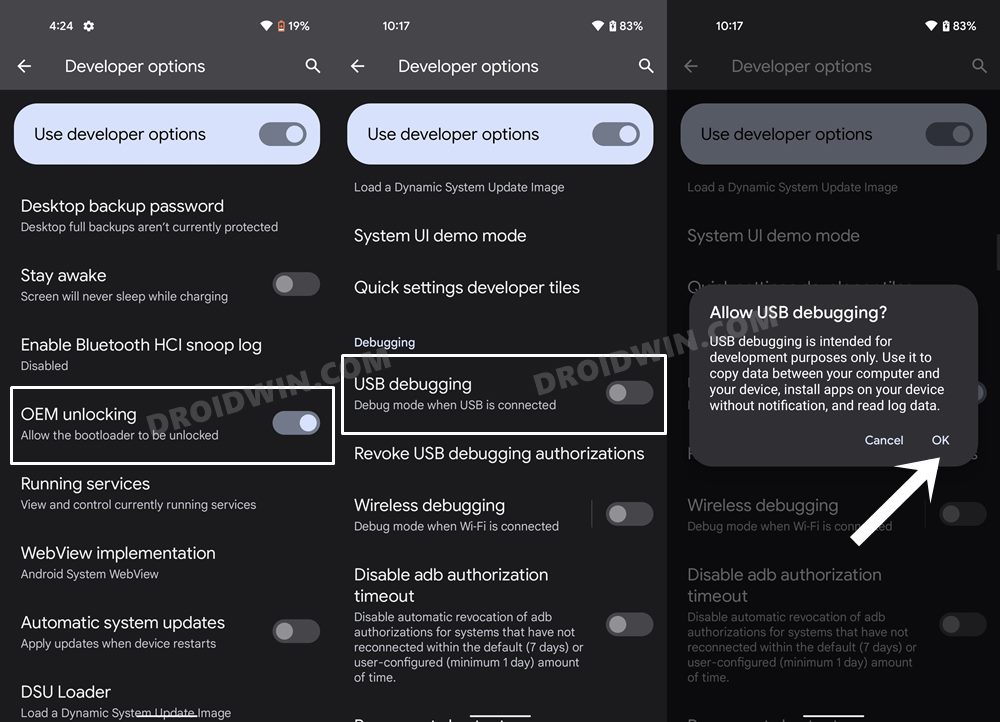
So head over to Settings > About Phone > Tap on Build Number 7 times > Go back to Settings > System > Advanced > Developer Options > Enable USB Debugging and OEM Unlocking.
STEP 3: Unlock Bootloader
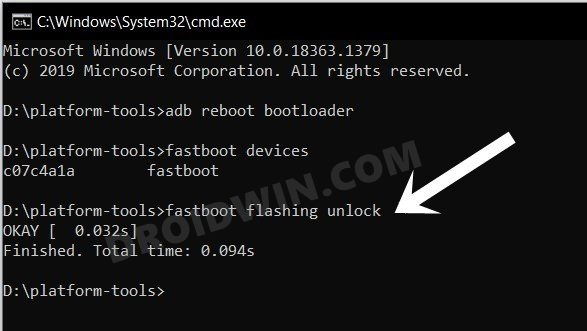
Next up, you will also have to unlock the device’s bootloader. Do keep in mind that doing so will wipe off all the data from your device and could nullify its warranty as well. So if that’s all well and good, then please refer to our detailed guide on How to Unlock Bootloader of Any Android Device .
STEP 4: Download Android 15 GSI ROM
- You may now grab hold of the GSI ROM for your device from the below link [we will be continuously updating this section as and when a new GSI ROM goes live, so make sure to check out this section at regular intervals]. AOSP [TrebleDroid Builders]: DOWNLOAD ROM | VIDEO GUIDE AOSP [Ponces]: DOWNLOAD ROM | VIDEO GUIDE FLEX UI: DOWNLOAD ROM | VIDEO GUIDE EVOLUTION X: DOWNLOAD LINK | VIDEO GUIDE KLC_OS: DOWNLOAD LINK | VIDEO GUIDE LINEAGEOS: DOWNLOAD LINK | VIDEO GUIDE LINEAGEOS LIGHT [ What is “Light” ]: DOWNLOAD SUNDROID: DOWNLOAD LINK | VIDEO GUIDE MIKU UI: DOWNLOAD LINK | VIDEO GUIDE CALYXOS: DOWNLOAD LINK 2by2-Project: DOWNLOAD LINK | VIDEO GUIDE BREEZEOS: DOWNLOAD LINK Which GSI to Download: arm64/a64/bgn/bvn/bgs/vndklite?
- Next up, extract it using 7-ZIP to the platform-tools folder on the PC.
- This will give you the system.img file, which will act as our GSI ROM.
STEP 5: Download vbmeta
- First off, download the stock firmware for your device.
- Then extract it and get hold of the vbmeta.img file.
- Now transfer the vbmeta.img to the platform-tools folder.
STEP 6: Boot Device to Fastboot Mode
- First off, connect your device to the PC via a USB cable. Make sure USB Debugging is enabled.
- Then head over to the platform-tools folder, type in CMD in the address bar, and hit Enter. This will launch the Command Prompt.
- Type in the following command in the CMD window to boot your device to Fastboot Mode adb reboot bootloader
- To verify the Fastboot connection, type in the below command and you should get back the device ID. fastboot devices
- If you are not getting any serial ID, then please install the Fastboot Drivers on your PC.
STEP 7: Disable Verity Check
Type in the below command to flash the vbmeta and hence disable the verification check of the vbmeta partition on your device
fastboot --disable-verification flash vbmeta vbmeta.img

STEP 8: Install Android 15 GSI ROM via Fastboot
- As of now, your device will be in the Fastboot Mode. So type in the below command to boot to FastbootD Mode fastboot reboot fastboot
- Now delete the logical partition to free up some space on your device: fastboot delete-logical-partition product_a
- You may now flash the GSI ROM via the below command [system.img is the name of the GSI ROM] fastboot flash system system.img NOTE: If you are getting any space-related error, then also delete the product_B partition via ‘fastboot delete-logical-partition product_b’ and then reflash the GSI ROM.
- Once done, you’ll now have to do a format data, so use the below command fastboot -w
- Finally, reboot your device to the newly installed OS via the below command fastboot reboot
- How to Fix Calling Issues in GSI ROM
- Fix WiFi/Internet/Network not working in GSI ROM
- 5G, Bluetooth, 90Hz Display, DT2W not working in GSI ROM: How to Fix
- Fast Charging not working in GSI ROM: How to Fix
- Brightness Slider not working in GSI ROM: How to Fix
- Headphone Jack not working in GSI ROMs: How to Fix
- How to Resize System Partition to Install GSI ROM
How to Install Android 15 GApps
If you have flashed a GSI that doesn’t have GApps but you wish to install it, then do refer to our guide on How to Download and Install Android 15 GApps .
How to Root Android 15 GSI ROMs
How to Install Android 15 GSI ROM via DSU Sideloader
You could also install Android 15 GSI without using the PC, all thanks to the DSU Sideloader app. To try it out, do check out the below-linked guide.
How to Install any GSI ROM on Android without PC [Video]
How to Install Android 15 GSI ROM on Samsung Devices
Refer to our below guide to install Android 15 GSI on your Samsung device.
How to Install GSI ROMs on Samsung Devices
What is LineageOS Light?
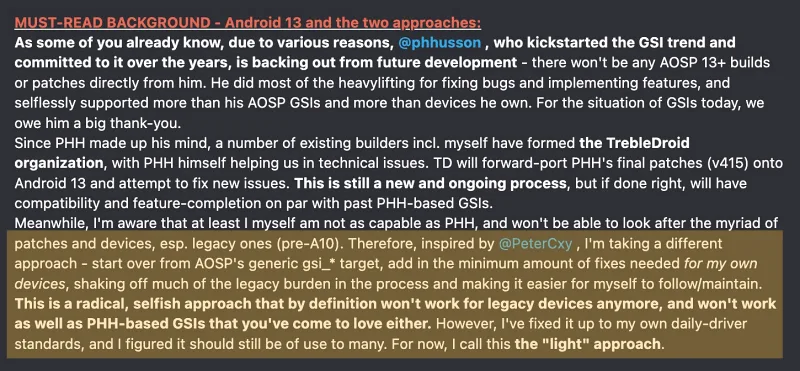
There exist two variants of LineageOS- Light and TrebleDroid [TD]. In a nutshell, “Light” includes much fewer patches that are known useful first and foremost for the developer Andy Yan’s own devices (and modern devices in general). On the other hand, the TrebleDroid build has better compatibility with legacy and Samsung devices. You may read this in-depth post [or see the below screenshot] by the developer highlighting all the differences between these builds and the reason why they came into existence in the first place.
How to Root Android 15 via Magisk Patched Init_Boot/Boot.img
- Brightness Slider not working in GSI ROM: How to Fix
- Fast Charging not working in GSI ROM: How to Fix
- Headphone Jack not working in GSI ROMs: How to Fix

- BILL CHRISTOY 2 months ago Reply Hello.I am trying to flash a GSI Rom on Iplay 70 mini pro.Treble info gave these results. -System-arm64-ab.img.xz -VNDK version 202404.0 The VNDK version is the version of Android that the vendor was designed to run with.Using a newer version of Android may result in missing features,and you cannot use an older version -Linker namespace isolation VNDK in not in lite mode -Project Treble Supported -Binder architecture 64-bit -Cpu architectureARM 64 -Dynamic Partitions Enabled -Seamless Upgrades Enabled -System as Root Enabled -Manifest Location Modern Will you let me know which CRDROID ROM or other compatible rom to flash on Iplay 70 mini pro ?
- adam 12 months ago Reply Hello, could you help me, I can’t download the evolution x file from github, the download stays at 97%, then I get the error “authorization required”, enter username and password, can you give me a solution, I have tried to download several large files from github and I get the same thing…
- n/a 1 year ago Reply Unable to download flexui android 15 gsi. Please supply a link to download it, thanks.
- sarthak 1 year ago Reply i tried all the steps more than once on my moto g51 all works just fine, but when i try to reboot it it does not go into the system boot rather it just goes back to the bootloader screen. what should i do now?
- hakem 1 year ago Reply which rom is most stable to choose and has no bugs ?
(Cancel Reply)
Δ
