Download and Install Android USB Drivers [Every Device]
From this guide, you could download and install the latest Android USB drivers for your device. While your Android device itself comes power-packed with tons of useful functionality, there are some tasks for which it needs a helping hand from your PC. Right from the file transfer process between your device and PC to the ability to share your device’s WiFi to your PC via USB Tethering, there are a lot of activists that call for the need for your PC.
Furthermore, if you take it a step ahead, then the need for a PC becomes an absolute necessity in custom development. These include the likes of booting the device to Fastboot or Recovery Mode, installing TWRP Recovery, unlocking the bootloader, and executing tons of other ADB and Fastboot Commands all require you to have a PC nearby. But if you simply connect your device to your PC via USB cable, the latter wouldn’t be able to identify the connected device.
This is where the need for USB Drivers arises. Once you install these drivers, your PC will be able to identify the type of device that has been connected via the USB cable. After that, it may bring up the required menu and would allow you to carry out the desired task. All in all, to establish a successful connection between your Android device and PC, these UDB Drivers are a must. So on that note, let’s start off with the instructions to download and install the latest Android USB drivers for your device.
How to Execute Android ADB Fastboot Commands Wirelessly
How to Run ADB Fastboot Commands directly on Android without Root
Use ADB and Fastboot Commands on Android Without PC
How to fix ADB Device not found [List of Devices Attached is blank]
How to Download and Install Android USB Drivers
USB Drivers and android_winusb.inf file
Auto Installation of USB Drivers
Download Android USB Drivers Generic Android USB Drivers OEM Specific USB Drivers
Install Android USB Drivers via android_winusb.inf [Recommended]
How to Install Android USB Drivers [Old Method]
How to Download and Install Android USB Drivers
First and foremost, there’s an important point worth discussing. Nowadays, most OEMs place the driver files inside the device. So as soon as you connect your device to the PC via USB cable, the drivers will then be automatically installed on your PC. And you don’t need to carry out any manual installation steps. So it’s better you check beforehand via this method and if the driver gets installed, then you don’t need to proceed to the below instructions.
To verify the same, launch the File Explorer app on your PC and if you see your device there, then you don’t need to manually install any drivers. On the other hand, if your device isn’t listed there, then it means that the drivers weren’t installed, and you would have to manually install them. So follow along for the instructions to download and install the latest Android USB drivers for your device.
- Fix adb server version doesn’t match this client; killing.
- Detailed Steps to Fix adb is not recognized Error
- How to Fix Unauthorized Device with ADB Commands [3 methods]
- How to Install TWRP Recovery on Android
USB Drivers and android_winusb.inf file
You might have come across various sites where they have hosted different driver files for different devices. Truth be told, that isn’t required. This is because as opposed to the general notion, there is just one single USB Driver for all Android devices. Even the OEM specific tools such as Motorola Device Manager for Motorola, Mi Flash Tool for Xiaomi, etc also install the same drivers.
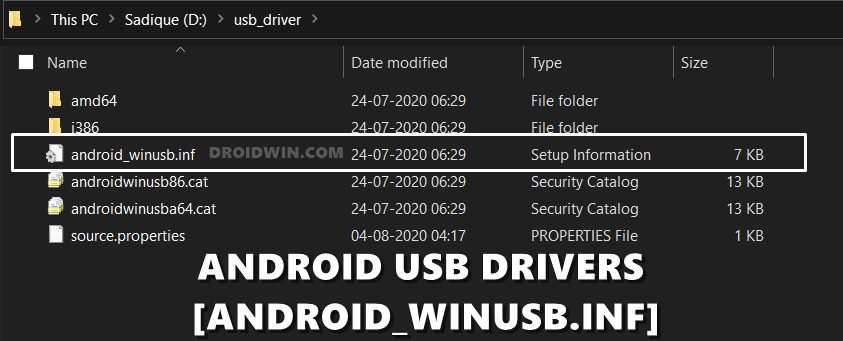
To be a little more specific, it is only the android_winusb.inf that acts as the Android USB Drivers. You could verify the same by installing any driver file from any OEM and upon extraction, all will lead to the android_winusb.inf file itself. With that said, this guide will focus on the official USB drivers provided by Google and we will list out their installation steps. So without further ado, let’s get started.
Auto Installation of USB Drivers
Nowadays, most devices automatically install their drivers as soon as you connect them to your PC. So before moving any further ahead, enable USB Debugging and connect your device to PC via USB cable. Then open Device Manager from the Start menu and check if your device is shown under Ports/Android Device section.

If it is, then congrats, the drivers are automatically installed and you don’t need to do anything. On the other hand, if your device isn’t shown or is shown along with a yellow exclamation mark under Other Devices, then you’ll have to install the drivers, using the below given steps.
Download Android USB Drivers
Given here are two different ways of getting hold of the Android USB Drivers. Go though both of these sections and then refer to the one that is in sync with your requirements,
Generic Android USB Drivers
You may now use the below link to download the drivers directly from Google’s Android Developer Forum page [this is a generic Android USB Driver which should work across all Android devices, however, it is somewhat outdated and might not work on Windows 11, in which case, you’ll have to use the OEM-specific drivers given in the next section].
- Android USB Drivers: DOWNLOAD LINK
OEM Specific USB Drivers
While you no longer need to manually install these drivers, but in rare instances, they might come in handy for older devices. So refer to your OEM and get hold of the corresponding driver file. Then launch its EXE and proceed with the on-screen instructions to install it.
| OEM | Driver URL |
|---|---|
| Acer | DOWNLOAD LINK |
| Alcatel Mobile | DOWNLOAD LINK |
| Asus | DOWNLOAD LINK |
| Blackberry | DOWNLOAD LINK |
| Dell | DOWNLOAD LINK |
| FCNT | DOWNLOAD LINK |
| HTC | DOWNLOAD LINK |
| Huawei | DOWNLOAD LINK |
| Intel | DOWNLOAD LINK |
| Kyocera | DOWNLOAD LINK |
| Lenovo | DOWNLOAD LINK |
| LGE | DOWNLOAD LINK |
| Motorola | DOWNLOAD LINK |
| MTK | DOWNLOAD LINK |
| Samsung | DOWNLOAD LINK |
| Sharp | DOWNLOAD LINK |
| Sony Mobile Communications | DOWNLOAD LINK |
| Toshiba | DOWNLOAD LINK |
| Xiaomi | DOWNLOAD LINK |
| ZTE | DOWNLOAD LINK |
Apart from that, you’ll also need the Android SDK Platform Tools, so get hold of it from below:
- Android SDK Platform Tools: DOWNLOAD LINK
Install Android USB Drivers via android_winusb.inf [Recommended]
- To begin with, download the USB drivers from the above Downloads section.
- Extract it to any convenient location on your PC and you should get the usb_driver folder. Within that, there will be the android_winusb.inf file, which we will be using in this section.
- So right-click on the Windows icon and select Device Manager from the menu.
- Within that, go to Other Devices and your device will be listed there with a yellow exclamation mark.
- Right-click on it and select Update Drivers.
- Then click on Browse my computer for driver software.
- After this, select Let me pick from the list of device drivers on my computer.
- Then select Show all devices and hit Next.
- Now click on the Have Disk button, then click on Browse.
- Navigate to the usb_driver folder, select the android_winusb.inf file and click Open > OK.
- Select Android ADB Interface and click Next.
- You will now get an update driver warning, click YES, and finally click Install.
- The installation process will now begin and once completed, you will be notified of the same.
How to Install Android USB Drivers [Old Method]
- To begin with, extract the contents of the downloaded USB drivers (usb_driver_r13-windows.zip) to any convenient location on your PC. This shall give you the usb_driver folder.
- Now connect your device to the PC via USB. It is recommended that you connect it to a USB 2.0 Port and not to a USB 3.0 Port.
- Then use the Windows+X shortcut keys to bring up the menu and select Device Manager from there.
- Now expand the Other Devices section and you should see your device listed as Android or by the OEM or model number, but with a yellow exclamation mark. This signifies the absence of USB Drivers. [If you can’t find your device listed under Other Devices, then do check the Ports or the Universal Serial Bus Controllers section as well].
- So right-click on your device name and select Update Drivers.
- Then select Browse my computer for driver software in the menu that appears.
- Browse to the extracted usb_driver folder and select it.
- Finally, click Install and wait for the process to finish. Once done, you shall be notified of the same.
- How to Fix Google Photos Permissions Prompt on Android 11
- How to Pass Magisk SafetyNet on Rooted Android 11
- Fix Magisk patched boot.img issue while Rooting Android 11
- How to Root Android Devices Without TWRP Recovery

- Howard B 4 years ago Reply I went to install the USB drivers but Windows is suggesting I should try 64bit drivers. Mine is a 64bit system. Is it possible the drivers in the link are only 32bit?
- Alex 4 years ago Reply Hello and thanx for the detailed process. After I select “have a disk” the only option I have is “android composite ADB interface”. After I am installing this I still receive the same error in power shell command, “adb devices”. Is there something else to do?
- WGHU Studio 5 years ago Reply Where is download link?
(Cancel Reply)
Δ
