Download and Install Pixel Watch 4 Watch Faces on any Wear OS
In this guide, we will show you the steps to download and install the Watch Faces from the latest Pixel Watch 4 on any smartwatch running Wear OS. In the recently concluded Pixel Event, there were quite a few talking points [apart from the host Jimmy Fallon]. While the Pixel 10 series took most of the limelight, its smartwatch came out as the silent winner.
It beholds a slew of intriguing features, including the likes of a brighter and larger display, improved battery life, SOS via satellite connectivity, faster charging, a new skin temperature sensor, and the latest Snapdragon W5 Gen 2 chip for enhanced performance and AI capabilities.
And hey, it also comes with some impressive and visually appealing watch faces. And this is something that you can welcome aboard on your older Pixel watches or even a non-Pixel watch. And in this guide, we will show you how to do just that. So without further ado, let’s get started.
- Available Watch Faces in Pixel Watch 4
- Download Pixel Watch 4 Watch Faces
- How to Install Pixel Watch 4 Watch Faces on any Wear OS METHOD 1: Via Bugjaeger App METHOD 2: Via Wear Installer 2
Available Watch Faces in Pixel Watch 4
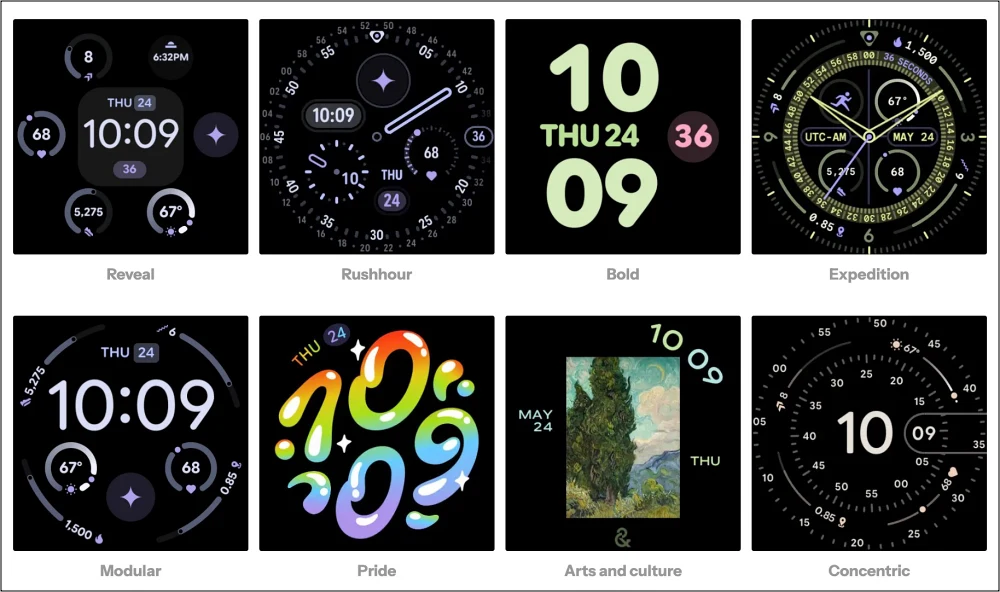
Here are the eight watch faces from the latest Pixel Watch 4 that you can install on your smartwatch:
- Reveal
- Rushhour
- Bold
- Expedition
- Modular
- Pride
- Arts & Culture
- Concentric
Download Pixel Watch 4 Watch Faces
You can get hold of the latest Pixel Watch 4 Watch Faces APK from the below link:
DOWNLOAD LINK
How to Install Pixel Watch 4 Watch Faces on any Wear OS
There are various ways of installing Pixel watchfaces on any older Pixel Watch or Samsung Smartwatch, out of which, we will be listing out two of the most commonly used ones. Go through both these methods once and then try out the one that is in sync with your requirements.
METHOD 1: Via Bugjaeger App
- To begin with, download the desired WatchFace APK from above onto your device.
- Now, download and install the Bugjaeger app on your device.
- Then launch it and tap on the New Connection icon at the top right. Keep this window open.
- After that, head over to Settings > About Watch > Software and tap Software Version 7 times.
- Then go to Developer Options and enable the toggle next to ADB Debugging.
- Next, go to Wireless Debugging and enable it. Then scroll down and tap on ‘Pair New Device’.
- You’ll get the pairing code, IP Address, and Port. So type in the IP Address and Port in the Bugjaeger app and hit Pair.
- Then type in the IP Address, Port, and WiFi Pairing Code in the app and hit Pair.
- Finally, type in the IP Address and Port number and hit Connect. NOTE: The Port number should be from the ‘IP Address and Port’ section of the watch [not from the Pair with Device section]. Your watch should now be connected to your device via Bugjaeger.
- Now, go to the third tab of Bugjaeger and hit the Plus icon at the bottom right.
- Now choose Select APK file, select the desired APK, and it will be installed.
- Now launch the Galaxy Wearable app on your device, go to Faces, and scroll down to the Downloads section.
- Then just tap on the desired watch face. It will be installed on your watch right away.
METHOD 2: Via Wear Installer 2
- To begin with, download the desired WatchFace APK from above onto your device.
- Next up, download and install the Wear Installer 2 app from the Play Store. Then launch it and keep it open.
- After that, head over to Settings > About Watch > Software and tap Software Version 7 times.
- Then go to Developer Options and enable the toggle next to ADB Debugging.
- Next, go to Wireless Debugging and enable it. Then scroll down and tap on ‘Pair New Device’.
- Then launch it, note down the IP Address, and type it in the Wear Installer 2 app.
- Now, tap on the overflow icon and select Pair with Watch.
- Then tap Enable. Now type in the pairing code and pairing port in the app, which is shown on the watch.
- You’ll now be taken to the app’s main page. Over there, type in the pairing code which is shown in the watch’s IP Address and Port section [and not the one which was shown in the Pair New Device section].
- Finally, hit Install. The app will now be installed on your watch [this might take some time, depending on the file’s size]. Once done, hit Finish.
- That’s it. You may now launch the app from your watch and close ADB Debugging as well [optional, but recommended as it will save your watch’s battery].
- Now that the pairing is done, from the next time onwards, whenever you want to install any APK on your watch, then just enter the port number from the IP Address and Port section of the watch, see below, [and not the Pair New Device section of the watch] in the app and hit Done.
- How to Install Gemini on Samsung Galaxy Watch
- GBoard not working on Galaxy Watch 6/5/4: Is there a Fix?
- How to Backup Samsung Galaxy Watch via Pixel Device
- Cannot Pair Galaxy Watch with Rooted Device: How to Fix

(Cancel Reply)
Δ
