EDL Unbrick is now available for Xiaomi devices- Skip Authentication
In this guide, we will show you the steps to unbrick a few selected Xiaomi devices via the EDL method, skipping authentication! In case your device is in a softbrick or bootloop state, you can easily unbrick it by flashing the Fastboot ROM.
However, that isn’t the case with hardbricked devices, as it requires an authorized account. This account is only available to the service center employees, and hence, normal users are left with no choice but to spend some bucks if they wish to recover their devices.
Well, not anymore! Thanks to some impressive work done by XDA Recognized Developer/Contributor Renate and XDA Senior Member user0u, you can now easily bypass the authorization stage and hence unbrick your device with ease, more importantly, without spending a dime! So, without any further ado, let’s show you how this could be achieved.
- EDL Unbrick is now available for Xiaomi Devices- Skip Authentication! Supported Devices Download Required Files Boot Xiaomi to EDL Mode Bypass Xiaomi Authentication Flash EDL Firmware and Unbrick Xiaomi
EDL Unbrick is now available for Xiaomi Devices- Skip Authentication!
While it goes along the obvious lines, still let’s reiterate it once more- this process will wipe off all the data from your device. Droidwin and its members wouldn’t be held responsible in case of a thermonuclear war, your alarm doesn’t wake you up, or if anything happens to your device, and data by performing the below steps.
Supported Devices
Apart from Poco F3 [on which this feature was carried], here are the other Xiaomi devices that support this method.
Pack 1
- Poco X3 NFC (Surya)
- Xiaomi Pad 6 (Pipa)
- Xiaomi Pad 5 Pro (Dagu)
- Poco F4 (Munch)
- Mi 10T (Apollo)
- Redmi Note 9S (Curtana)
- Redmi Note 12 4G NFC (Topaz)
- Redmi Note 10 (Mojito)
- Redmi Note 11 (Spes)
- Redmi 7A (Pine)
- Redmi Note 13 4G (Sapphire) [Use the Topaz Loader]
- Redmi 8 (Olive)
- Mi 6X Wayne / Mi 8 Lite Platinum (SD 660) – Most likely works
- Mi 8 SE Sirius (SD 710) – Most likely works
- Mi 9 SE grus (SD 712) – Most likely works
- Mi A3 laurel_sprout / Mi CC9e laurus / Redmi Note 8 ginkgo / Redmi Note 8T willow (SD 665) – Most likely works
- Mi Max 3 nitrogen (SD 636) – Most likely works
- Redmi 6 Pro sakura (SD 625)
- Redmi 7A pine / Redmi 8A Pro olivewood / Redmi 8A olivelite (SD 439) – Doesn’t work.
- Redmi 8 olive (SD 439) – Doesn’t work
- Redmi Note 7 lavender (SD 660) – Most likely works
- Redmi Note 7 Pro violet (SD 675) – Most likely works
- Redmi S2 ysl (SD 625)
Pack 2
- Mi A2
- Redmi 9T
- Snapdragon 450
- Snapdragon 632/450/439/429
- Snapdragon 658
- Snapdragon 835
- Snapdragon 835/660/630
Pack 3
- Xiaomi 12 Lite / Poco X5 Pro / Xiaomi 11 Lite 5G NE, etc (SD 778G)
- Poco F1 / Xiaomi Mi 8 / Xiaomi Mi Mix 3, etc (SD 845)
- Xiaomi Mi 9T Pro / Xiaomi Redmi K20 Pro (SD 855) [Apparently also works with SD 730]
- Xiaomi Mi 11 / Xiaomi Mi 11 Pro / Redmi K40 Pro, etc (SD 888)
Pack 4
While Xiaomi no longer provides firehose loader files for new phones, yet the developer has still managed to get hold of them, though it remains to be seen whether this EDL exploit will work on these devices or not.
UPDATE: Those who tried are getting stuck at the “blob should init. first” check, so unfortunately, it seems Xiaomi has patched this loophole on the newer devices :'(
- Snapdragon 7+ Gen 2
- Snapdragon 7s Gen 3
- Snapdragon 8+ Gen 1
- Snapdragon 8 Gen 1
- Snapdragon 8 Gen 2
- Snapdragon 8 Gen 3
- Snapdragon 8s Gen 3
- Snapdragon 8 Elite
Download Required Files
- Firehose Loader for Poco F3
- sig.bin file for Poco F3
- Firehose Loader for Pack 1
- Firehose Loader for Pack 2
- Firehose Loader for Pack 3
- Firehose Loader for Pack 4 [See Update above in Pack 4 section]
- Modified Mi Flash Tool [Supports EDL Flashing]
- Renate’s EDL Utility
- Zadig
- Fastboot ROM for your device [ choose the right firmware ]
Boot Xiaomi to EDL Mode
The easiest way of doing so is by using a Hydra V2 Cable [because opening the back of the cover and doing short testing the points might prove to be a risky approach].

Bypass Xiaomi Authentication
- First off, place all the downloaded files in one directory [including the extracted Fastboot ROM] and open the Command Prompt there.
- Next up, replace the Qualcomm QDLoader 9008 drivers with Zadig’s Generic USB Drivers. [Make sure to enable “List All Devices” from Zadig’s Options].
- For that, boot your device to EDL [as explained above], select your phone (USB_BULK) from Zadig’s list, and click on “Replace Driver”.
- Now, reboot your device to EDL Mode once again. Then type in the below command in the CMD window: edl /lp /l being the flag for the loader file and p the name of our loader file.
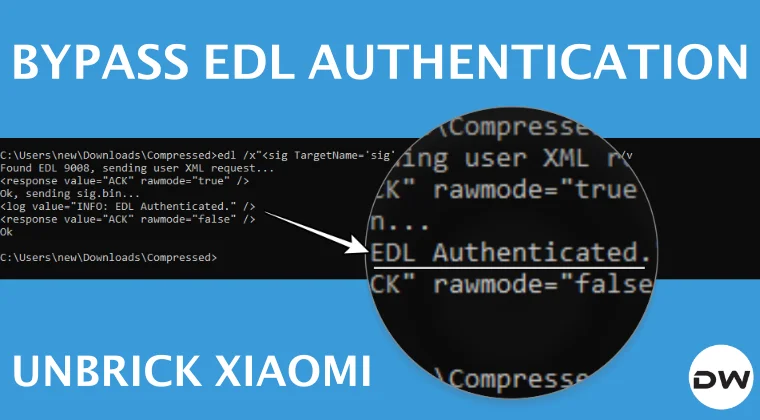
- Finally, type in the below command to skip the authorization: edl /x"
" /w sig.bin Credits: XDA Senior Member user0u
Flash EDL Firmware and Unbrick Xiaomi
Now that we have set up the environment and, more importantly, bypassed the Authorization, let’s proceed with the flashing:
- If you are on Poco F3, then simply extract this batch file , and the files will be flashed to their respective partitions. This batch file should be placed where all the other files are present, namely EDL.exe, the firehose loader named p, the sig.bin, and the firmware files.
- For all the other phones, you’ll have to manually type in the commands in the CMD window.
- For example, the partitions will be something like this: boot_ab abl_ab bluetooth_ab (BTFM.bin) dsp_ab (dspso.bin) modem_ab (NON-HLOS.bin) super vbmeta_ab dtbo_ab vbmeta_system_ab metadata userdata cust imagefv_ab vendor_boot_ab multiimgoem_ab (multi_image.mbn) logo xbl_ab xbl_config_ab
- The corresponding files will be something along the following lines: boot.img abl.elf BTFM.bin dspso.bin NON-HLOS.bin superunpacked.img vbmeta.img dtbo.img vbmeta_system.img metadataunpacked.img userdataunpacked.img custunpacked.img imagefv.elf vendor_boot.img multi_image.mbn logo.img xbl.elf xbl_config.elf
- For flashing, the command syntax will be: edl /u /w /p<partition_name> “file_name”
- Let’s say we want to flash the boot.img in the boot partition, then the command will be: edl /u /w /pboot_a “boot.img”
- You may flash the rest of the files in a similar manner.
- However, there will be a few sparse files that you will first have to unpack. These are usually super, metadata, userdata, and cust.
- To unpack them, you may use the simg2img.exe . So open Command Prompt inside that folder and type in: simg2img super.img superunpacked.img
- This will unpack the super partition. You may unpack the rest of the files [metadata, userdata, and cust] similarly.
- Moreover, in the crclist.txt file, there will be a list of a few partitions. Out of which, the following can be flashed directly via edl /u /w /p<partition_name> “file_name”: modem_ab spunvm vbmeta_system_ab dtbo_ab misc multiimgoem_ab boot_ab logfs logo dsp_ab abl_ab imagefv_ab vbmeta_ab vendor_boot_ab bluetooth_ab
- On the other hand, you’ll have to first align the below crclist.txt files using Zeropad.exe [explained below] before flashing them: storsec cmnlib64_ab uefisecapp_ab tz_ab cmnlib_ab devcfg_ab qupfw_ab aop_ab xbl_config_ab hyp_ab keymaster_ab xbl_ab featenabler_ab
- If you are on Poco F3, you can directly do so via this batch file . For other devices, proceed with the below steps.
- Place the Zeropad.exe where all the other files are placed. Then use the below command syntax in the CMD window: zeropad 4096 partition_name
- For example, to Zeropad the aforementioned files present in crclist, the commands will be: zeropad 4096 aop.mbn zeropad 4096 cmnlib.mbn zeropad 4096 cmnlib64.mbn zeropad 4096 devcfg.mbn zeropad 4096 featenabler.mbn zeropad 4096 hyp.mbn zeropad 4096 km41.mbn zeropad 4096 qupv3fw.elf zeropad 4096 storsec.mbn zeropad 4096 tz.mbn zeropad 4096 uefi_sec.mbn zeropad 4096 xbl.elf zeropad 4096 xbl_config.elf
- Do note that while Zeropad will not output a new file, but will align the same file to 4096 bytes, which can then be flashed via edl /u /w /p<partition_name> “file_name”.
- How to Unbrick Xiaomi/Redmi/Poco via Firehose File
- How to Unbrick any Xiaomi/Redmi/Poco via Mi Flash Tool
- Unbrick Xiaomi MediaTek Devices using MTK Exploit
- Fix Mi Account Authorization | Unbrick Xiaomi | EDL Mode

- Lucas D 5 months ago Reply I have a Xiaomi 12 Pro (China) smartphone, on which I tried to install the global version of the system. It turns out that when installing the ROM using MiFlash, I selected the option to lock the bootloader. Initially, the smartphone remained in the recovery screen, but when I clicked the Safe Mode button on the recovery screen, the smartphone entered fastboot mode and never exited. In short, I have a device in perpetual fastboot mode, with a locked bootloader. Is there any way to solve this problem?
- Rangel 6 months ago Reply Does the modified Miflash work for EDL flashing the Poco F5/6 without authorization?
- stang5750 6 months ago Reply Could you make a tutorial on YouTube how it is done for a newer device, like Poco F5/6
- amidstextenddaily 6 months ago Reply Could you make a tutorial on youtube of the full process of this unbricking on a newer xiaomi device like the Poco F5/6
(Cancel Reply)
Δ
