Enable Band Selection Mode in Samsung [U: S25 Ultra Verizon]
[Looking for S25 Ultra? Scroll to the end of this post] In this guide, we will show you four different methods to enable the band selection mode on your Samsung device. By default, your Samsung device is automatically assigned the best possible network mode. However, there could still be a few instances wherein you might want to manually make a switch over to another band. For example, if you have found a new 4G LTE / 5G NR band in your area or you know of a well-known uncongested band, then you could manually make a switch over to it.
However, you wouldn’t be able to do so by the conventional method of heading over to the Settings menu. This is because the South Korean giant has hidden this network setting feature under its stock telephone app. So how could one access this functionality? Well, there exist two different methods through which you could enable the band selection mode on your Samsung device. So without any further ado, let’s check them out.
- How to Enable Band Selection Mode in Samsung [4 Methods] Using Dialer Code Using Calculator Using the Samsung Hidden Menu Tool Via Protocol Simulation Menu Via Third-Party App Via ADB Commands
- How to Enable Band Selection Mode in Galax S25 Ultra Verizon FIX 1 FIX 2 FIX 3
How to Enable Band Selection Mode in Samsung [4 Methods]
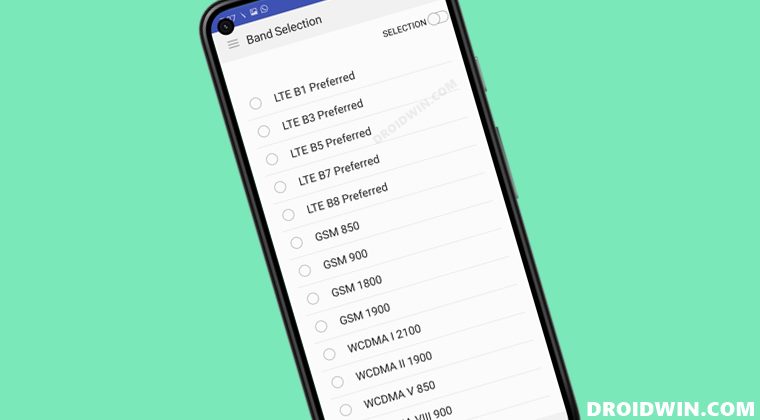
We have listed three different methods below through which you could get this job done. You may refer to the one that is in sync with your requirement.
Using Dialer Code
The easiest of the three methods, you just need to execute a code in the phone dialer and it shall bring up the network selection screen. For a detailed guide on this subject, do check out this guide . The shorter instructions are given below
- Bring up the Dialer and type either of the two below codes. *#73# OR *#27663368378#
- It should open the ServiceMode > RF TEST screen.
- Select the first option, Band Selection, from the list.
- Now select the appropriate SIM from the list.
- Dual SIM users would see two SIMs, so make the selection carefully.
- That’s it. The Band selection mode is now enabled on your Samsung device.
Using Calculator
This is a nifty method that not many users are aware of. You can unlock quite a few hidden menus right from the Calculator itself. Just launch the Calculator app, type +30012012732+ and this will open the DRParser Dialer. Now just type in the desired code, such as *#0808# or *#9900#, and it will open the corresponding menu.
Using the Samsung Hidden Menu Tool
- Download and extract the Hidden Menu Tool on your PC.
- Next up, dial ##366633# on your phone
- Then select Enable DM Mode on your phone.
- Now connect the phone to your PC via USB.
- Then open the Hidden Menu Tool via its EXE file.
- Make sure the drop down option in Hidden Menu Tool is set to Enable.
- Click start and wait for it to go from REQ to PASS next to your connected device port.
- Once that is done, you can use codes such as #0# and *#0011#.
Via Protocol Simulation Menu
You could also enable all bands on your Galaxy S23 Ultra via Protocol Simulation. In this method, we will be simulating a change in your CSC to GCF (Global Certification Forum). While this won’t actually change your CSC to GCF, but will change the options in the service menu as if you were on GCF CSC, which should give you access to all SA and NSA bands [Credits: XDA Senior Member wr3cckl3ss1].
- Open the Service Mode via the below code #27663368378#
- Then go to Service Mode Main Menu -> PROTOCOL STATE.
- Now go to PROTOCOL SIMULATION -> IMEI PRE CFG SIMULATION.
- In this menu, click [1] AP, then click GCF. Then click [2] NET1 and change it to GCF.
- Do the same for [3] NET2. All GCF and finally Press [4] Write.
- Now restart your device and check out the results.
Via Third-Party App
If you want a much more simplified and easy-to-understand UI, then you could take the help of a third-party app that will do work on your behalf. Here’s how:
- Download and install the Samsung Band Selection app from the Play Store.
- Then launch the app and tap on the Launch Band Selection button.
- After that, tap on the hamburger menu situated at the top left and select Band Selection.
- Now choose the desired band from the list.
- Finally, enable the Selection toggle present at the top right to make it the active band.
That’s it. These were the steps to enable the band selection mode on your Samsung device using a third-party app. now let’s check out how the same tasks could be carried out without any app.
Via ADB Commands
This method is slightly technical and a little bit lengthy, but if you don’t wish to interact with any third-party app, then this should be your go-to method.
- Download and extract the Android SDK Platform Tools on your PC.
- Then enable USB Debugging on your device and connect it to your PC via a USB cable.
- Now head over to the platform-tools folder, type in CMD in its address bar, and hit Enter. This will launch CMD.
- Type in the below command in this CMD window to open the shell environment adb shell
- Then execute the below command to unlock the Band Selection Mode am start -n com.samsung.android.app.telephonyui/com.samsung.android.app.telephonyui.hiddennetworksetting.MainActivity
- You will now be taken to the Network Selection Mode. So tap on the hamburger menu situated at the top left and select Band Selection.
- Then choose the desired band from the list and enable the Selection toggle present at the top right to make it the active band.
How to Enable Band Selection Mode in Galax S25 Ultra Verizon
According to numerous users, they can no longer enable Band Selection Mode on their Galaxy S25 Ultra on Verizon. It isn’t working because Samsung disabled the access to that menu, no matter what you do. The codes *#73# and *#27663368378# won’t work anymore because they did something to disable user access to them. Autoblocker has nothing to do with it, Google even disabled activity launching from secure environments, meaning Knox keys/apps won’t work either. The only way is to buy a semi-compatible version from overseas and root it, losing Samsung Health, Samsung Pay, etc. However, here’s a couple of workarounds [Credits: Reddit Post ] that might spell out success for you. So do give it a try and check out the result.
FIX 1
Your first course of action should be to disable Auto Blocker and see if it works. To do so, head over to Settings > Security and Privacy > Auto Blocker > Off and see if it works out for you or not.
FIX 2
The hidden menu tool and the SamFW tool don’t work, crashing the InputEventApp when attempting to unlock the menus. The only workaround I have now is getting a T-Mobile pSIM/eSIM and having that set as the primary SIM, with Verizon being set as the secondary. This allows only the 0011 and 2263 menus, unfortunately, 73 seems to be lost right now. If you want to avoid bad data, band lock the T-Mobile SIM to something like b1 LTE with the “Block set by AP” option enabled, disable wifi calling on the T-Mobile SIM, and reboot to get any bad/stale data to go away.
FIX 3
The only workaround as of right now as mentioned is using a second SIM, doesn’t have to be active. I have a US Mobile burner SIM and I just turn it on then turn off my Verizon SIM, let the phone restart then turn off the US Mobile SIM so I only have the Verizon SIM on. It will prompt you to restart the phone but you can just say “Not Now” and it will let you continue using the phone. Only downside to this is if you restart the phone accessing the menu will no longer work and will have to do the process all over again.
- Change Network Mode or Disable 5G on Samsung AT&T and Verizon
- Enable 120Hz Refresh Rate in Power Saving Mode in Samsung One UI 4
- How to Understand Samsung Firmware Version Number
- How to set up and enable ADB Debugging in Galaxy Watch 4

- TT789 4 months ago Reply Thanks for the detailed guide! I had no idea about the band selection mode on my S25 Ultra. It worked perfectly for me, and I’ve noticed a significant improvement in my connection. Keep up the great work!
- 82 game 5 months ago Reply Thank you for this detailed guide! I struggled with band selection on my S25 Ultra, but your step-by-step instructions made it so much easier. I appreciate the tips on which bands to prioritize for better connectivity. Keep up the great work!
- hiwin apk 6 months ago Reply Thanks for sharing this guide! I always found it tricky to manage band selection on my S25 Ultra. Your detailed steps made it much easier to understand. Looking forward to more tips like this!
- Jay Mehta 2 years ago Reply This article needs to be updated and mention at top that none of these methods works now. Dont waste user’s time.
- Bradley Smith 3 years ago Reply Looking for more up to date info as on my flip 3, and the update back earlier this year nothing seems to work. For me,I was looking to force the phone to stay on 5g only
- redwattlebird 3 years ago Reply looks like they have locked this as it won’t work on my sm908e.
- CWY 3 years ago Reply I am using tab s7+5g, so no dialer function is available. Also after latest batch update by Samsung, third party app doesn’t work anymore. And I also tried using ADB command. After typing in am start -n com.samsung.android.app.telephonyui/com.samsung.android.app.telephonyui.hiddennetworksetting.MainActivity, it shows Exception occurred while executing ‘start’. It seems this method is no longer work. Any other methods ? Thanks.
- Rami 4 years ago Reply Hi when i update my note 20 ultra the band selection app stopped and this message appear Error: Hidden network settings activity not found on device plz how can i sole this problem without computer wait your message Sadique Hassan 3 years ago Reply Hi Rami, if you want to take a manual approach, then you could try out the *#73# OR *#27663368378# code in the dialer to bring the band selection screen. Jo 3 years ago Reply That didn’t work either. I have a galaxy s22. I’ve tried everything. Sellamuthu 3 years ago Reply Dear sadique, while typing, in keypad, both the codes aren’t working and not enter inside th band selection mode in my samsung m31 phone
(Cancel Reply)
Δ
