Enable Call Screening on Pixel 7/Pro in Unsupported Regions
In this guide, we will show the steps to enable Call Screening on your Pixel 7/Pro in unsupported regions. When it comes to dealing with spam calls, there isn’t any better option to choose from than the offering from the Silicon Valley giant. But what exactly is Screen Calling? Well, when someone who is not in your contact list calls you, then you could select the Screen Call [instead of Accept or Reject].
Once you do so, the caller will be notified that you are using a call screening service from Google and then he or she will be requested to convey their message. Whatever they would say will be transcribed on your screen. So you could go through that content. and then decide accordingly whether or not you wish to pick up that call. This feature has been present in Pixel devices for ages, and the latest iteration is no different either.
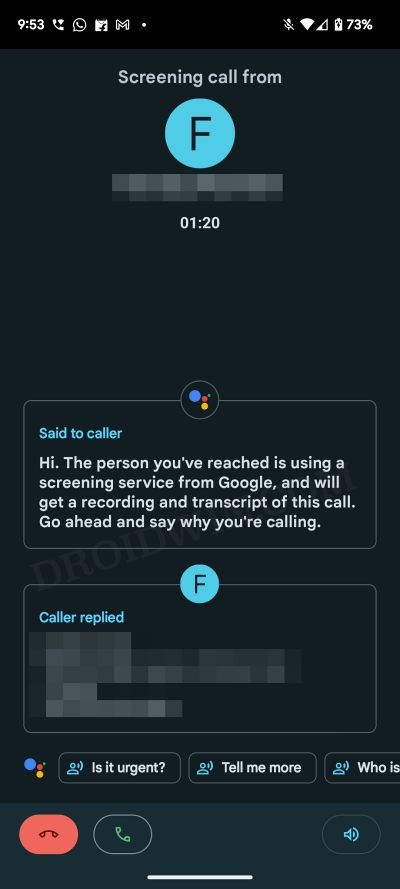
However, there’s a catch- it’s only supported in a few countries, namely Australia, Canada, France, Germany, Ireland, Italy, Japan, Spain, the UK, and the US. As a result of this, a majority of the population is unable to reap the benefits. If you also fall into this domain, then fret not. In this guide, we will show you how to enable Call Screening on your Pixel 7/Pro in unsupported regions. So without further ado, let’s get started.
- How to Enable Call Screening on Pixel 7/Pro in Unsupported Regions Via GoogleDialerMod Via Market Enabler
How to Enable Call Screening on Pixel 7/Pro in Unsupported Regions
There exist two different methods to get this job done. Go through both of them once and then try out the one which is in sync with your requirement. Droidwin and its members wouldn’t be held responsible in case of a thermonuclear war, your alarm doesn’t wake you up, or if anything happens to your device and data by performing the below steps.
Via GoogleDialerMod

- First of all, get enrolled as a beta tester for the Google Phone app from here.
- After that, root your device via Magisk .
- Then download and install the Google Dialer Mod from GitHub.
- Now launch it and give it Magisk access.
- Then enable the toggle next to Force Enable Call Screening.
- Now restart your device and check if Call Screening is working.
- If it isn’t, then do a force stop of the Phone App and check out the results.
- If it’s still not working, then delete the data of the Phone app and again check out the result.
Via Market Enabler
- To begin with, root your device via Magisk patched init_boot.img.
- Then download and install the Market Enabler app.
- Now launch it and tap on Grant in the Magisk prompt.
- After that, download a VPN app and set its region to the USA.
- Now open Market Enabler and select USA as the region.
- Go to the Play Store and install any pending updates of the Phone app.
- Then go to Settings > Apps > See All Apps and select the Phone App.
- Now go to Storage and Cache and tap on Clear Data > Delete Data.
- Then launch the Phone app, tap on the overflow icon situated at the top right, and select Settings.
- Now go to Spam and Call Screen and enable the toggle next to See caller and spam ID.
- Finally, go to Call Screen and customize it as per your requirement.
- Pixel 7 Pro Connected but not charging: How to Fix
- Does Google Pixel 7/Pixel 7 Pro support Dual eSIM?
- Pixel 7 Pro Restart Randomly: How to Fix
- Pixel 7/Pro Fingerprint not working: How to Fix

(Cancel Reply)
Δ
Pixel 7/Pro Fingerprint not working: How to Fix
In this guide, we will show you various methods to fix the issue of the Pixel 7/Pro fingerprint not working. The newest addition to the Pixel family comes with a second-generation Tensir chipset and the initial observation is that it has quite well-optimized as the frequency and number of bugs have been on the lower side in comparison with its predecessor. However, it seems there is one domain that is in need of some dire attention.
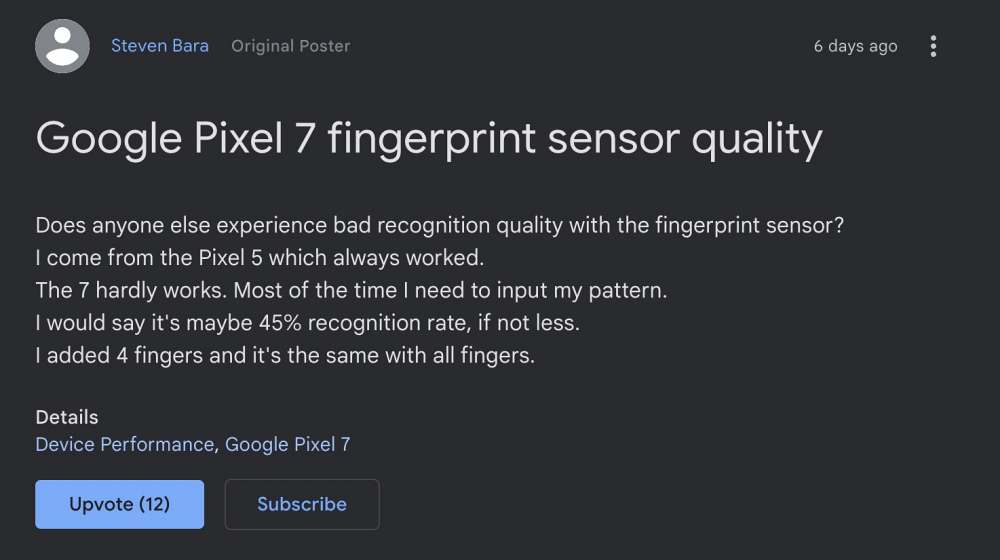
Ever since Pixel moved to the in-display fingerprint, its performance has been well below par. The fingerprint issues with the Pixel 6 series [especially the 6A] are there for everyone to see, and unfortunately, things don’t look too good with the seventh series either. Numerous Pixel 7 [and a few 7 Pro] users have voiced their concern that the fingerprint sensor is not working on their devices.
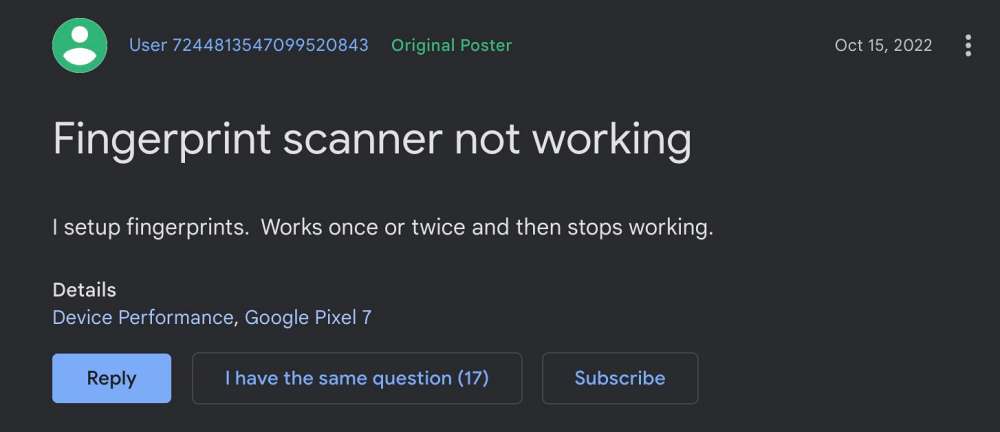
More often than not it fails to recognize their fingerprint and users have to try 3-4 times just to unlock their phones. To make matter worse, you cannot disable your fingerprint and opt for Face Unlock because then you wouldn’t be able to use any banking/payment apps. So is there a way to put an end to this fiasco? Well, there does exist a few nifty workarounds that might help you out. So without further ado, let’s check them out.
- Fix Pixel 7/Pro Fingerprint not working Add the Same Fingerprint Twice Increase Touch Sensitivity Give it An Additional Second Apply Optimal Pressure Use Dry Hands Clean your Screen Use a compatible screen protector Re-Add Your Fingerprint Install Pending Updates Give AI some time! Recalibrate Fingerprint via Pixel Update and Software Repair Send Feedback to Google
Fix Pixel 7/Pro Fingerprint not working
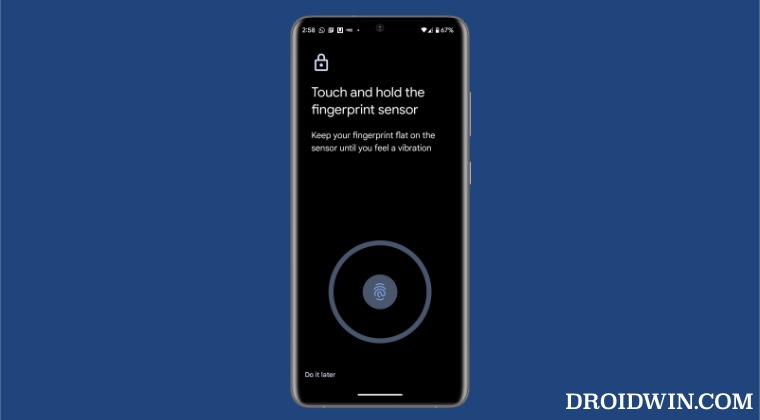
It is recommended that you try out each of the below-mentioned workarounds and then see which one spells out success for you. So with that in mind, let’s get started.
Add the Same Fingerprint Twice
An old trick out of the books, adding the fingerprint of the same finger twice or thrice will make the job of the scanner a little bit easier in reading those fine prints. So refer to the below steps to fill up two-three slots of fingerprints using the same finger and then check out the results.
- To begin with, head over to Settings > Security > Fingerprint Unlock.
- Then tap on Add Fingerprint and proceed with the on-screen instructions to complete the process.
- Likewise, carry out the same steps for the same finger a couple of additional times.
- Now check if it fixes the Pixel 7/Pro fingerprint not working issue.
Increase Touch Sensitivity
If you have put a screen protector, then it might conflict with the normal interaction with the fingerprint sensor. Therefore, you should consider enabling the Pixel’s built-in feature that will increase the touch response sensitivity. Here’s how it could be done:
- To begin with, head over to the Settings menu on your device.
- Then go to Display and enable the toggle next to Increase Touch Sensitivity.
- Check if it fixes the fingerprint not working issue on your Pixel 7/Pro.
Give it An Additional Second
Optical under-the-hood fingerprints are a tad bit slower than the ultrasonic scanner. So bearing that fact in mind, consider giving an additional second to the scanner so that it is able to efficiently scan your prints.
Apply Optimal Pressure
While it isn’t documented anywhere as such, but these in-display fingerprints (especially the 2-D ones) work best when you apply the pressure in an increasing manner. However, the increase should be done gradually and lightly. So try it out and then see if it is able to fix the Pixel 7/Pro fingerprint sensor not working issue.
Use Dry Hands
It’s no hidden secret that the scanner wouldn’t be able to read the fingerprints if your hands are wet. This is because the moisture would end up creating an additional layer between the scanner and your fingerprints, thereby preventing a successful scan. So make sure to remove such roadblocks before proceeding ahead.
Clean your Screen
Not only your hands but the screen should be cleaned as well, especially the bottom half of the screen where the scanner is located. Even the slightest of dust particles are enough to create hurdles in successful scans. So clean your screen with a cloth or fabric and then verify if the Pixel 7/Pro fingerprint sensor not working issue has been fixed or not.
Use a compatible screen protector
Not all screen protectors are created equally! While they might cause issues in the normal usage of the device, but they sure could cause conflict with the in-display fingerprint scanner. So if you ever plan to replace your Corning Gorilla Glass Victus protection with a third-party one, make sure to go for a tried and trusted name.
Re-Add Your Fingerprint
Since the optical scanner flashes a bright light underneath to read your fingerprints, it might not have been able to register your fine prints correctly during the setup process. So consider removing the registered fingerprint and then perform a re-scan to re-add your fingerprints. Here’s how it could be done:
- Head over to Settings > Security > Fingerprint Unlock.
- Then tap on the delete icon next to your fingerprint.
- Now tap on Add Fingerprint and proceed with the on-screen instructions to complete the setup.
- Check if it fixes the Pixel 7/Pro fingerprint not working issue.
Install Pending Updates
While the software upgrades might not necessarily add new features to your device, they surely optimize and improve the overall functioning of the OS as well as your device. Along the same lines, they also iron out all the bugs and issues. So make sure to download and install all pending updates using the instructions listed below and then verify if it ends up rectifying the issue or not.
- Head over to Settings < System > System Update.
- The OS will now search for any pending updates.
- If there is one, then download and install it right away.
- Check if it fixes the Pixel 7/Pro fingerprint not working issue.
Give AI some time!
Well, Artificial Intelligence does take some time to adapt and adjust, after all. So on continued usage of these scanners, they will ultimately learn and optimize themselves according to the use case scenario. So consider letting go of the initial hiccups for a better journey ahead!
Recalibrate Fingerprint via Pixel Update and Software Repair
You could also recalibrate the fingerprint sensor on your Pixel 7 Pro via the official Google Pixel Update and Software Repair. Here’s how it could be done [proceed ahead at your own risk]
- Power off your phone. Then press and hold Power and Volume Down for 5-7 seconds.
- Your device will now boot to the Fastboot Mode.
- Now head over to the Pixel Update and Software Repair website.
- Then click on Connect Device and your device will appear in the pop-up window. Select it and click Connect.
- Finally, click on Install Software and wait for the process to complete.
- Once done, check if it fixes the Pixel 7/Pro fingerprint not working issue.
Send Feedback to Google
If none of the aforementioned tweaks managed to work out in your favor, then you should consider contacting Google and then chalk out the best route forward. We aren’t still implying that it’s a hardware issue, it’s just that contacting the manufacturer will give you a clearer picture. So refer to the below steps to send the feedback directly from your device:
- Head over to Settings > System > About Phone
- Then tap on Send Feedback about this device.
- Now tap on Allow one-time access in the prompt.
- Type in your concern regarding the fingerprint and hit Send.
So with this, we round off the guide on how you could fix the Pixel 7/Pro fingerprint sensor not working issue. As far as the official stance on this matter is concerned, the developers are aware of this issue , but they haven’t given out any ETA for the rollout of a fix. As and when that happens, we will update this guide accordingly. In the meantime, the aforementioned workarounds are your best bet.
- How to Improve Sound Quality on Pixel 7/Pro
- Cannot Send or Receive SMS in Pixel 7/Pro: How to Fix
- Pixel 7/Pro lock screen media controls missing: How to Fix
- Increase Screen Saturation on Pixel 7/Pro: Fix Washed-out Display
(Cancel Reply)
Δ
