Enable Google Photos “Backup while charging only”
In this guide, we will show you the steps to enable the “Backup while charging only” option in Google Photos. When it comes to photo and video storage and sharing service, then the offering from the Silicon Valley giant is without a shadow o a doubt the best in this domain. While it has taken a few questionable decisions as of late, such as the removal of unlimited storage even in storage-saver quality for Pixel devices, but we did manage to find a way out.
And now, we will be addressing another such query. If you are new to this service, then you might not be aware but earlier [till 2017] the app used to have an option that would allow you to upload files only when it is charging. This proved to be a handy feature when it comes to battery saving. However, as you might be aware, good things don’t last for long in the Google ecosystem.
As a result, this functionality didn’t manage to find the light at the end of the tunnel. But using a nifty workaround, you could re-enable the “Backup while charging only” option in Google Photos. And in this guide, we will show you how this could be done.
Enable Google Photos “Backup while charging only”
In order to carry out this task, your device needs to be rooted. If you haven’t done so yet, then do check out our guide on Rooting Android via Magisk / KernelSU / APatch . Once done, you may then get started with the below instructions.
- First off, download a root-supported file explorer, such as MiXplorer or Solid File Manager .
- Then launch it tap on the hamburger menu situated at the top right, and select Root.
- You will now get a Magisk prompt, tap on Grant. Now go to the following location: /data/data/com.google.android.apps.photos/shared_prefs/photos.backup.backup_pref
- Now open the shared_prefs file Code editor and refer to this line at the end:
- Change False to True and hit Save at the top right. The command will now look like this:
- Finally, go to Settings > Apps > Google Photos > Force Stop > OK.
- Now launch Google Photos > tap on your profile and select Photo Settings > Back up & Sync.
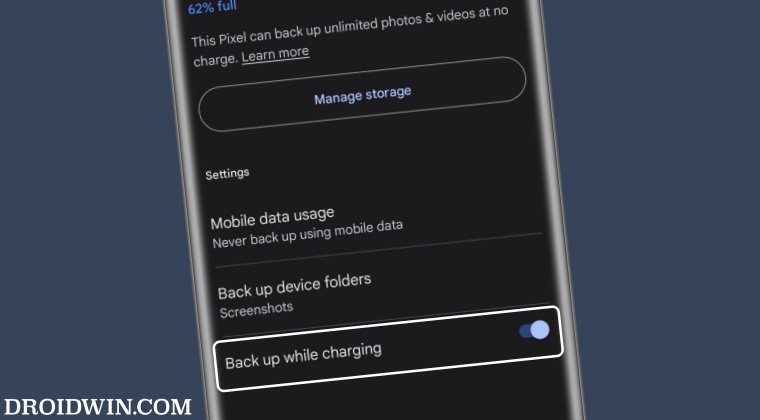
- You should now see the backup while charging option; just enable the toggle next to it.
- Until and unless you connect your device to a charger, you’ll see the following prompt:
Video Guide

- Google Photos unable to automatically sync photos on Mac due to Drive
- Cannot Download Images/Videos via Google Photos on Android [Fixed]
- Google Photos Stuck on Setting up your Photo Library [Fixed]
- Google Photos Partner Sharing Not Working: How to Fix

(Cancel Reply)
Δ
