Enable Windows 11 22H2 ‘Moment 2’ update features right away
In this guide, we will show you the steps to enable the Windows 11 22H2 Moment 2 update features on your PC right away. The Redmond giant has really upped its game when it comes to releasing OS updates. What is even more intriguing to note is that with each new update, you might also get blessed with a few new goodies, apart from the usual performance and security enhancements.
In this regard, the Moment 2 update, which is slated to roll out by February/March 2023, is one of the most highly anticipated releases in recent years. There is a slew of noteworthy features that you would be welcoming onto your PC alongside this update.
Be it the Taskbar, system tray, or File Explorer, each of them is about to undergo a visual overhaul with the addition of some new functionalities. So without further ado, let’s make you aware of some of the best Windows 11 22H2 Moment 2 update features and how you could enable them on your PC right away.
- Windows 11 22H2 ‘Moment 2’ update features Task Manager in Taskbar Context Menu Drag and Drop in System Tray Live Search in File Explorer
- Enable Windows 11 22H2 ‘Moment 2’ update features right away
- How to Disable Windows 11 22H2 ‘Moment 2’ update features
Windows 11 22H2 ‘Moment 2’ update features
While there exists a plethora of under-the-hood changes in this new OS update, but here we will be focusing on four major features, namely:
Task Manager in Taskbar Context Menu
This feature, which was present in Windows 10, had been removed from Windows 1 only to make its way now. For the unaware, you just need to right-click on an empty area on the taskbar and then you could select the Task Manager option from there to open it right away.
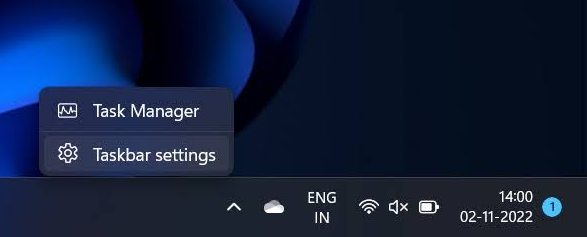
Drag and Drop in System Tray
As is evident from its name, this feature will allow you to drag & drop and rearrange items in the System Tray. Similar to the earlier one, this feature was also present in the earlier iteration of the OS but was subsequently removed in Windows 11, only to make its way now.
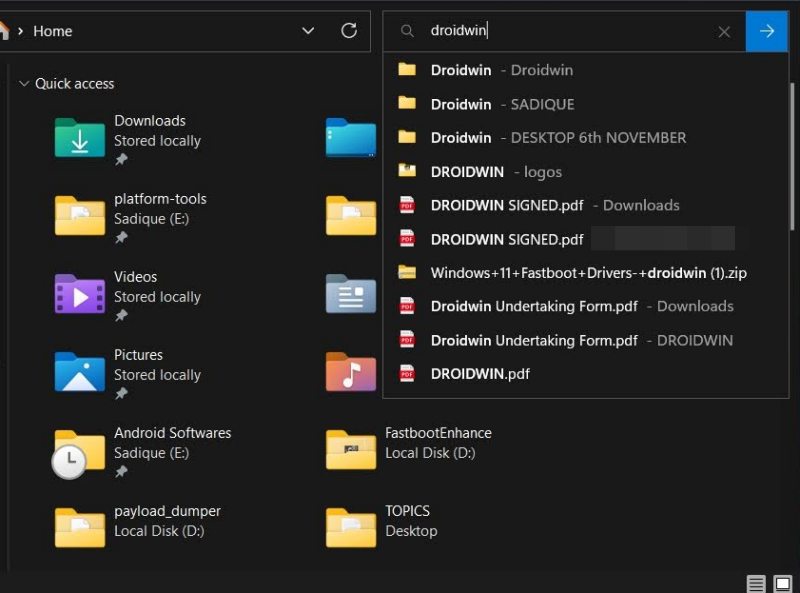
Live Search in File Explorer
The search result will be right in from of you as soon as you type in the query in the search result. There’s no need to hit Enter after typing in the keyword in the search field.
Now that you are aware of the noteworthy Windows 11 22H2 Moment 2 update features, let’s make you aware of the steps to enable it on your PC. Follow along.
Enable Windows 11 22H2 ‘Moment 2’ update features right away
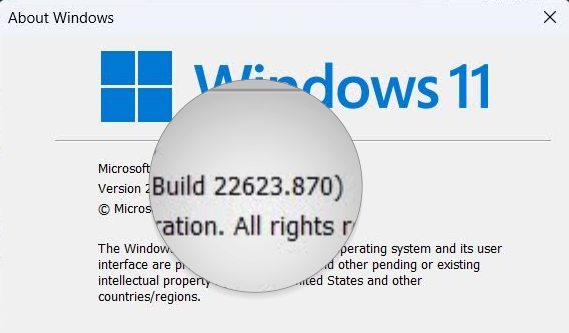
Before starting, make sure that you are Windows 11 Build 22621.755 (KB5018496) or above versions. To check the same, launch Run via Windows+R, type winver, and hit Enter. Now refer to the version number in the About Windows pop-up.
- To begin with, download the open-source ViveTool from GitHub.
- Then extract it to any convenient location on your PC.
- After that, right-click on it and select Copy as path.
- Now launch Command Prompt as an administrator.
- Then type in cd and paste the copied path via Ctrl+V.
- Now execute the below command to enable drag and drop for widgets in Windows 11. vivetool /enable /id:38764045
- On the other hand, use the below command to enable the tablet-optimized taskbar: vivetool /enable /id:26008830
- Or type in the below command to enable Live View in File Explorer on Windows 11: vivetool /enable /id:38665217
- Upon executing any of the above commands, make sure to restart your PC for the changes to take place.
How to Disable Windows 11 22H2 ‘Moment 2’ update features
If any of these features are no longer in sync with your requirement, then you could easily remove them using the below-listed instructions:
- Right-click on the ViveTool folder and select Copy as path.
- Now launch Command Prompt as an administrator.
- Then type in cd and paste the copied path via Ctrl+V.
- Now execute the below command to enable drag and drop for widgets in Windows 11. vivetool /disable /id:38764045
- On the other hand, use the below command to disable the tablet-optimized taskbar: vivetool /disable /id:26008830
- Or type in the below command to disable Live View in File Explorer on Windows 11: vivetool /disable /id:38665217
- Upon executing any of the above commands, make sure to restart your PC for the changes to take place.
- Windows 11 22H2 Printer Bug: How to Fix
- Remote Desktop not working after Windows 11 22H2 update [Fixed]
- Slow SMB File Transfer in Windows 11 22H2 Update [Fixed]
- How to Enable new Open with dialog box in Windows 11

(Cancel Reply)
Δ
Windows 11 22H2 Printer Bug: How to Fix
In this guide, we will show you a couple of workarounds to deal with the Windows 11 22H2 printer bug. The latest OS build has recently been rolled out by Microsoft. And this time around, there are a plethora of goodies to look forward to. Some of the noteworthy ones include the tabs in File Explorer , the search bar in the taskbar , the new Task Manager , and revamped dialog box. However, on the flip upside, quite a few bugs seem to have crept in as well.
Recently, we talked about the slow SMB file-sharing speed , the Remote Desktop Connection not working, and the Nvidia GeForce Experience resulting in stuttering and frame drops . And now numerous users have voiced their concern that they are unable to install the latest Windows 11 22H2 update due to a printer bug. So what exactly is this bug and more importantly how you could effectively mitigate it? Let’s check it out.
- What is Windows 11 22H2 Printer Bug?
- How to Bypass Printer Bug and Install Windows 11 22H2 Update
- Already installed Windows 11 22H2, How to Downgrade?
What is Windows 11 22H2 Printer Bug?
During the initial rollout of the Windows 11 22H2, the user who installed this update reported that quite a few printer features weren’t working along the expected lines. These included the likes of two-sided/duplex printing, paper size or type settings, or resolutions higher than 300 x 300dpi. This seems to be bugging those users who have a printer that uses the Microsoft IPP Class Driver or Universal Print Class Driver.
Microsoft then verified the same and then decided to put a temporary pause on this update rollout until the issue is rectified. Moreover, it has also advised that you shouldn’t manually perform this upgrade via the Installation Assistant or the Media Creation Tool.
How to Bypass Printer Bug and Install Windows 11 22H2 Update
Even after acknowledging the bugs, you still need to go ahead and install the said update, then you will have to first remove the printer that uses the Microsoft IPP Class Driver or Universal Print Class Driver. Here’s how it could be done:
- To begin with, bring up the Settings menu via the Windows+I shortcut keys
- Then select Bluetooth Devices from the left-hand side and go to Printers & Scanners.
- After that, select the concerned printer from the list and click Remove next to it.
- You will now have to wait for 2 days before the update arrives on your PC.
Already installed Windows 11 22H2, How to Downgrade?
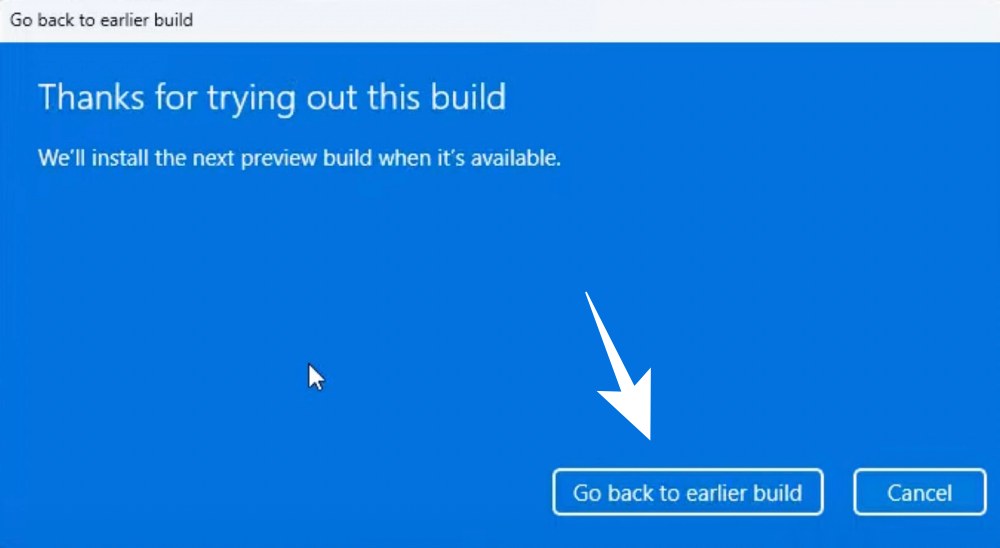
If you had already installed the update during the initial rollout phase and are now unable to use various printer functionalities, then your best course of action is to downgrade to the earlier 21H2 update. To do so, please check out our guide on How to Uninstall Windows 11 22H2 Update: Downgrade to 21H2 .
That’s it. These were the two different approaches to effectively deal with the Windows 11 2H22 update printer bug. As far as the official stance on this matter is concerned, the developers are aware of this issue, but they haven’t given out any ETA for the rollout of a fix. As and when that happens, we will update this guide accordingly. In the meantime, the aforementioned workarounds are your best bet.
- How to Stop Windows 11 22H2 Update from Installing
- NVIDIA graphics card low FPS after Windows 11 22H2 update [Fixed]
- Slow SMB File Transfer in Windows 11 22H2 Update [Fixed]
- Windows 11 Version 22H2 KB5017321: Download error 0x800f0806 [Fixed]
(Cancel Reply)
Δ
