Fastboot Device not working with USB 3.0 Port [Fix]
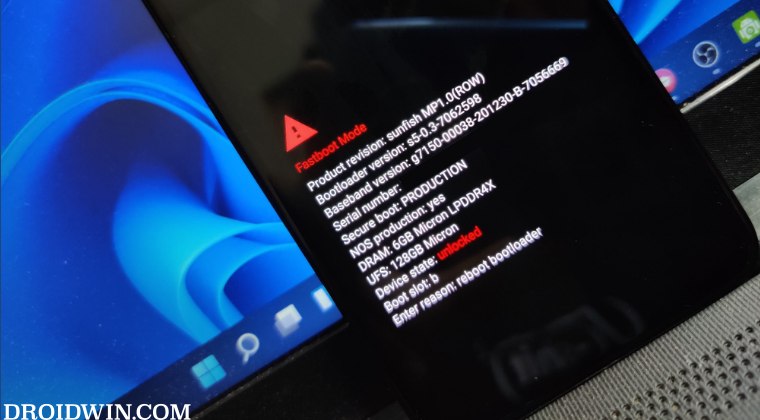
In this guide, we will show you the steps to fix the issue of the Fastboot device not working with a USB 3.0 port. If you usually interact with custom binaries, then you would be interacting with the Fastboot Mode on a regular basis. Whether it is for flashing custom ROMs, custom recoveries, rooting, or flashing stock firmware, all these tasks require that your device be booed to Fastboot Mode.
While that is not a difficult task, the real challenge might arise in your PC successfully identifying your device in this mode. To rectify this issue, your first course of action should be to install Fastboot drivers . Apart from that, you should also update the ADB binaries to the latest version , use a different USB cable, and consider switching from a USB 3.0 to a USB 2.0 Port.
But what if you have exhausted all the possibilities except for switching from USB 3.0 to 2.0 port because your PC only comes with the former port? Well, in such cases, you could make a few registry editor tweaks to make your Android device, which is booted to Fastboot Mode, work with a USB 3.0 port. And in this guide, we will show you how to do just that. Follow along.
Fix Fastboot Device not working with USB 3.0 Port
Before starting with the below steps, make sure to take a backup of the registry beforehand. Once done, you may then start off with the process.
- Launch Registry Editor from the Start menu and head over to the below location: Computer\HKEY_LOCAL_MACHINE\SYSTEM\CurrentControlSet\Control\usbflags\18D1D00D0100
- If 18D1D00D0100 is missing, then right-click on usbflags, select New > key, and name it 18D1D00D0100.
- Now right-click on 18D1D00D0100 and select New > Binary Value. Create three binary values and name them: osvc SkipBOSDescriptorQuery SkipContainerIdQuery
- Now assign the following values to these three Binary keys: osvc: 00 00 SkipBOSDescriptorQuery: 01 00 00 00 SkipContainerIdQuery: 01 00 00 00
- Once done, restart your PC for the changes to take place.
- Locked Bootloader, OEM Unlock Off, Stuck in Fastboot Mode [Fix]
- How to Force Reboot to Fastboot Mode via Fastboot Command
- Flashing GSI via DSU Loader: Device Stuck in Fastboot Mode [Fix]
- How to Install Fastboot Drivers in Windows 11

- Clement 2 years ago Reply Hello, I added the registry as above in order to check if it could help my Xperia SP stay in fastboot mode more than 5 seconds (blue light on) in order to unlock the bootloader but it won’t. I am stuck at this stage. I understood from many posts that USB 2.0 was required. Unfortunately, my laptop (Asus F15 2022) only owns 3.0. Any other idea around? Thanks,
(Cancel Reply)
Δ
