Find all running processes using Powershell in Windows 11
In this guide, we will show you the steps to find all the running processes using Powershell on your Windows 11 PC. Whenever your PC lags, slows down, freezes, or doesn’t perform along the expected lines, then the first approach that you would usually take would be to check the background running apps and processes and close the ones that aren’t needed at that point in time. To do this job, the Task Manager is perhaps the best-suited player. But what if the Task Manager itself gets hanged
Well, this is why it’s always a good idea to have an alternative approach in hand. And for the current scenario, Powershell might just be your next suitable candidate. It even brings up more information than its counterpart, as you will be able to get hold of the following additional data corresponding to each background process- KernelModeTime, PageFileUsage, WriterOperationCount, PeakPageFileusage, WorkingSetSize, ReadTransferCount, ExecutablePath. So on that note, let’s check out how you could find all the running processes using Powershell in Windows 11.
Find All Running Processes using Powershell in Windows 11

- Launch Powershell as an administrator from the Start menu
- Then copy-paste the below command and hit Enter wmic process list
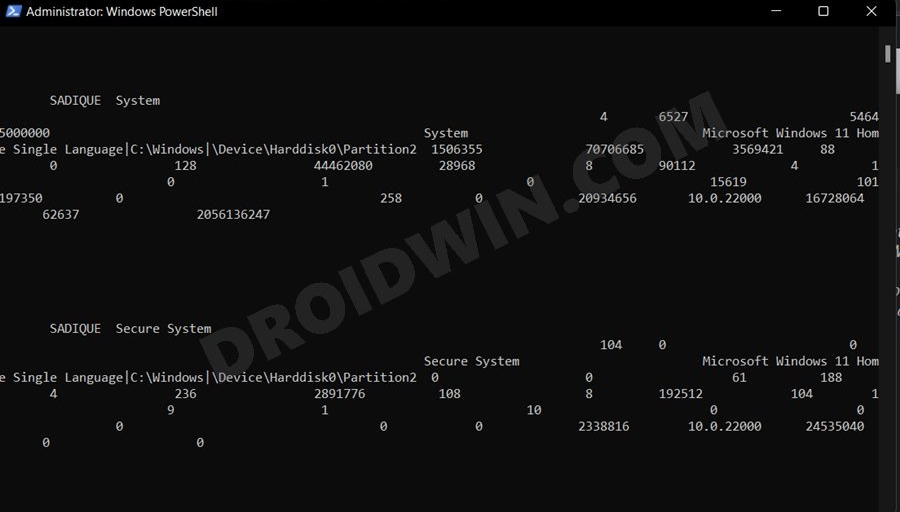
- It will now bring up a list of all the background running processes.
Why Task Manager is still a better alternative than Powershell
While Powershell does its job, but still, if given a choice, you should always for the Task Manager. The reasons for that are aplenty. First off, the GUI of the PowerShell window is a mess and it is quite a challenging task in trying to understand what it is actually trying to convey. No matter the size of the window. the information would still be all jumbled.
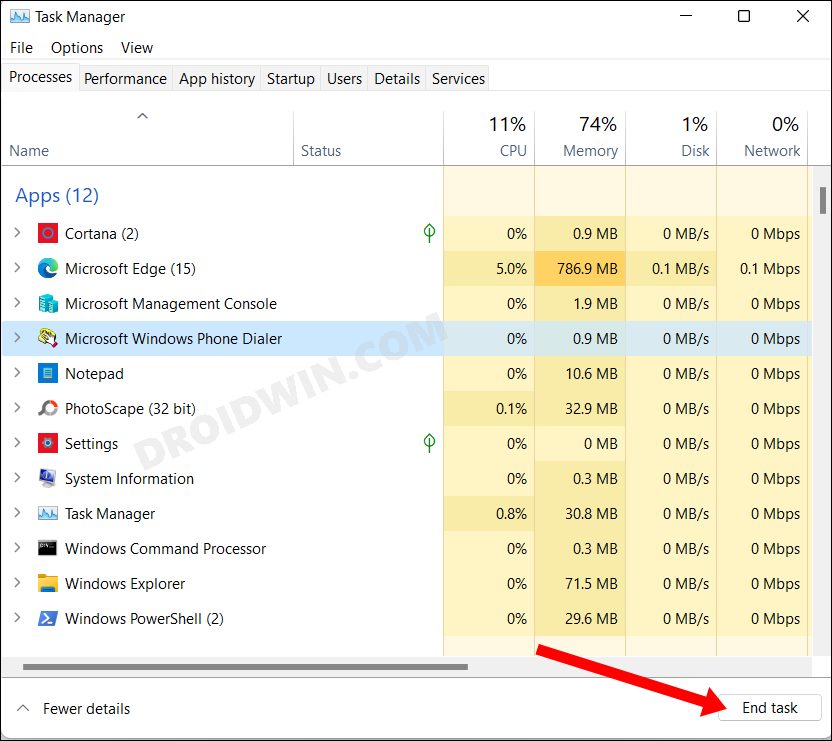
Whereas, Task Manager lists out all the information and clear and easy-to-understand sections. Moreover, there is no easy way of closing a process via Powershell whereas you could easily do the same via Task Manager with just a single click. So owing to all these reasons, it only makes sense to stick to the latter.
- How to Uninstall Apps using Command Prompt (CMD) or Powershell in Windows 11
- How to Replace PowerShell with Command Prompt in Windows 11
- Fix: Task Manager not opening or working in Windows 11
- End Task/Force Kill App via Command Prompt (CMD) in Windows

(Cancel Reply)
Δ
