Find My iPhone option missing from Settings menu [Fix]
In this guide, we will show you a workaround to fix the issue of the Find My iPhone option missing from the Settings menu. While the devices from the Cupertino giant beholds a slew of intriguing goodies, but Find My Device is one of its most underrated yet useful features. As is evident from its name, this feature allows you to locate your missing Apple device on a map and even make it ring. However, it goes without saying that it should be enabled beforehand.
In this regard, this is usually the first few steps that a user carries out right after getting their hands on an Apple device. However, it seems to be a tough nut to crack for some. A subset of users have voiced their concern that the Find My iPhone option is missing from the Settings menu on their device. If you are also facing the same issue, then this guide will help you out. Follow along for the fix.
Fix Find My iPhone option missing from Settings menu
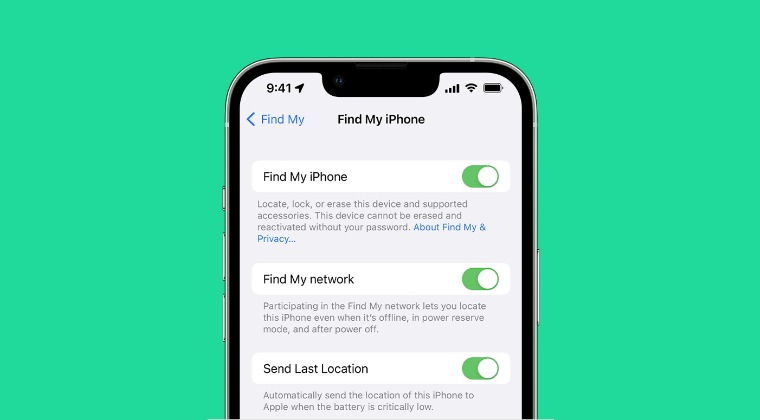
In order to rectify this issue, you just need to sign out and then re-sign into your iCloud account from your iPhone. Here’s how it could be done:
- Head over to Settings > [Your Name] > Sign out.
- Enter your Apple ID password and tap Turn Off.
- Tap Sign out > Sign out and then restart device.
- Then go to Settings > Sign in to your [device].
- Finally, enter your Apple ID and password.
- Synced Content taking way too much storage on iOS 17
- iPhone Music App not working on iOS 17: How to Fix
- iOS 17: contact poster using a nickname instead of first & last name!
- Next Backup Size Larger Bug in iOS 17? You’re not alone!

(Cancel Reply)
Δ
Next Backup Size Larger Bug in iOS 17? You’re not alone!
Many users have voiced their concern that the next backup size is going to be significantly larger than their previous one in iOS 17. At the time of writing, Apple is testing out the second Public Beta and the fifth Developer Preview. Since both of them are currently in the testing phase, it’s near about along the obvious lines that the OS is bound to get bugged with a few bugs and issues [which has indeed been the case ].
Next Backup Size Larger Bug in iOS 17
However, the latest one seems to have left quite a few users stumped. Many of them have reported that the Next Backup feature on their iPhone is showing up to 20-30GB larger than their previous one. Upon further digging up the files that it might back up, well, they are even seeing the likes of Google Drive, One Drive, Dropbox, and offline YouTube videos [serioulsy, we are not joking!].
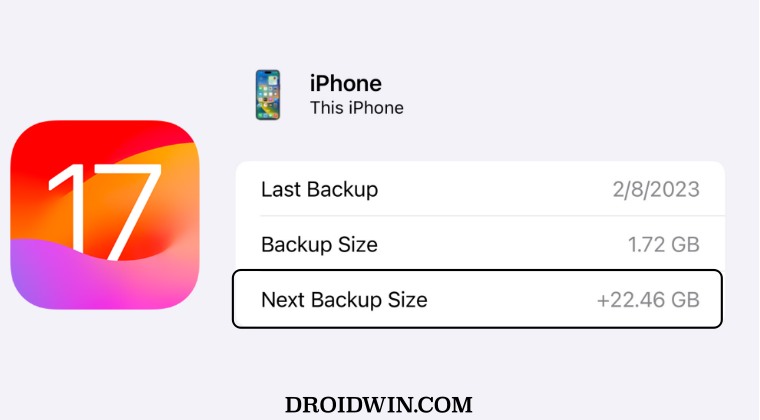
They could verify the same by heading over to S ettings > iCloud > Manage storage > backups > tap my iPhone, and checking out all the data that’s going to be in the next backup. As of now, there doesn’t seem to be any workaround that seems to be addressing this issue. While we are waiting for the third public beta to arrive [which could be here in a day or two], it’s recommended that you file a bug report using the Feedback app installed on your device at the earliest.
As far as the official stance on this matter is concerned, the developers are yet to acknowledge this issue, let alone give out any ETA for the rollout of a fix. As and when any of these two things happen, we will update this guide accordingly. In the meantime, the aforementioned workarounds are your best bet.
- iOS 17 Unable to Check for Update [Workaround]
- Fix iPhone Screen Time not working/Incorrect Data on iOS 17
- Fix Apps not showing Notification Badge on iOS 17
- How to Fix CarPlay not working on iOS 17
- AdGuard not working on Safari on iOS 17: How to Fix
(Cancel Reply)
Δ
