Fix Android stuck in Recovery Mode: No Command screen
In this tutorial, we will show you the steps to fix Android stuck in Recovery Mode: No Command screen. One of the biggest perks of having an open-source OS like Android is the plethora of tweaks that it beholds. There is just one prerequisite that needs to be met from your end, and that is an unlocked bootloader. Once that is done, you could then carry out a plentitude of customizations. These include the ability to flash custom ROMs, install a custom recovery like TWRP, or gain administrative rights by rooting your device (with or without using TWRP).
The latter in turn allows you to flash a custom kernel , install Magisk Modules , try out Xposed Framework , or install Substratum Theme engine . To effectively carry out these tweaks, you need to either boot your device to Fastboot or Recovery mode. And this is where might be an issue or two for some users. We have seen many instances where an Android device gets stuck in Recovery Mode and gets the No Command message. In this tutorial, we will show you the reason for this issue and more importantly, how to fix it. So without further ado, let’s get on with the guide.
How to Permanently Install TWRP without TWRP ZIP File (only using TWRP.img file)
How to Fix TWRP Error 7 (While Flashing Custom ROM via TWRP)
How to Install OTA Updates in Rooted Android Device
Patch Stock Boot Image via Magisk and Flash it using Fastboot
METHOD 1:Fix Android Stuck in Recovery Mode: No Command via Hardware Keys
METHOD 2: Fix Android Stuck in Recovery Mode: No Command by Flashing Stock Firmware Prerequisites STEP 1: Boot to Recovery Mode from No Command Screen STEP 2: Boot to Fastboot from Recovery Mode STEP 3: Fix Recovery Mode: No Command via Fastboot
METHOD 1:Fix Android Stuck in Recovery Mode: No Command via Hardware Keys
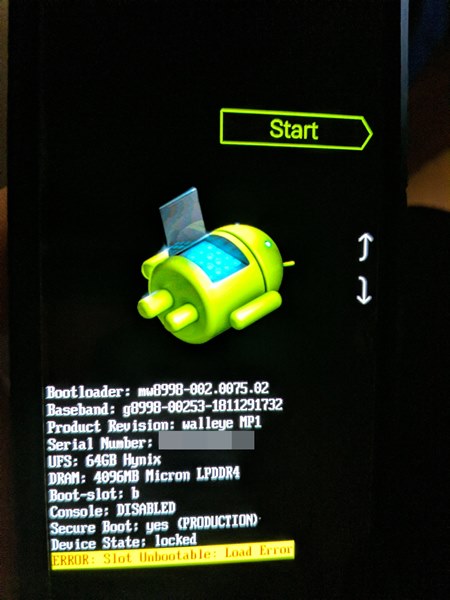
Well, sometimes, the issue might look scarier than is usually the predicament. And this might be the case this time around as well. While you might see the Android logo in its unusual dead state, but there’s nothing to worry about as such. The No Command Screen on your Android device is a mid-point between the Fastboot Mode and Stock Recovery. So all that you need to do is bypass this screen using a few hardware key combinations. Here’s how:
- As of now, your device would be booted to the No command screen.
- So press and hold the Power Button and while doing, so press and release the Volume Up key (after about 5 seconds) and then release the Power key as well.
- You would have now bypassed the No command screen and should be taken directly to the Stock Recovery.
- Now just use the Volume Keys to select the Reboot System Now option and press the Power key to confirm it.
That’s it. Your device will now boot to the OS and with this, you have successfully fixed the Android stuck in Recovery Mode: No Command screen issue.
METHOD 2: Fix Android Stuck in Recovery Mode: No Command by Flashing Stock Firmware
Prerequisites
First and foremost, install Android SDK Platform Tools on your PC. This will provide the necessary ADB and Fastboot binary files.
Next up, download your device’s stock ROM/firmware. It is highly recommended that you download the same or the latest available build for your device. Installing an older build might cause a few issues in itself. As far as the download link goes, every OEM uploads them on their official site, usually under the Support section.
How to Fix FAILED (remote: unknown command) Error
How to Extract payload.bin and get the stock boot image file
Fix: pip is not recognized as an internal or external command
Detailed Steps to Fix adb is not recognized Error
STEP 1: Boot to Recovery Mode from No Command Screen
As already mentioned in Method 1, here’s how to boot to the Recovery Mode from the No Command Screen:
Press and hold the Power Button and while doing so, press and release the Volume Up key (after about 5 seconds) and then release the Power key as well.
- Fix Mi Account Authorization | Unbrick Xiaomi | EDL Mode
- Disable DM-Verity or Android Verified Boot without TWRP
- How to Update Magisk ZIP and Magisk Manager (without TWRP)
- Everything About Magisk- Manager, Modules, and More
STEP 2: Boot to Fastboot from Recovery Mode
It’s now time to boot your device to Fastboot Mode. For that, use the hardware key combinations to select the Reboot to Bootloader option. Then press the Power key to confirm your decision. Your device should now boot to the Fastboot/Bootloader Mode.
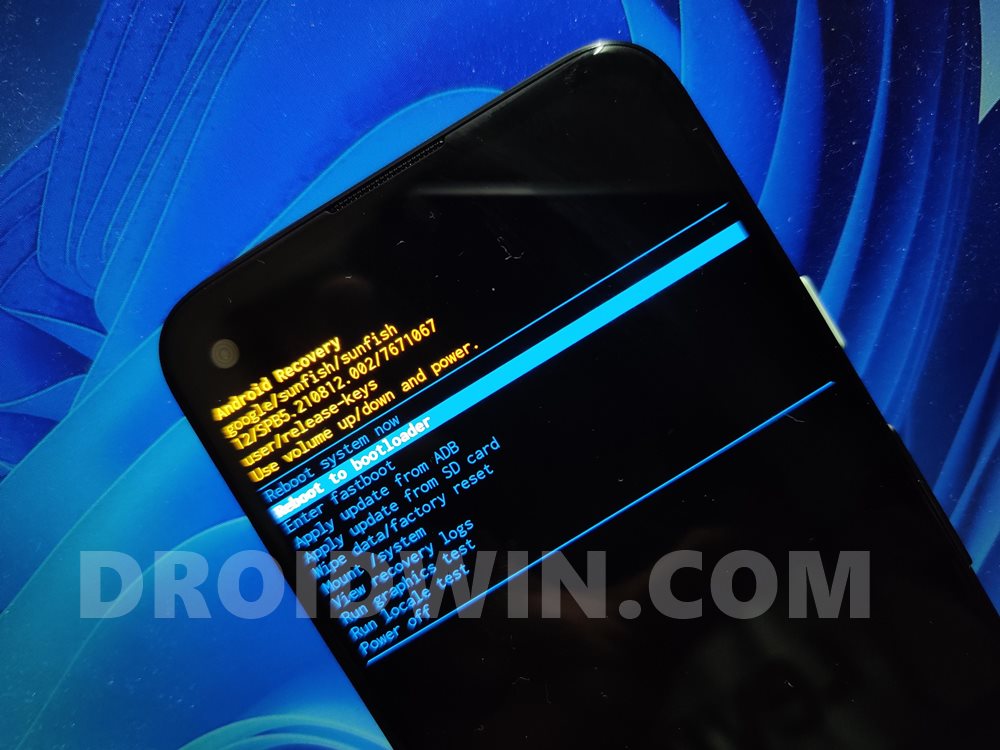
Do remember that the options might read out a little bit differently on various devices but should still be along similar lines. Anyways, once booted to Fastboot, proceed with the below instruction to fix Android stuck in Recovery Mode: No Command screen.
STEP 3: Fix Recovery Mode: No Command via Fastboot
The third and final section requires you to flash the Fastboot ROM onto your device. Now there are three different approaches for the same. In the first method, you could use the flashing tool created by the OEM. As an example, Xiaomi comes with its Mi Flash Tool that allows you to directly flash Fastboot ROMs.
In the next method, you could make use of the flash-all file that a lot of OEMs pack in with their firmware. All you have to do is place all these files inside the platform-tools folder, and then just launch that flash-all file (most of the time they are a batch file). Some OEMs are a little bit generous and provide a couple of additional flash files such as flash-all-except-data, etc.
However, if your device has just a single flash-all file, then the chances are it might also have the fastboot -w command. This command will end up wiping all the data from your device. So before executing this file, you could edit it via Notepad++ and remove that line of code from that file. Then save the file and launch it to the fix Android stuck in Recovery Mode: No Command screen issue.
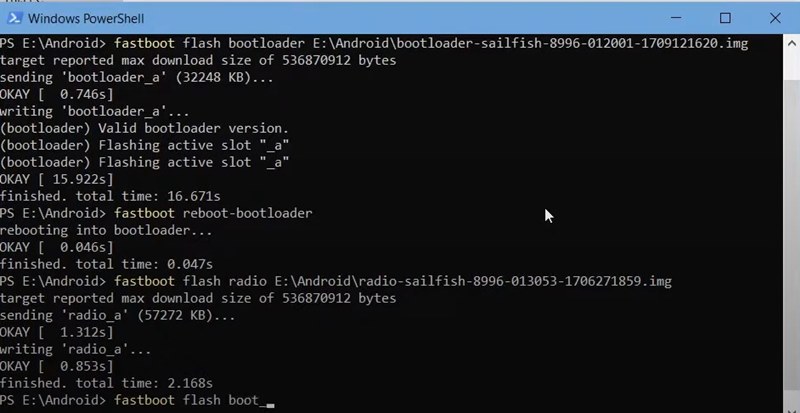
The third and final method involves flashing the ROM via Fastboot Commands. In that method, you would have to extract the contents of your Fastboot ROM inside the platform-tools folder and then launch the Command Prompt window inside that folder. After that, you would have to flash each file individually.
Here are some fastboot commands that might help you out. Do keep in mind that you might need to modify them accordingly: REFER TO THIS GUIDE: How to Flash Stock Firmware via Fastboot Commands . Or you could also use the below Fastboot Commands:
fastboot flash bootloader
.img fastboot flash radio .img fastboot flash update .zip fastboot flash pit diskmap.pit fastboot flash fwbl1 fwbl1.img fastboot flash ldfw_a ldfw.img fastboot flash ldfw_b ldfw.img fastboot flash keystorage_a keystorage.img fastboot flash keystorage_b keystorage.img fastboot flash bootloader_a bootloader.img fastboot flash bootloader_b bootloader.img fastboot flash modem_a modem.bin fastboot flash vbmeta_a vbmeta.img fastboot flash oem_a oem.img fastboot flash oem_b oem_other.img fastboot flash logo_a logo.bin fastboot flash dtbo_a dtbo.img fastboot flash boot_a boot.img fastboot flash system_a system.img_sparsechunk.0 fastboot flash system_a system.img_sparsechunk.1 fastboot flash system_a system.img_sparsechunk.2 fastboot flash system_a system.img_sparsechunk.3 fastboot flash system_a system.img_sparsechunk.4 fastboot flash system_a system.img_sparsechunk.5 fastboot flash system_a system.img_sparsechunk.6 fastboot flash system_a system.img_sparsechunk.7 fastboot flash system_a system.img_sparsechunk.8 fastboot flash system_a system.img_sparsechunk.9 fastboot flash system_a system.img_sparsechunk.10 fastboot flash system_b system_other.img_sparsechunk.0 fastboot flash system_b system_other.img_sparsechunk.1 fastboot flash system_b system_other.img_sparsechunk.2 fastboot flash vendor_a vendor.img fastboot erase userdata fastboot reboot bootloader
- How to Fix FAILED (remote: unknown command) Error
- How to Extract payload.bin and get the stock boot image file
- Fix: pip is not recognized as an internal or external command
- Fix Mi Account Authorization | Unbrick Xiaomi | EDL Mode

- Haiden 3 years ago Reply Hi l have a Nokia 2.3 and it’s stuck on the no command section l have tried all the mentioned methods except changing the firmware since l can not at the current time..is there another fix or maybe a software that can help
- Ali 5 years ago Reply Hi I would like to know the key co.bination on the no command screen for Samsung galaxy tab e sm t560. Sadique Hassan 5 years ago Reply Hi Ali, I have mentioned the steps in this guide: Unbrick Samsung | Flash Stock Firmware via Odin Please refer to the last section named: Fix Samsung Device stuck in No Command Screen Atharva 2 years ago Reply sir my device is always going on no command screen even after flashing stock rom 3-4 times using Moto RSA. Please help stock rom, gsi nothing is booting all come to no command screen
(Cancel Reply)
Δ
