Fix Android: “Your Device is Corrupt” on Locked Bootloader
In this guide, we will show you the steps to fix the “Your device is corrupt” error on Android devices with a locked bootloader. If you have an unlocked bootloader and you are stuck in an issue, then there are quite a few ways out to resolve the problem at hand. From doing a factory reset via TWRP to flashing the stock firmware or even a custom ROM, the possibilities stand endless. However, if the same issue happens when the bootloader is locked, then the entire scenario changes drastically.
For instance, numerous users have voiced their concern that they are getting the “Your device is corrupt It can’t be trusted and will not boot” error message on their device with a locked bootloader. One of the most common reasons behind this issue is the fact that there were a few modules installed on your device [such as Magisk modules, LSPosed, or even a custom recovery like TWRP] but despite that, you proceeded ahead and relocked the bootloader.
So what could be done now? Well, there does exist a nifty workaround that should help you rectify this issue. So without further ado, let’s check it out.
Fix Android: “Your Device is Corrupt” on Locked Bootloader

The below process will wipe off all the data from your device and might nullify its warranty. Droidwin and its members wouldn’t be held responsible in case of a thermonuclear war, your alarm doesn’t wake you up, or if anything happens to your device and data by performing the below steps.
- Download and extract Android SDK Platform Tools on your PC.
- Then long press the power key to power off your device.
- Now use the hardware key combinations to boot to Fastboot Mode.
- In the case of OnePlus, you don’t even need to power off your device. When the error message appears, just press and hold the Power, Volume Up, and Volume Down keys together for a few seconds.
- Once your device is in Fastboot Mode, connect it to PC via USB cable.
- Now launch Command Prompt inside platform tools and type in the below command: fastboot devices
- You should now get a serial ID. If that doesn’t happen, install Fastboot Drivers on your PC.
- Moving on, now type in the below command to unlock the device’s bootloader fastboot flashing unlock
- You might now get a prompt on your device. Select YES/OK/Unlock Bootloader.
- The device will undergo a reset and subsequently bot your device to OS. That’s it.
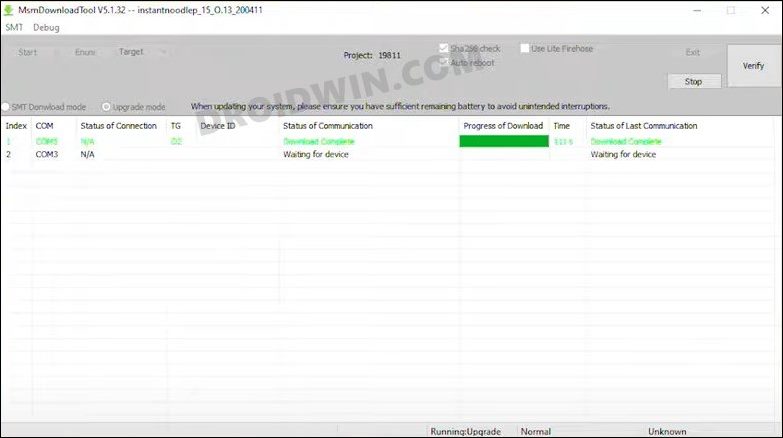
NOTE for OnePlus Users: If you are unable to access the Fastboot Mode, then you also have the option to boot your device to EDL Mode and then reflash the firmware via MSM Download Tool.
- iPhone error invalid number when sending message to Android [Fix]
- Fix fastboot: error: ANDROID_PRODUCT_OUT not set
- Google Docs & Drive Synchronization Error on Android [Fix]
- SmartTubeNext ModernClientData Error on Android TVs [Fixed]

- Tharun 1 year ago Reply My OnePlus 7t boot loader state is locked. Unfortunately my power button is not working. If i connect power supply/charger, it turns on its own. My ultimate aim is to pull my data back. So how to achieve? Sadique Hassan 1 year ago Reply While you might be able to unbrick it via MSM Download Tool, but saing the data doesn’t seem to be possible. In case, you can access the Fastboot Mode and you are sure that the issue is due to a single partition being corrupted, then simply flash just that partition [such as fastboot flash init_boot init_boot.img] and then reboot to OS [fastboot reboot]. Then connect a USB Mouse to your device and you “might” be able to navigate the device and hence save your data.
(Cancel Reply)
Δ
SmartTubeNext ModernClientData Error on Android TVs [Fixed]

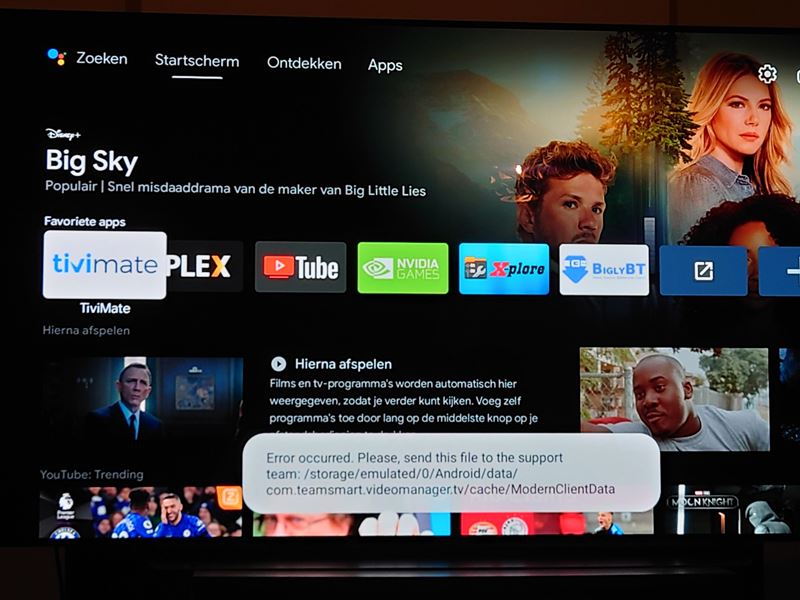
However, as of now, it seems to be going through a rough patch. Various users have voiced their concern that they are constantly getting bugged with the ModernClientData Error in the SmartTubeNext app. The entire message spells out that “Error occurred. Please send this file to the support team file-location/ModernClientData”. While it isn’t conflicting with the app’s normal functionality, still it tends to distort the viewing experience by blocking the bottom half of the screen.
How to Fix SmartTubeNext ModernClientData Error on Android TVs
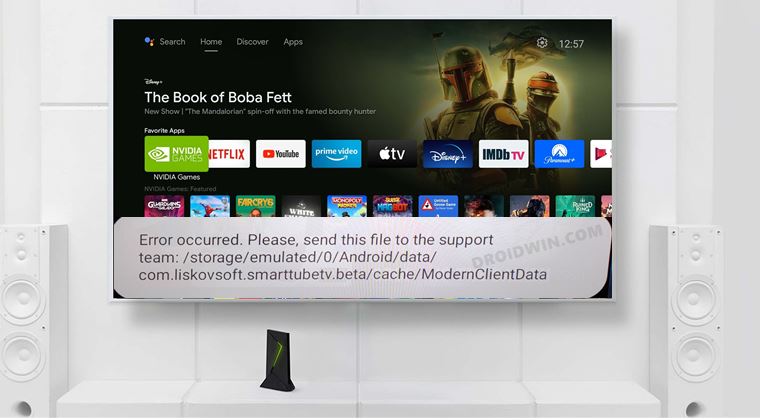
One of the biggest perks of using an open-source app is that we could easily voice our concerns and more importantly, developers are quick to respond to the community’s needs. And the same has happened this time around as well. After listening to all the concerns over at Reddit and GitHub, the developers have rolled out a new update that has finally resolved this issue.
So all that you need to do is update SmartTubeNext to the latest version 14.16. As far as the process goes, you could directly update it from within the app itself. Or you could also sideload and install the APK from GitHub, whose direct link we have shared as well: latest beta download | latest stable download .
- How to Remove Ads on Nvidia Shield and other Android TVs
- Unlock Bootloader on Nvidia Shield TV
- How to Downgrade Nvidia Shield TV to Android 9
- Install Nvidia Shield TV ADB Fastboot Drivers in Windows 10/11
(Cancel Reply)
Δ
