Fix App Can’t Be Opened Because Apple Cannot Check For Malicious Software
In this guide, we will show you the steps to fix the “App Can’t Be Opened Because Apple Cannot Check For Malicious Software” error on your Mac. Recently I downloaded an app from outside the App Store and upon sideloading it onto my Mac, I was greeted with a waning prompt, which to be fair was along the expected lines.
But what wasn’t was the fact that there was no option to proceed ahead with the installation after accepting the warning. Generally, an OS should bring up the subsequent installation once you agree to the associated risk factor that it has listed out. However, that wasn’t the case here. While this stringent security measure is welcomed any day of the week, but at the same time, there should be a window of freedom for the users who have understood the risks and wish to install the app.
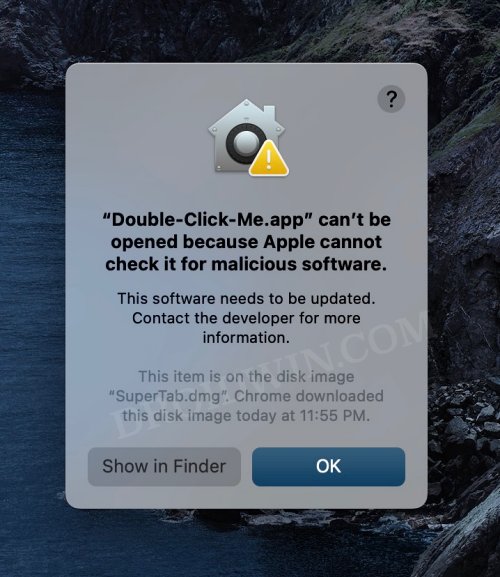
Well, it turns out there does exist a method through which you could easily bypass the “App Can’t Be Opened Because Apple Cannot Check For Malicious Software” error on your Mac and proceed ahead with the installation. And in this guide, we will show you the steps to do just that. Follow along.
Fix App Can’t Be Opened Because Apple Cannot Check For Malicious Software
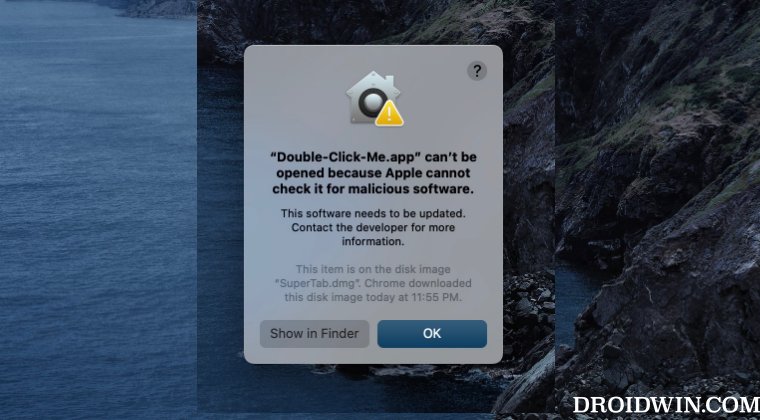
Before starting with the below steps, make sure that you have downloaded the app from a trusted site and that the app itself is safe to use.
- In order to rectify this issue, you should neither double-click to open that app nor right-click and select Open.
- Instead, press and hold the Control key, and while holding that key, right-click on the setup and select Open.
- This will bring up a one-time confirmation, click Open and the installation will now begin.
- sh Login Item from an unidentified developer on Mac [Fix]
- Open a Folder using Keyboard Shortcut in Mac [without any app]
- The software for the printer was installed incorrectly on Mac [Fix]
- Mac’s second external display going black on Full Screen [Fix]

(Cancel Reply)
Δ
The software for the printer was installed incorrectly on Mac [Fix]
Numerous users have recently voiced their concern that they are unable to set up their printers. Whenever they are trying to do so, they are instead greeted with the “software for the printer was installed incorrectly Please reinstall the software from the manufacturer” error message on their Mac. If you are also in the same boat, then this guide will make you aware of a couple of nifty workarounds to effectivity address this bug. Follow along.
- Fix The software for the printer was installed incorrectly on Mac FIX 1: Verify Certificate Date FIX 2: Add Printer via IP Address FIX 3: Manually Place PPD Files FIX 4: Install Unsigned Drivers
Fix The software for the printer was installed incorrectly on Mac
It is recommended that you try out each of the below-mentioned workarounds and then see which one spells out success. So with that in mind, let’s get started.
FIX 1: Verify Certificate Date
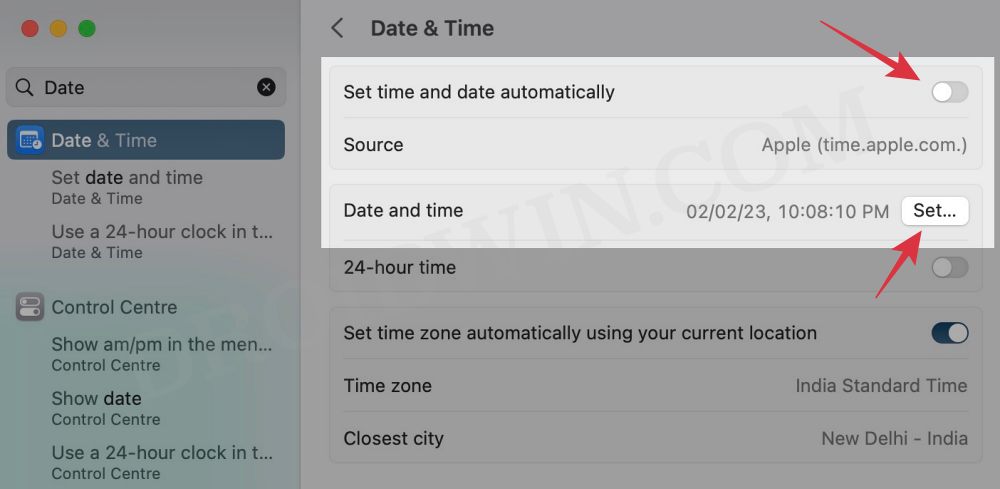
First off, make sure that the printer’s drivers aren’t expired. If they are, then you should first disconnect your Mac from the internet, change the date on your Mac prior to the expiration date, and then retry the installation. Or if that doesn’t work out, then try out our second fix listed below.
FIX 2: Add Printer via IP Address
If you’re having an expired encryption certificate for your printer and the aforementioned tweak didn’t spell out success, then your next course of action is to install the printer via its IP Address. Here’s how it could be done:
- Open S ystem Settings > Network and select your printer.
- Then note down the IP Address next to your printer.
- Now S ystem Settings and go to Printers and Scanners.
- Then select your printer from the list and delete it.
- After that, click on Add Printer.. and go to the Web tab.
- Then type in the IP Address and it will bring the printer, hit Add.
- Check if it fixes the “software for the printer was installed incorrectly” error on Mac.
FIX 3: Manually Place PPD Files
- The driver package that you have downloaded might also have a few PPD files.
- So copy those PPD files and place them at the following location /Library/Printers/PPDs/Contents/Resources/
- Now check if it fixes the “software for the printer was installed incorrectly” error on Mac.
FIX 4: Install Unsigned Drivers
If you could only get hold of the drivers from unknown developers or they are unsigned but you are ready to take the risk, then here’s how you to install these unsigned drivers.
- Go to Launchpad > Others and select Terminal.
- Then type in the below command in the terminal: sudo spctl –global-disable
- Now try installing the driver and check out the result.
- Printer not working in macOS Ventura: How to Fix
- Printer Error: Stopped Filter failed on Mac [Fixed]
- How to Clear and Rebuild Icon Cache on Mac
- Adobe Illustrator v27 crashing on Mac and Windows [Fixed]
(Cancel Reply)
Δ
