Fix Bootloop after Rooting Galaxy S23 Ultra
In this guide, we will show you the steps to fix the bootloop issue after rooting your Galaxy S23 Ultra via Magisk patched AP. When it comes to custom development, then it goes without saying that Samsung stands out from the rest, especially in the way things are handled in this domain. From booting to Download Mode instead of Fastboot to patching and flashing AP instead of boot.img for root, the differences are there for everyone to see.
And things only turn for the worse if you end you end up hitting a roadblock, which unfortunately has just been the case for numerous flagship users who were on the latest security patch. Numerous users have voiced their concern that their Galaxy S23 Ultra [especially those on the latest update] is stuck in a bootloop while they were trying to root it via Magisk. If you are also getting bugged by this issue, then this guide will help you rectify it. Follow along.
Fix Bootloop after Rooting Galaxy S23 Ultra
Before starting, please take a backup of all the data on your device. Droidwin and its members wouldn’t be held responsible in case of a thermonuclear war, your alarm doesn’t wake you up, or if anything happens to your device and data by performing the below steps.
- Download the stock firmware for your device via Frija Tool or a website like samfw.
- Then download and install the 7ZIP File Extractor app on your PC.
- Now extract the boot.img lz4 from the stock firmware AP. *tar.md5.
- Once you have got the boot.img lz4, use 7ZIP and pack it into a tar file.
- Now download and install Odin on your PC. Then launch it.
- Load Magisk patched AP in the AP slot of Odin and BL, CP, and Home CSC in their respective slot.
- Then load the boot.img tar file that you had created earlier in the Userdata slot.
- Now connect your device to your PC via a USB cable and boot it to Download Mode.
- Finally, hit the Start button and the flashing will initiate. Once done, your device will now boot to the OS.
- If needed, you could now flash the TWRP Recovery as well as the patched vmbeta.img as well.
- How to Change CSC to US Carrier on Galaxy S23 Ultra
- Fix Lock Screen Notifications not working on Galaxy S23 Ultra
- Fingerprint Scanner Icon missing from Galaxy S23 Ultra [Fix]
- How to Disable Camera Sound in Galaxy S23 Ultra

(Cancel Reply)
Δ
Fingerprint Scanner Icon missing from Galaxy S23 Ultra [Fix]
In this guide, we will show you the steps to fix the issue of the Fingerprint Scanner Icon missing from the Galaxy S23 Ultra. The S series from the South Korean giant have established itself as the flagship flag-bearer in the Android domain. However, with great powers comes great responsibility and Samsung currently isn’t able to checkmark this accountability.
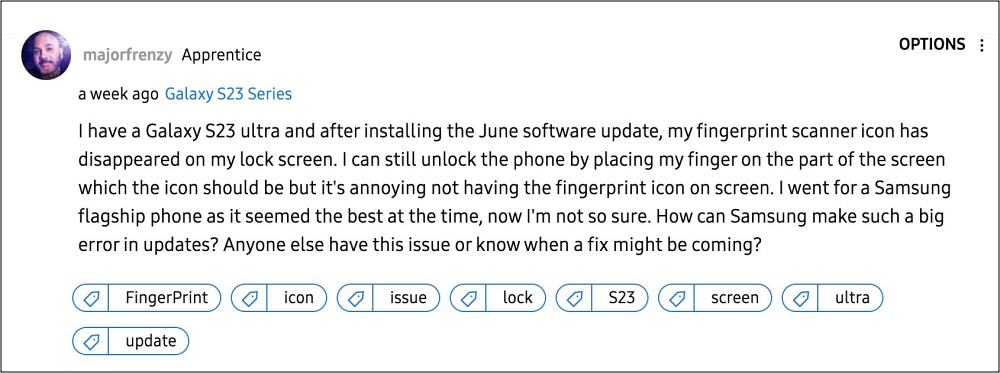
Its June update, on paper, should fix the underlying issues and enhance the overall performance of the OS but that seems to be far from the truth. Numerous users have voiced their concern that right after installing the latest June 2023 security patch, the Fingerprint Scanner Icon is missing from their Galaxy S23 Ultra.
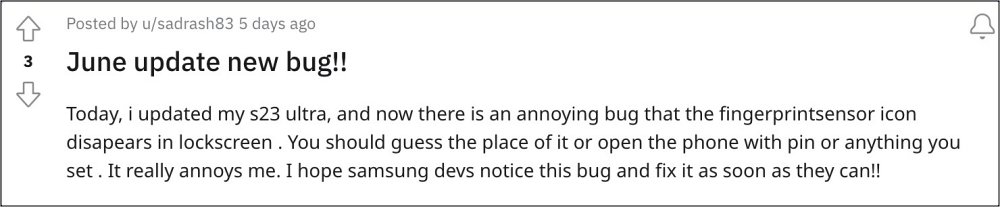
As a result of this, they have to randomly guess the position of the sensor on their screen after a plethora of tries, one of the attempts clicks and their device ultimately gets unlocked. On the other hand, some have bid adieu to this infuriating UI/UX behavior and switched to a different unlocking style altogether. If you don’t want to jump ships over to pattern or PIN, then this guide will help you rectify this fingerprint issue. Follow along.
Fix Fingerprint Scanner Icon missing from Galaxy S23 Ultra
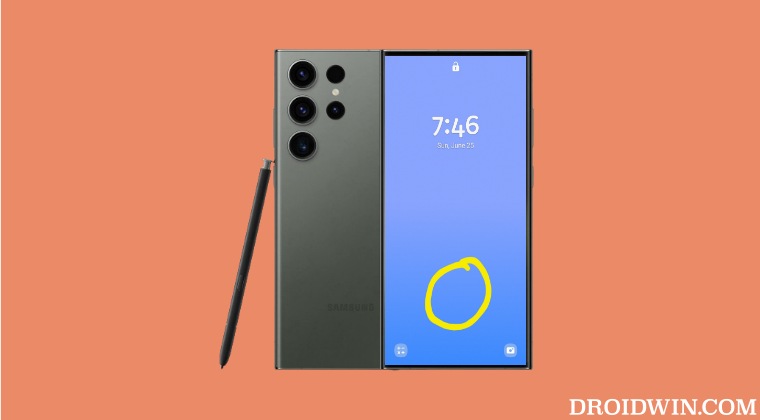
As of now, the only workaround that is spelling out success for the users involves enabling both the “Fingerprint always on” and “Show icon when screen is off” features, then waiting for a few seconds and disabling both these features. This should fix the issue of the Fingerprint Scanner Icon missing from the Galaxy S23 Ultra.
As far as the official stance on this matter is concerned, the developers are yet to acknowledge this issue, let alone give out any ETA for the rollout of a fix. As and when any of these two things happen, we will update this guide accordingly. In the meantime, the aforementioned workarounds are your best bet.
- Hey Google command not working in Galaxy S23 Ultra [Fix]
- How to Disable Camera Sound in Galaxy S23 Ultra
- eSIM not working on Galaxy S23 Ultra: How to Fix
- How to Set Different SIMs for Calls and SMS in Galaxy S23 Ultra
(Cancel Reply)
Δ
