Fix Corrupt Persist Partition on Poco X3 Pro [CTS Fail]
In this guide, we will show you the steps to fix the corrupt persist partition on your Poco X3 Pro. While stepping into the custom development does open the floodgates to a plethora of customizations but on the flip side, there’s always a risk of things going south. Among them, issues with the persist partition are among the most concerning ones. When that happens, the device’s fingerprint might no longer work.
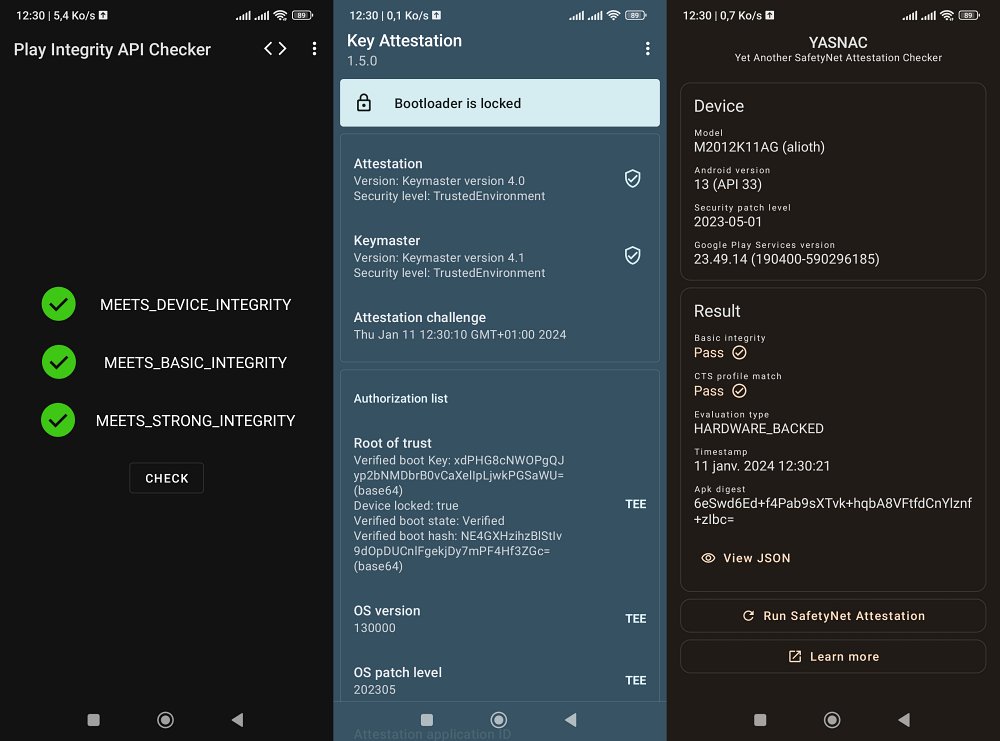
Apart from that, there could be a few other under-the-hood issues like the failing of the CTS Profile, even on a locked bootloader. This in turn will result in your inability to use the banking and payment apps. All in all, a slew of issues might bug your device if the persist partition gets corrupted on your Poco X3 Pro. Fortunately, there does exist a nifty method that should help you rectify this issue. So without further ado, let’s check it out.
- Fix Corrupt Persist Partition on Poco X3 Pro [CTS Fail] STEP 1: Install Android SDK STEP 2: Enable USB Debugging and OEM Unlocking STEP 3: Unlock Bootloader STEP 4: Flash Xiaomi Engineer Firmware STEP 5: Get Keybox.XML STEP 6: Execute Commands STEP 7: Set the Library Path STEP 8: Relock Bootloader
Fix Corrupt Persist Partition on Poco X3 Pro [CTS Fail]
The below process will wipe off all the data from your device, so take a backup beforehand. Moreover, the original keys that your phone may include in the TEE will be lost. Droidwin and its members wouldn’t be held responsible in case of a thermonuclear war, your alarm doesn’t wake you up, or if anything happens to your device and data by performing the below steps.
STEP 1: Install Android SDK

First and foremost, you will have to install the Android SDK Platform Tools on your PC. This is the official ADB and Fastboot binary provided by Google and is the only recommended one. So download it and then extract it to any convenient location on your PC. Doing so will give you the platform-tools folder, which will be used throughout this guide.
STEP 2: Enable USB Debugging and OEM Unlocking
Next up, you will also have to enable USB Debugging and OEM Unlocking on your device. The former will make your device recognizable by the PC in ADB mode. This will then allow you to boot your device to Fastboot Mode. On the other hand, OEM Unlocking is required to carry out the bootloader unlocking.
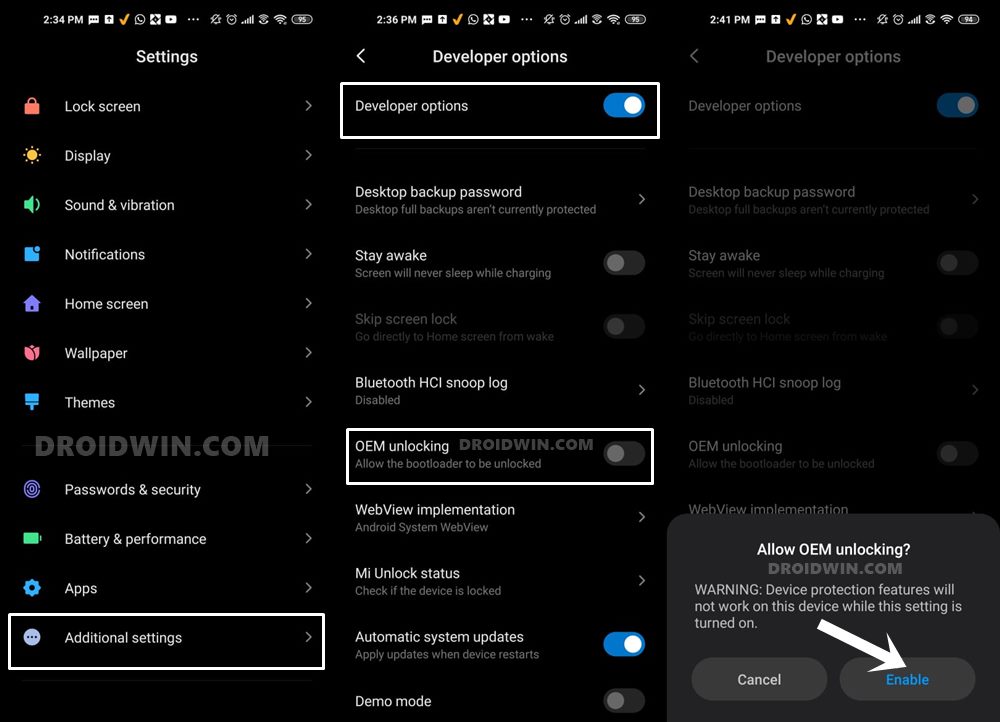
So head over to Settings > About Phone > Tap on MIUI Number 7 times > Go back to Settings > System > Advanced > Developer Options > Enable USB Debugging and OEM Unlocking.
STEP 3: Unlock Bootloader
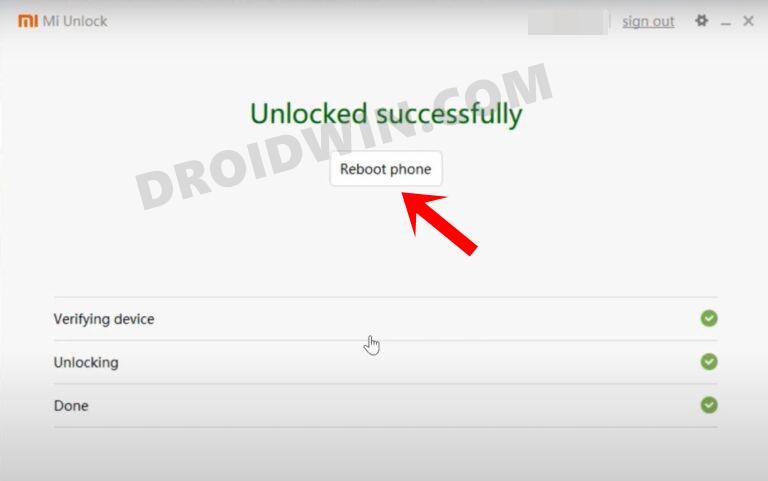
Next up, you will need to unlock the device’s bootloader. However, doing so will wipe off all the data and could nullify the device’s warranty as well. So if that’s all well and good, then please refer to our guide on How to Unlock Bootloader of Any Android Device . [And don’t worry, we will relock the bootloader once the entire process is complete].
STEP 4: Flash Xiaomi Engineer Firmware
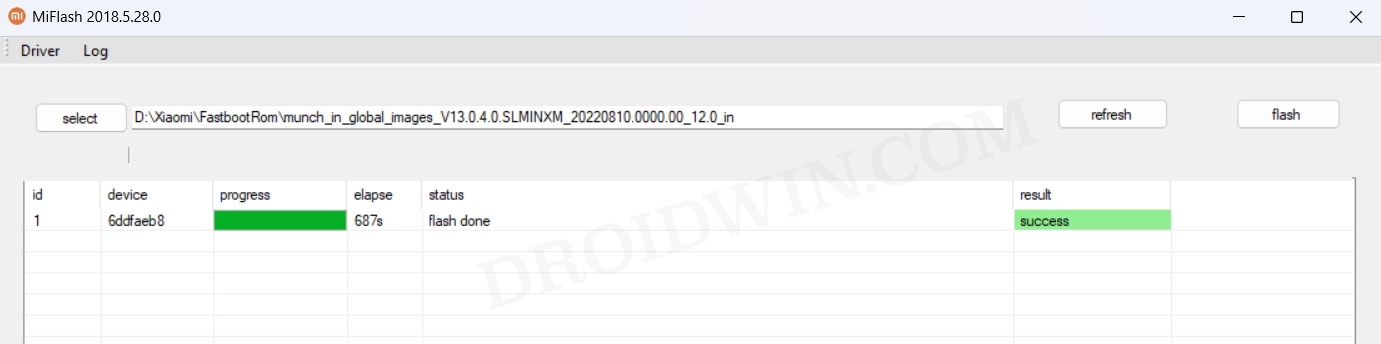
Next up, you will have to download and install the Engineer firmware for your device. Make sure to download the same version that is currently installed on your device (you could verify the same from your device’s Build Number). As far as the downloading source is concerned, make sure to get it from a trusted third-party site. Once downloaded, flash the ROM via the Mi Flash Tool.
STEP 5: Get Keybox.XML
You’ll now have to get hold of keybox.xml for Poco X3 Pro, so download this keybox.xml file [Credits: chiteroman].
STEP 6: Execute Commands
Open Command Prompt inside platform-tools and execute the below commands in the same order as listed:
adb root

adb disable-verity

adb reboot

adb root

adb remount

adb shell

mkdir –p /data/nativetest64/qti_keymaster_tests/

exit

adb push keybox.xml /data/nativetest64/qti_keymaster_tests/

adb shell

cd /data/nativetest64/qti_keymaster_tests/
STEP 7: Set the Library Path
- First off, verify if your device is Strongbox by checking out this link [all the devices listed there are Strongbox].
- If your device is StrongBox, then use the below syntax: LD_LIBRARY_PATH=/vendor/lib64/hw KmInstallKeybox {KEYBOX FILE} {KEYBOX DEVICE ID} {ATTEST PROPS?} {KEYBOX FILE} {KEYBOX DEVICE ID} {ATTEST PROPS?}
- If your device is not StrongBox, then use the below syntax: LD_LIBRARY_PATH=/vendor/lib64/hw KmInstallKeybox {KEYBOX FILE} {KEYBOX DEVICE ID} {ATTEST PROPS?}
- Here are the values that you need to replace in the aforementioned syntax {KEYBOX FILE}: Should be “keybox.xml” {KEYBOX DEVICE ID}: Open keybox file and search for “DeviceID”. The one that we have used for Poco X3 Pro uses “X705F100000000” {ATTEST PROPS?}: It has a Boolean value, either true/false. It’s recommended to set it as true [if it gives any error, only then use false].
- So placing these values in the syntax for a Strongbox device, the command transforms to: LD_LIBRARY_PATH=/vendor/lib64/hw KmInstallKeybox keybox.xml X705F100000000 true keybox.xml X705F100000000 true
- On the other hand, for non-Strongbox devices, the command will be: LD_LIBRARY_PATH=/vendor/lib64/hw KmInstallKeybox keybox.xml X705F100000000 true
STEP 8: Relock Bootloader
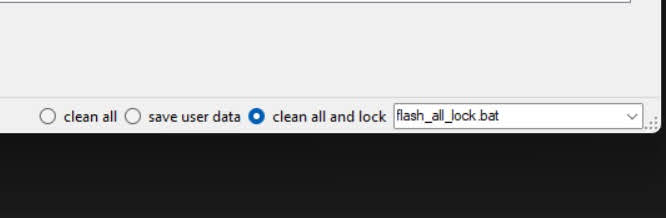
Your final course of action should be to relock the bootloader on your device. For that, please check out our detailed guide on How to Relock Bootloader on Xiaomi Devices [Video] .
- How to Enable Developer Options on Xiaomi HyperOS
- How to Install HyperOS on Locked Bootloader on any Xiaomi
- Google Pay not working in Xiaomi EU ROM: Play Integrity Fix
- How to Increase AOD Time Limit Beyond 10 Seconds on Xiaomi

- al xa 1 year ago Reply Could you say if this guide is working for today?
- al xa 1 year ago Reply Hi. Is this guide actual for Nov 9 2024? On my Poco X3 Pro, I flashed persist.img from stock ROM and my device has become “not certified”. No GPay.
(Cancel Reply)
Δ
