Fix External Display Sleep bug when iPad is connected iPadOS 17
This guide will show you a nifty workaround to fix the issue of External Display Sleep not working with an iPad. According to numerous users, right after they updated their iPad to the seventeenth iteration of the OS and then connected it to an external display via a Thunderbolt port, then the iPad tends to keep the display on even if it’s on sleep. In its proper behavior, the display should also go to sleep as soon as the iPad goes to that state, which isn’t currently happening.
Now the display just stays on with a blank picture most of the time, which results in unnecessary power wastage and might also have an adverse impact on the display in the long run. So this begs the all-important question- is there a fix? Well, there does exist a nifty workaround that might help you resolve this bug. So without further ado, let’s check it out.
Fix External Display Sleep not working with iPad [iPadOS 17]
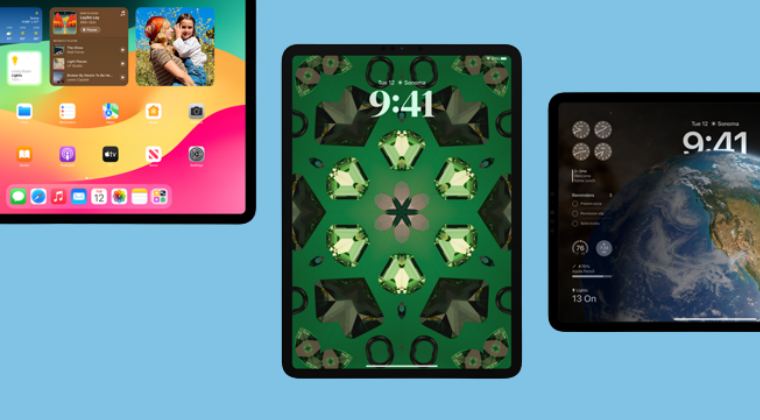
In order to rectify this issue, you just need to toggle the Screen Mirror feature. However, do note that this tweak will only work till the next time you reboot your iPad, after which you’ll have to again carry out this workaround. So with that in mind, let’s get started.
- Open Control Center and tap on the Screen Mirroring button.
- This will disable the feature. After that, wait for a few seconds.
- Now again Open Control Center and tap on Screen Mirroring.
- Finally, select the external display from the list to re-enable it.
- This single tweak will fix the iPadOS 17 Battery Drain issue!
- Fix External Display Sleep bug when iPad is connected iPadOS 17
- Fix Stickers not working on iOS 17, iPadOS 17, macOS Sonoma
- How to Check Battery Cycle Count on iPhone and iPad

(Cancel Reply)
Δ
