Fix Fingerprint Sensor not working on Pixel Android 14 QPR Beta 2
In this guide, we will show you the steps to fix the fingerprint sensor not working issue on Pixel after installing the latest Android 14 QPR Beta 2. Apart from the usual security patch updates releases, the Silicon Valley giant also releases Feature Drops as well as Quarterly Platform Releases. If you are part of the beta testing group of the latter, then you are among the first in line to get blessed with new updates, much quicker than your stable counterparts.
However, this is just one side of the coin. Being a beta update, it goes along the expected lines that they will have a few bugs and issues. And that has indeed been the case this time around as well. Numerous users have voiced their concern that the fingerprint sensor is not working issue on their Pixel after installing the latest Android 14 QPR Beta 2 update.
This issue is mostly prominent on the Pixel 7 Pro and users are constantly getting a prompt/toast message to contact Google customer support to rectify this issue. If you are also in the same boat, then this guide will make you aware of the steps to rectify this issue once and for all. Follow along.
Fix Fingerprint Sensor not working on Pixel Android 14 QPR Beta 2
In order to resolve this bug, you just need to recalibrate the sensors from the official Pixel Repair website. Here’s how it could be done:
- To begin with, power off your device.
- Then press and hold the Power and Volume Down buttons
- Release the keys once the device boots to the Fastboot Mode.
- Now connect your device to the PC via a USB cable.
- Then go to the Pixel Software Repair page and click Connect Device.
- Now proceed with the on-screen instructions to re-calibrate the sensors.
- Google Pixel fingerprint scanner disabled by Family Link [Fixed]
- Google Pixel 7A Fingerprint Not Working: How to Fix
- Pixel 7/Pro Fingerprint not working: How to Fix
- Pixel 6/Pro Device was locked manually: Enter PIN instead of Fingerprint

(Cancel Reply)
Δ
Google Pixel fingerprint scanner disabled by Family Link [Fixed]
In this guide, we will show you the steps to fix the issue of the Google Pixel fingerprint scanner disabled by Family Link. The Family Link service is a handy parental control service that allows them to set up some parameters on their children’s devices. For example, the parents could set up a screen time, approve/disapprove certain contents and apps, and set up either restrictions that they deem fit for their children.
Moreover, to edit or modify certain system settings, the young ones will need to have approval from their guardian, either via the latter’s fingerprint/PIN/password. However, after the November 2021 update, this functionality seems to be causing a lot of issues with the fingerprint. While the fingerprint was anyways a mess in the latest flagships, it seems now that the older devices (3 and 4series) are also part of this ‘family’. According to many users, the Pixel Imprint is asking for the parental controls password to edit the fingerprints.
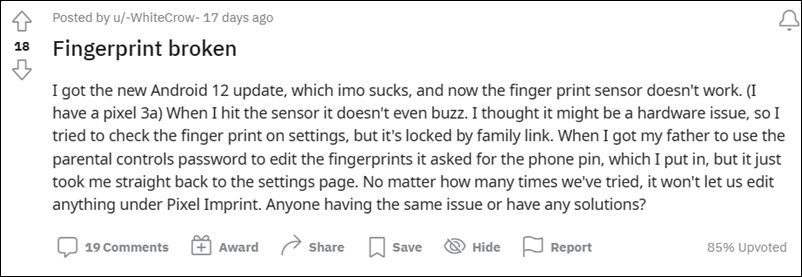
And when their parents are trying to do so, either the fingerprint option is greyed out or they are straightaway taken back to the Settings menu . To rectify this issue, users have even tried factory resetting their device, but to no avail. Well, if you are also getting bugged with this problem. then this guide is here to help you out. In this tutorial, we will show you the detailed steps to fix the issue of the Google Pixel fingerprint scanner disabled by Family Link.
How to Fix Google Pixel fingerprint scanner disabled by Family Link
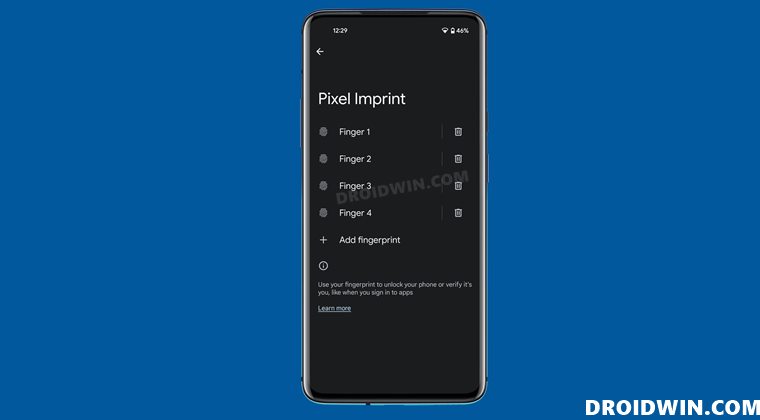
The issue is happening with all the devices that have Family Link enabled and have recently installed the November 2021 Android 12 update. So to rectify this issue, here’s what you need to do:
- To begin with, head over to the Settings menu on your device.
- Then go to Security followed by Screen Lock and select None from the list.
- It will bring up a prompt asking whether you are sure to delete the screen lock, tap Delete.
- So this will have deleted all the saved fingerprints.
- Now select your desired screen lock (PIN/Password/Pattern, etc) and set it up.
- Finally, add the fingerprints back to the Pixel Imprints. You might need to take the help of your guardians as the Family Link feature is enabled.
- Pixel Running Android 12 Stuck at 0% Charging [Fixed]
- Pixel 6/Pro Mobile Network Connectivity No SIM Issue [Fixed]
- Fix: Two Factor Authentication Prompts not appearing on Pixel Android 12
- Debloat/Remove Bloatware from Pixel 6/Pro Without Root
(Cancel Reply)
Δ
Google Pixel 7A Fingerprint Not Working: How to Fix
In this guide, we will show you various methods to fix the issue of the fingerprint sensor not working in Google Pixel 7A. Pixel devices have always been known to offer a clean stock OS experience, the fastest OS upgrades, and the best camera that any smartphone has to offer. But on the flip side, they are never known to be the best in the hardware department, especially when it comes to the fingerprint domain.
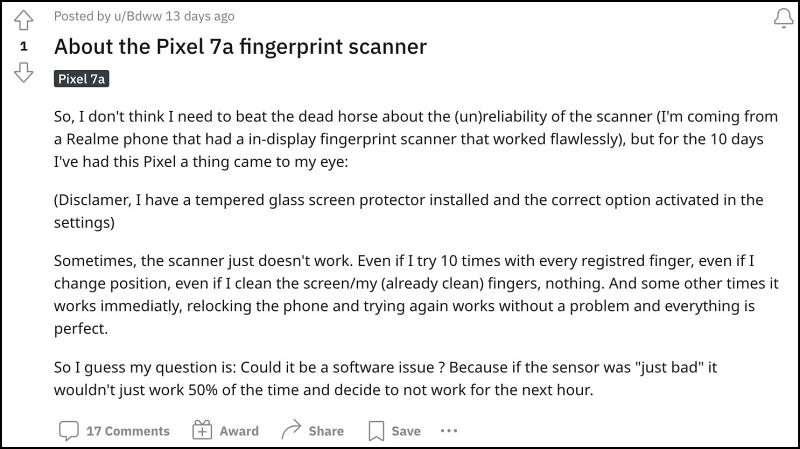
And unfortunately, the latest entry to the Pixel family is emulating the exact same behavior. While the Pixel 6 and 7 series have their fair share of fingerprint-related issues, the 7A seems to have taken a page or two from their books as well as rarely does the fingerprint tends to work in a single try. With that said, there does exist a couple of nifty workarounds that should help you rectify this issue. So without further ado, let’s check them out.
- Fix Google Pixel 7A Fingerprint Sensor Not Working Add the Same Fingerprint Twice Increase Touch Sensitivity Give it An Additional Second Apply Optimal Pressure Use Dry Hands Clean your Screen Use a compatible screen protector Re-Add Your Fingerprint Install Pending Updates Give AI some time! Send Feedback to Google
Fix Google Pixel 7A Fingerprint Sensor Not Working
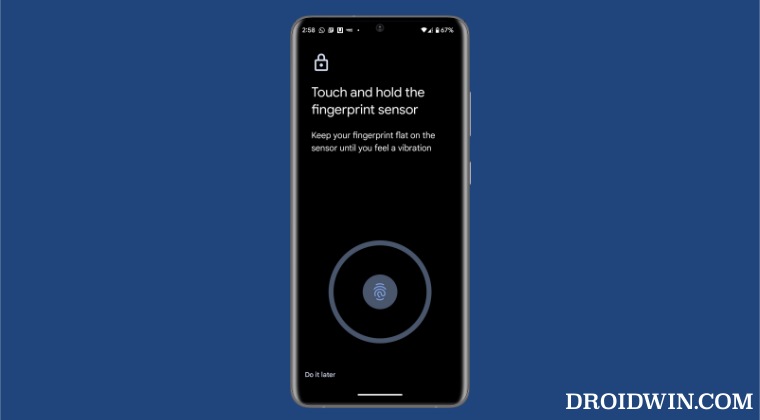
It is recommended that you try out each of the below-mentioned workarounds and then see which one spells out success. So with that in mind, let’s get started.
Add the Same Fingerprint Twice
An old trick out of the books, adding the fingerprint of the same finger twice or thrice will make the job of the scanner a little bit easier in reading those fine prints. So refer to the below steps to fill up two-three slots of fingerprints using the same finger and then check out the results.
- To begin with, head over to Settings > Security > Fingerprint Unlock.
- Then tap on Add Fingerprint and proceed with the on-screen instructions to complete the process.
- Likewise, carry out the same steps for the same finger a couple of additional times.
- Now check if it fixes the Pixel 7A fingerprint not working issue.
Increase Touch Sensitivity
If you have put a screen protector, then it might conflict with the normal interaction with the fingerprint sensor. Therefore, you should consider enabling the Pixel’s built-in feature that will increase the touch response sensitivity. Here’s how it could be done:
- To begin with, head over to the Settings menu on your device.
- Then go to Display and enable the toggle next to Increase Touch Sensitivity.
- Check if it fixes the fingerprint not working issue on your Pixel 7A.
Give it An Additional Second
Optical under-the-hood fingerprints are a tad bit slower than the ultrasonic scanner. So bearing that fact in mind, consider giving an additional second to the scanner so that it is able to efficiently scan your prints.
Apply Optimal Pressure
While it isn’t documented anywhere as such, but these in-display fingerprints (especially the 2-D ones) work best when you apply the pressure in an increasing manner. However, the increase should be done gradually and lightly. So try it out and then see if it is able to fix the Pixel 7A fingerprint sensor not working issue.
Use Dry Hands
It’s no hidden secret that the scanner wouldn’t be able to read the fingerprints if your hands are wet. This is because the moisture would end up creating an additional layer between the scanner and your fingerprints, thereby preventing a successful scan. So make sure to remove such roadblocks before proceeding ahead.
Clean your Screen
Not only your hands but the screen should be cleaned as well, especially the bottom half of the screen where the scanner is located. Even the slightest of dust particles are enough to create hurdles in successful scans. So clean your screen with a cloth or fabric and then verify if the Pixel 7/Pro fingerprint sensor not working issue has been fixed or not.
Use a compatible screen protector
Not all screen protectors are created equally! While they might cause issues in the normal usage of the device, but they sure could cause conflict with the in-display fingerprint scanner. So if you ever plan to replace your Corning Gorilla Glass Victus protection with a third-party one, make sure to go for a tried and trusted name.
Re-Add Your Fingerprint
Since the optical scanner flashes a bright light underneath to read your fingerprints, it might not have been able to register your fine prints correctly during the setup process. So consider removing the registered fingerprint and then perform a re-scan to re-add your fingerprints. Here’s how it could be done:
- Head over to Settings > Security > Fingerprint Unlock.
- Then tap on the delete icon next to your fingerprint.
- Now tap on Add Fingerprint and proceed with the on-screen instructions to complete the setup.
- Check if it fixes the Pixel 7A fingerprint not working issue.
Install Pending Updates
While the software upgrades might not necessarily add new features to your device, they surely optimize and improve the overall functioning of the OS as well as your device. Along the same lines, they also iron out all the bugs and issues. So make sure to download and install all pending updates using the instructions listed below and then verify if it ends up rectifying the issue or not.
- Head over to Settings < System > System Update.
- The OS will now search for any pending updates.
- If there is one, then download and install it right away.
- Check if it fixes the Pixel 7A fingerprint not working issue.
Give AI some time!
Well, Artificial Intelligence does take some time to adapt and adjust, after all. So on continued usage of these scanners, they will ultimately learn and optimize themselves according to the use case scenario. So consider letting go of the initial hiccups for a better journey ahead!
Send Feedback to Google
If none of the aforementioned tweaks managed to work out in your favor, then you should consider contacting Google and then chalk out the best route forward. We aren’t still implying that it’s a hardware issue, it’s just that contacting the manufacturer will give you a clearer picture. So refer to the below steps to send the feedback directly from your device:
- Head over to Settings > System > About Phone
- Then tap on Send Feedback about this device.
- Now tap on Allow one-time access in the prompt.
- Type in your concern regarding the fingerprint and hit Send.
So with this, we round off the guide on how you could fix the Pixel 7A fingerprint sensor not working issue. As far as the official stance on this matter is concerned, the developers are aware of this issue , but they haven’t given out any ETA for the rollout of a fix. As and when that happens, we will update this guide accordingly. In the meantime, the aforementioned workarounds are your best bet.
- How to Improve Sound Quality on Pixel 7/Pro
- Cannot Send or Receive SMS in Pixel 7/Pro: How to Fix
- Pixel 7/Pro lock screen media controls missing: How to Fix
- Increase Screen Saturation on Pixel 7/Pro: Fix Washed-out Display
(Cancel Reply)
Δ
Pixel 7/Pro Fingerprint not working: How to Fix
In this guide, we will show you various methods to fix the issue of the Pixel 7/Pro fingerprint not working. The newest addition to the Pixel family comes with a second-generation Tensir chipset and the initial observation is that it has quite well-optimized as the frequency and number of bugs have been on the lower side in comparison with its predecessor. However, it seems there is one domain that is in need of some dire attention.
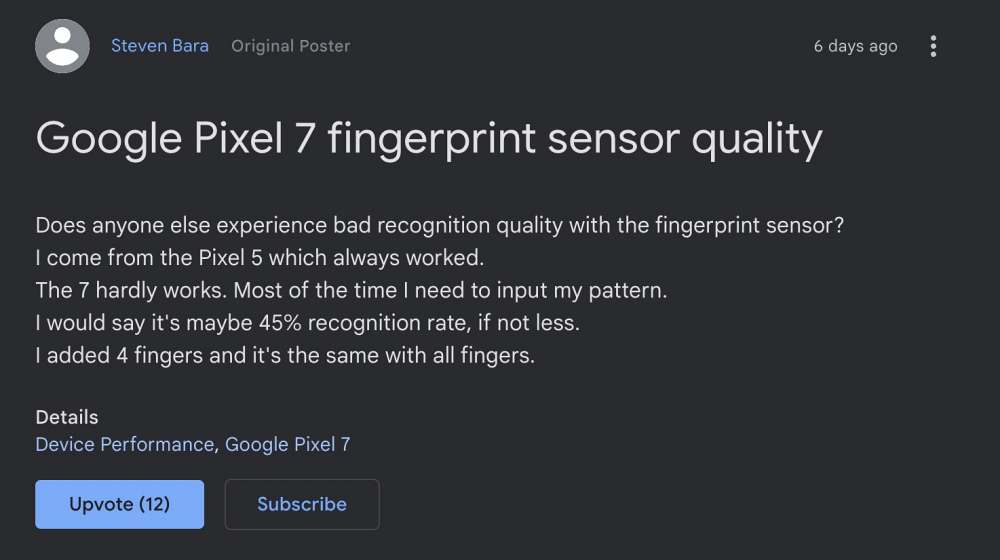
Ever since Pixel moved to the in-display fingerprint, its performance has been well below par. The fingerprint issues with the Pixel 6 series [especially the 6A] are there for everyone to see, and unfortunately, things don’t look too good with the seventh series either. Numerous Pixel 7 [and a few 7 Pro] users have voiced their concern that the fingerprint sensor is not working on their devices.
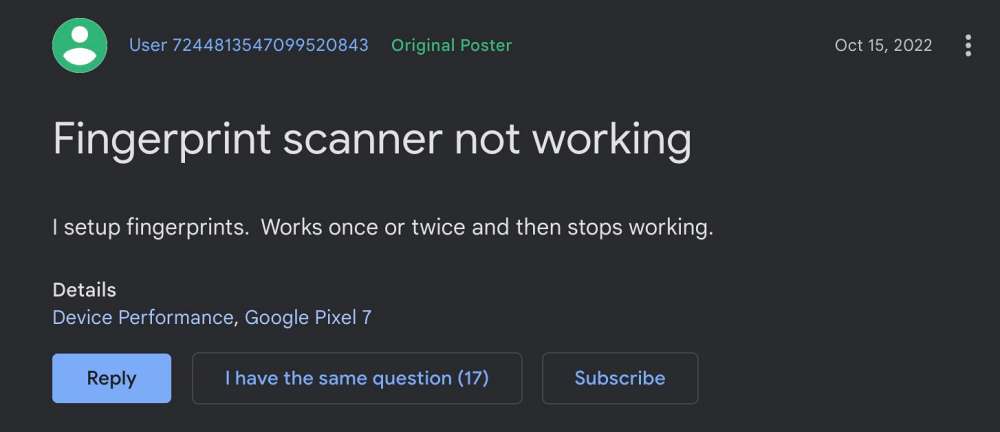
More often than not it fails to recognize their fingerprint and users have to try 3-4 times just to unlock their phones. To make matter worse, you cannot disable your fingerprint and opt for Face Unlock because then you wouldn’t be able to use any banking/payment apps. So is there a way to put an end to this fiasco? Well, there does exist a few nifty workarounds that might help you out. So without further ado, let’s check them out.
- Fix Pixel 7/Pro Fingerprint not working Add the Same Fingerprint Twice Increase Touch Sensitivity Give it An Additional Second Apply Optimal Pressure Use Dry Hands Clean your Screen Use a compatible screen protector Re-Add Your Fingerprint Install Pending Updates Give AI some time! Recalibrate Fingerprint via Pixel Update and Software Repair Send Feedback to Google
Fix Pixel 7/Pro Fingerprint not working
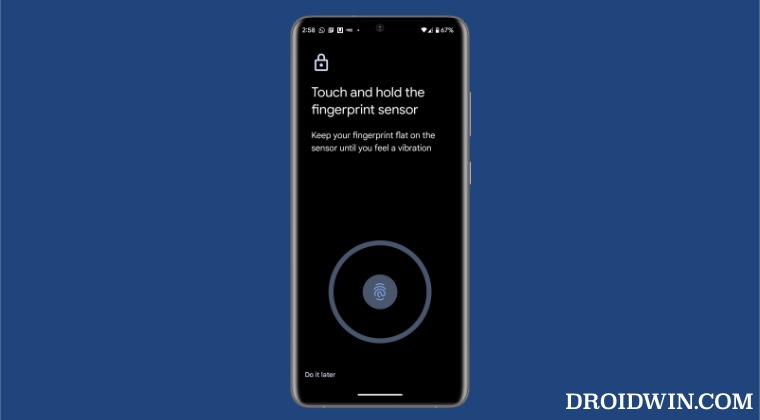
It is recommended that you try out each of the below-mentioned workarounds and then see which one spells out success for you. So with that in mind, let’s get started.
Add the Same Fingerprint Twice
An old trick out of the books, adding the fingerprint of the same finger twice or thrice will make the job of the scanner a little bit easier in reading those fine prints. So refer to the below steps to fill up two-three slots of fingerprints using the same finger and then check out the results.
- To begin with, head over to Settings > Security > Fingerprint Unlock.
- Then tap on Add Fingerprint and proceed with the on-screen instructions to complete the process.
- Likewise, carry out the same steps for the same finger a couple of additional times.
- Now check if it fixes the Pixel 7/Pro fingerprint not working issue.
Increase Touch Sensitivity
If you have put a screen protector, then it might conflict with the normal interaction with the fingerprint sensor. Therefore, you should consider enabling the Pixel’s built-in feature that will increase the touch response sensitivity. Here’s how it could be done:
- To begin with, head over to the Settings menu on your device.
- Then go to Display and enable the toggle next to Increase Touch Sensitivity.
- Check if it fixes the fingerprint not working issue on your Pixel 7/Pro.
Give it An Additional Second
Optical under-the-hood fingerprints are a tad bit slower than the ultrasonic scanner. So bearing that fact in mind, consider giving an additional second to the scanner so that it is able to efficiently scan your prints.
Apply Optimal Pressure
While it isn’t documented anywhere as such, but these in-display fingerprints (especially the 2-D ones) work best when you apply the pressure in an increasing manner. However, the increase should be done gradually and lightly. So try it out and then see if it is able to fix the Pixel 7/Pro fingerprint sensor not working issue.
Use Dry Hands
It’s no hidden secret that the scanner wouldn’t be able to read the fingerprints if your hands are wet. This is because the moisture would end up creating an additional layer between the scanner and your fingerprints, thereby preventing a successful scan. So make sure to remove such roadblocks before proceeding ahead.
Clean your Screen
Not only your hands but the screen should be cleaned as well, especially the bottom half of the screen where the scanner is located. Even the slightest of dust particles are enough to create hurdles in successful scans. So clean your screen with a cloth or fabric and then verify if the Pixel 7/Pro fingerprint sensor not working issue has been fixed or not.
Use a compatible screen protector
Not all screen protectors are created equally! While they might cause issues in the normal usage of the device, but they sure could cause conflict with the in-display fingerprint scanner. So if you ever plan to replace your Corning Gorilla Glass Victus protection with a third-party one, make sure to go for a tried and trusted name.
Re-Add Your Fingerprint
Since the optical scanner flashes a bright light underneath to read your fingerprints, it might not have been able to register your fine prints correctly during the setup process. So consider removing the registered fingerprint and then perform a re-scan to re-add your fingerprints. Here’s how it could be done:
- Head over to Settings > Security > Fingerprint Unlock.
- Then tap on the delete icon next to your fingerprint.
- Now tap on Add Fingerprint and proceed with the on-screen instructions to complete the setup.
- Check if it fixes the Pixel 7/Pro fingerprint not working issue.
Install Pending Updates
While the software upgrades might not necessarily add new features to your device, they surely optimize and improve the overall functioning of the OS as well as your device. Along the same lines, they also iron out all the bugs and issues. So make sure to download and install all pending updates using the instructions listed below and then verify if it ends up rectifying the issue or not.
- Head over to Settings < System > System Update.
- The OS will now search for any pending updates.
- If there is one, then download and install it right away.
- Check if it fixes the Pixel 7/Pro fingerprint not working issue.
Give AI some time!
Well, Artificial Intelligence does take some time to adapt and adjust, after all. So on continued usage of these scanners, they will ultimately learn and optimize themselves according to the use case scenario. So consider letting go of the initial hiccups for a better journey ahead!
Recalibrate Fingerprint via Pixel Update and Software Repair
You could also recalibrate the fingerprint sensor on your Pixel 7 Pro via the official Google Pixel Update and Software Repair. Here’s how it could be done [proceed ahead at your own risk]
- Power off your phone. Then press and hold Power and Volume Down for 5-7 seconds.
- Your device will now boot to the Fastboot Mode.
- Now head over to the Pixel Update and Software Repair website.
- Then click on Connect Device and your device will appear in the pop-up window. Select it and click Connect.
- Finally, click on Install Software and wait for the process to complete.
- Once done, check if it fixes the Pixel 7/Pro fingerprint not working issue.
Send Feedback to Google
If none of the aforementioned tweaks managed to work out in your favor, then you should consider contacting Google and then chalk out the best route forward. We aren’t still implying that it’s a hardware issue, it’s just that contacting the manufacturer will give you a clearer picture. So refer to the below steps to send the feedback directly from your device:
- Head over to Settings > System > About Phone
- Then tap on Send Feedback about this device.
- Now tap on Allow one-time access in the prompt.
- Type in your concern regarding the fingerprint and hit Send.
So with this, we round off the guide on how you could fix the Pixel 7/Pro fingerprint sensor not working issue. As far as the official stance on this matter is concerned, the developers are aware of this issue , but they haven’t given out any ETA for the rollout of a fix. As and when that happens, we will update this guide accordingly. In the meantime, the aforementioned workarounds are your best bet.
- How to Improve Sound Quality on Pixel 7/Pro
- Cannot Send or Receive SMS in Pixel 7/Pro: How to Fix
- Pixel 7/Pro lock screen media controls missing: How to Fix
- Increase Screen Saturation on Pixel 7/Pro: Fix Washed-out Display
(Cancel Reply)
Δ
Pixel 6/Pro Device was locked manually: Enter PIN instead of Fingerprint
The sixth iteration of the Pixel series beholds quite a few nifty features up its sleeves. Right out of the box, you will witness completely redesigned hardware and camera modules. On the software side, you get the latest Android 12 and a ton of Pixel exclusive goodies. Moreover, these devices are the first in the lineup to have an in-display fingerprint scanner, which is itself giving quite a hard time to the end-users.
While the clouds of uncertainty regarding its inefficient optical scanner were about to settle, there has been a new entry in this list. Quite a few Pixel 6/Pro users have voiced their concern that they are getting the Device was locked manually prompt on their device. As a result, they have to use their PIN/Password instead of their fingerprint. Just to get things straight- this prompt appears on nearly every Android device.
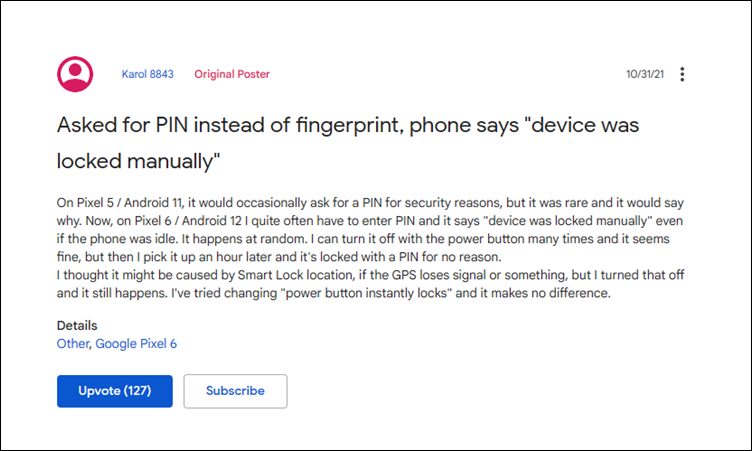
As soon as you restart your device, the OS would prevent the usage of fingerprint and would rather ask you to type in your password or pin. This is done from the security point of view. However, the thing is this only happens the first time your device boots up after a. But that isn’t the case with the latest Pixel series. All the users who are currently facing this issue have reported that they are seeing this prompt randomly after every few hours, even though their device hasn’t undergone a reboot.
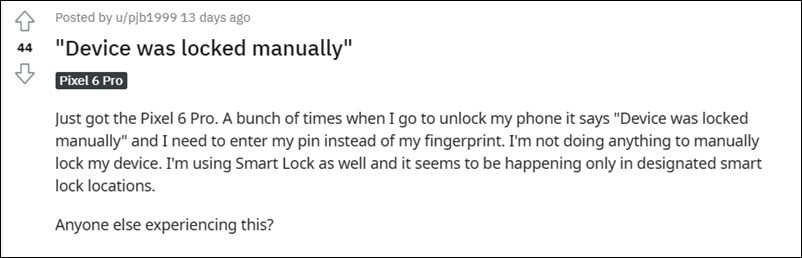
So is there any method to fix the issue of the Pixel 6/Pro “Device was locked manually” wherein you are required to manually type in your PIN/Password instead of using the fingerprint? Unfortunately, the answer is in a negative tone as of now. Though some users have reported that disabling the Smart Lock location did work out in their favor, but the majority of them spelled out a disappointment. Anyways, if you wish to try it out, then proceed ahead with the below-listed steps.
How to Fix Pixel 6/Pro Device was locked manually
- To begin with, head over to the Settings menu on your device.
- Then go to Security and select the Smart Lock option.
- After that, type in your password/pin to verify the credentials.
- Now disable the toggle next to On-body detection, Trusted Places, and Trusted devices.
- Check if it manages to fix the Pixel 6/Pro “Device was locked manually” issue.
Send Feedback to Google from your Pixel 6/Pro
If you are still getting bugged with this issue, then the only way out is to send the feedback to Google, right from your device itself. Here’s how:
- To begin with, head over to the Settings menu.
- Then scroll to the end of the page and go to Tips and Support.
- Now tap on the Send Feedback option situated at the end.
- Explain the issue in detail and then tap on the Send button situated at the top right.
The Silicon Valley giant might take a couple of days to respond to your query. In the meantime, you could also share your queries or just upvote the OP in the first and second Google Support Forums that have been made specifically for this issue.
So with this, we round off this guide on the Pixel 6/Pro “Device was locked manually” issue. As and when there’s further development regarding this issue or any related workaround makes its way, we will update this post accordingly.
- Fix: Google Assistant Quick Phrase not available in Pixel 6/Pro
- Fix: Pixel 6 Screen randomly wakes up even if AOD is Disabled
- How to Install OTA Updates on Unlocked Verizon Pixel 6/6 Pro
- Pixel 6 Fingerprint Sensor Not Working: How to Fix
- How to Use Pixel 6 Magic Eraser on older Pixels Devices
(Cancel Reply)
Δ
Fix Fingerprint Sensor not working on Pixel Android 14 QPR Beta 2
In this guide, we will show you the steps to fix the fingerprint sensor not working issue on Pixel after installing the latest Android 14 QPR Beta 2. Apart from the usual security patch updates releases, the Silicon Valley giant also releases Feature Drops as well as Quarterly Platform Releases. If you are part of the beta testing group of the latter, then you are among the first in line to get blessed with new updates, much quicker than your stable counterparts.
However, this is just one side of the coin. Being a beta update, it goes along the expected lines that they will have a few bugs and issues. And that has indeed been the case this time around as well. Numerous users have voiced their concern that the fingerprint sensor is not working issue on their Pixel after installing the latest Android 14 QPR Beta 2 update.
This issue is mostly prominent on the Pixel 7 Pro and users are constantly getting a prompt/toast message to contact Google customer support to rectify this issue. If you are also in the same boat, then this guide will make you aware of the steps to rectify this issue once and for all. Follow along.
Fix Fingerprint Sensor not working on Pixel Android 14 QPR Beta 2
In order to resolve this bug, you just need to recalibrate the sensors from the official Pixel Repair website. Here’s how it could be done:
- To begin with, power off your device.
- Then press and hold the Power and Volume Down buttons
- Release the keys once the device boots to the Fastboot Mode.
- Now connect your device to the PC via a USB cable.
- Then go to the Pixel Software Repair page and click Connect Device.
- Now proceed with the on-screen instructions to re-calibrate the sensors.
- Google Pixel fingerprint scanner disabled by Family Link [Fixed]
- Google Pixel 7A Fingerprint Not Working: How to Fix
- Pixel 7/Pro Fingerprint not working: How to Fix
- Pixel 6/Pro Device was locked manually: Enter PIN instead of Fingerprint
(Cancel Reply)
Δ
