Fix Google Keeps Stopping | Google App Discover Feed Not Working
However, as of late, things aren’t going around the expected lines. The app is just refusing to open for many users. For some, it opens for a few seconds and then closes right away. In both these scenarios, you would then be greeted with error messages such as “Google keeps stopping” or “Google unfortunately stopped working”.
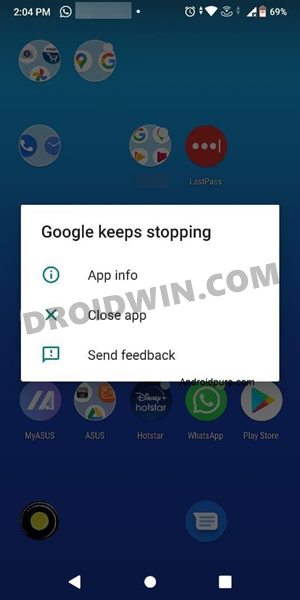
What is even more concerning is the fact that we are facing this issue for almost a month, and only now has Google acknowledged it. So while we wait for the official patch from Google, there are a few workarounds that might help you fix the Google keeps stopping and Discover Feed not working issue on Android. So without further ado, let’s check them out.
Bypass New Google Restriction: Get Free Unlimited Photos Storage
Fix Google Photos Permissions Prompt on Android 11
How to Fix Google Photos Not Showing Images/Video Files
How to Fix Google Keeps Stopping | Discover Feed Not Working FIX 1: Check Google Server Status FIX 2: Try a Soft Reboot FIX 3: Leave the Google App Beta Channel FIX 4: Switch to an Earlier Beta Version FIX 5: Delete Google App Data FIX 6: Disable and Re-enable Discover Feed FIX 7: Re-Sign into Google App
How to Fix Google Keeps Stopping | Discover Feed Not Working
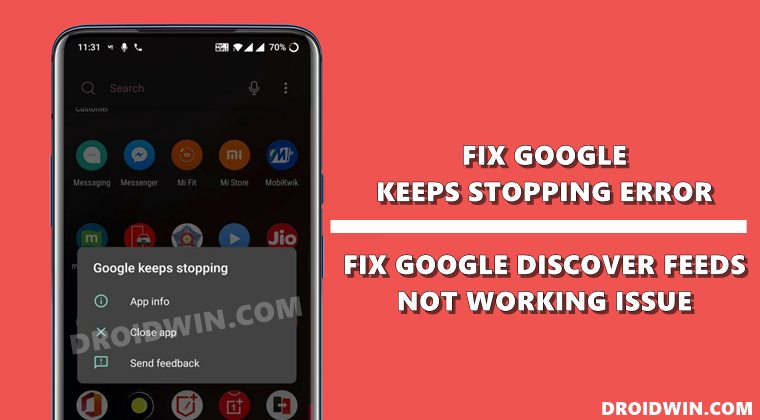
There’s no universal fix as such. You would have to try out each of the below-mentioned workarounds until one of them spells out success. Follow along.
FIX 1: Check Google Server Status
First and foremost, you need to verify whether the Google servers are up and running or not. This is because, in recent years, there has been an increase in the number of reports when their servers aren’t working along the expected lines .
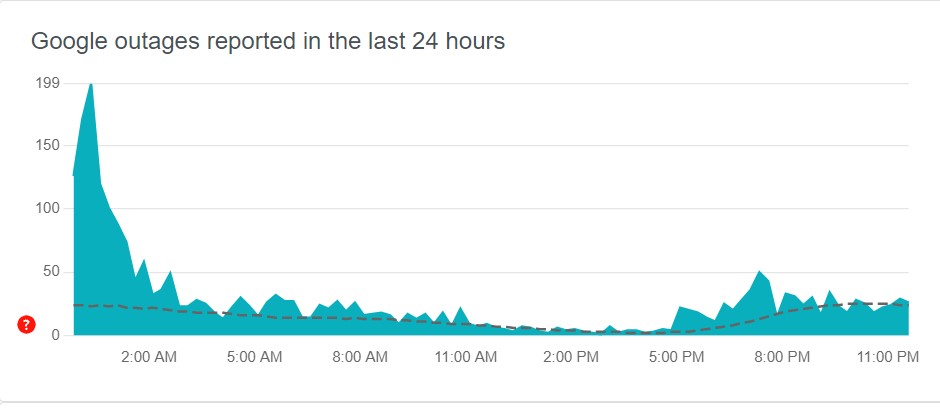
To check the same, you could take the help of the Down Detector site. If you a spike in the graph, then it indicates that there are some issues with servers. In that case, there’s nothing that could be done from your end. At the most, you could keep a track of the tweets from Google as they might be posting updates there.
FIX 2: Try a Soft Reboot
Well, most of you might be surprised but a soft reboot did manage to fix this issue for a lot of users. It is not every day that a software issue is rectified with a force reboot, but this time, it seems to have worked out. This fix was officially recommended by Google and the users who gave it a try, it seemed to have worked for them.
Hi Ashwin, apologies for the inconvenience caused. Could you try a soft reboot by holding down the power button for 30 seconds and see if it works fine? Let us know if that helps. ^Mark — Made by Google (@madebygoogle) June 22, 2021
