Fix Google One VPN not working on Pixel [Root/Non-Root]
In this guide, we will show you various methods to fix the issue of Google One VPN not working on Pixel [both rooted and non-rooted]. There are already quite a few noteworthy players in the VPN domain, however, a few users had their fair share of concerns with these third-party apps. This is when Google decided to jump ships and many users decided to straightaway welcome it abode.
First things first, it does have quite a few shortcomings- you wouldn’t be able to use it for accessing geo-restricted content and you don’t even have a choice in selecting the server region either ot will auto assign the IP address based on your current region itself!]. With that said, if you are just looking to encrypt your data and reroute your web traffic through proxy servers, then it checkmarks this requirement with ease.
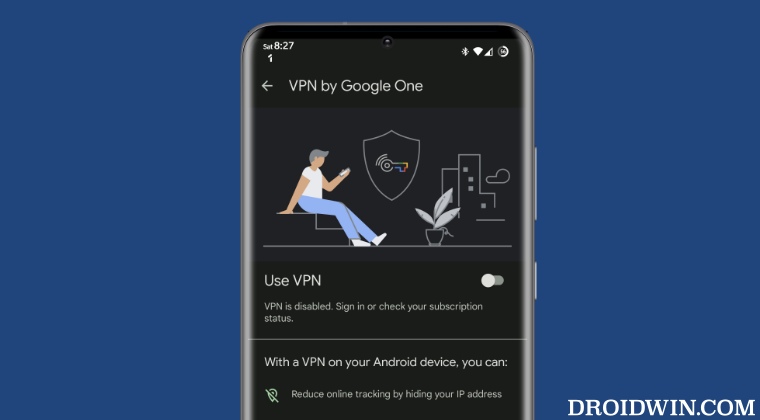
But you might across a few roadblocks as well. For example, Google VPN service stopped working on numerous Pixel 7/Pro after users installed the January 2023 update. Their device got the error message “VPN is disabled. Sign in or check your subscription status”. While that issue was rectified with the subsequent OTA update, a new one has already made its way.
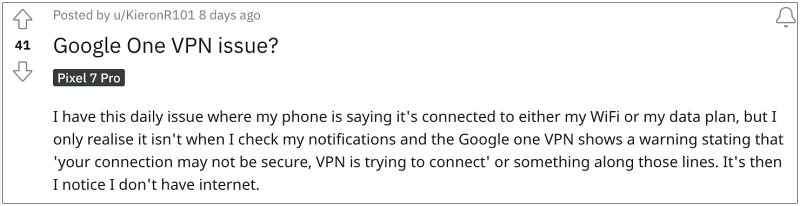
Numerous users have voiced their concern that Google One VPN has once again hit a dead end . They have reported that the VPN is constantly showing a warning stating that ‘your connection may not be secure, VPN is trying to connect’ but the connection never gets established. On the other hand, if your device is currently rooted, then a similar issue will be on the cards. When you try to run the VPN on your rooted Pixel, then you’ll be greeted with the following error message:
“VPN Can’t connect. Check your router and firewall settings, then try the VPN by Google connection again.”

If you are also getting bugged by any of these issues, then this guide will help you out. Follow along for the fixes.
- Fix Google One VPN not working on Non-Rooted Pixel Devices FIX 1: Toggle Airplane Mode FIX 2: Force Stop Google One FIX 3: Fix Network Connectivity FIX 4: Delete Gooogle One App Data FIX 5: Downgrade to December OTA
- Fix Google One VPN not working on Rooted Pixel
Fix Google One VPN not working on Non-Rooted Pixel Devices
It is recommended that you try out each of the below-mentioned workarounds and then see which one spells out success. So with that in mind, let’s get started.
FIX 1: Toggle Airplane Mode
In most cases, simply doing a network restart by enabling and then disabling AirPlane mode should be more than enough to rectify network-related issues. So do give it a try using the below-listed steps and check out the results:
- To begin with, head over to Settings > Network and Internet.
- Then enable Airplane Mode, wait for a few seconds, and disable it.
- Check if it fixes the Google One VPN not working on Pixel 7/Pro.
FIX 2: Force Stop Google One
If any of the app’s background processes are not working along the expected lines, then its negative impact would directly impact the app in question. Therefore, you should consider restarting the app which in turn would restart all it’s background associated services too.
- Head over to Settings > Apps > See All Apps > Google One.
- Then tap on Force Stop > OK in the confirmation prompt.
- Check if it fixes Google One VPN not working on Pixel 7/Pro.
FIX 3: Fix Network Connectivity
In newer versions of Android, you could now directly refresh the network and fix connectivity issues in just a few taps. So let’s put this to the test and check if it works in your favor or not:
- Head over to Settings > Network and Internet > Internet.
- Then tap on the Fix Connectivity icon at the top right.
- Now wait for a few seconds and then connect to your WiFi.
- Check if it fixes Google One VPN not working on Pixel 7/Pro.
FIX 4: Delete Gooogle One App Data
If the app’s data gets corrupted, then its direct repercussions are bound to be faced by the app itself. In such cases, your best bet is to delete the app’s data app and then let it repopulate a fresh instance of the same from scratch. Here’s how:
- Head over to Settings > Apps > See All Apps > Google One.
- Then go to its Storage and Cache section and tap on Clear Storage.
- Now tap Delete in the prompt. Once done, launch the app and set it up.
- Check if it fixes the Google One VPN not working issue on Pixel 7/Pro.
FIX 5: Downgrade to December OTA
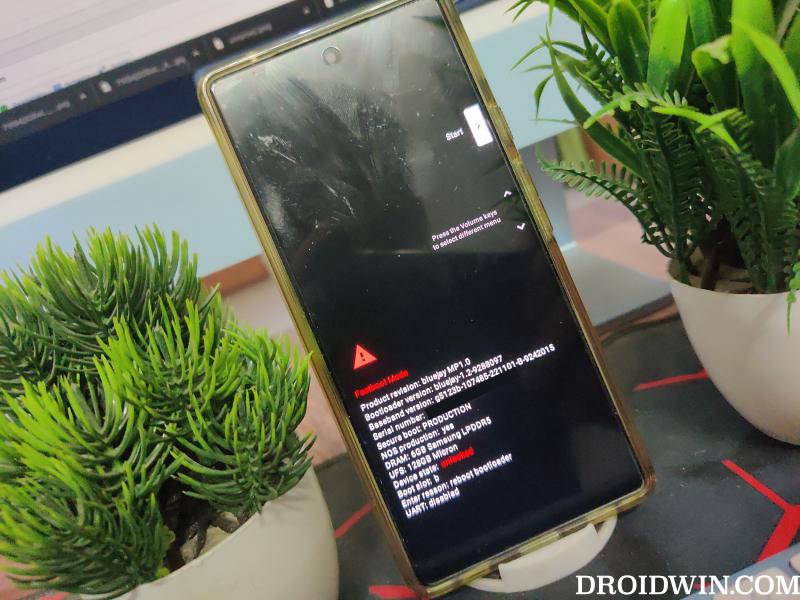
[UPDATE: This fix is outdated and should be skipped] In rare cases, the culprit might actually be the latest OTA update [such as the January 2023 update]. So in those instances, you will have to downgrade your device to the earlier stable OS build. However, do note that doing so will reset your device and might nullify its warranty. If that’s well and good, then do check out our guides on How to Downgrade Pixel Devices via Fastboot Commands OR How to Downgrade Pixel Devices via Android Flash Tool .
Fix Google One VPN not working on Rooted Pixel
Google has further tightened the screws on rooted Pixels and the VPN app is the latest to face its wrath. If you have rooted your device, then the VPN will not function and instead, straightaway greet you with the following error message:
“VPN Can’t connect. Check your router and firewall settings, then try the VPN by Google connection again.”
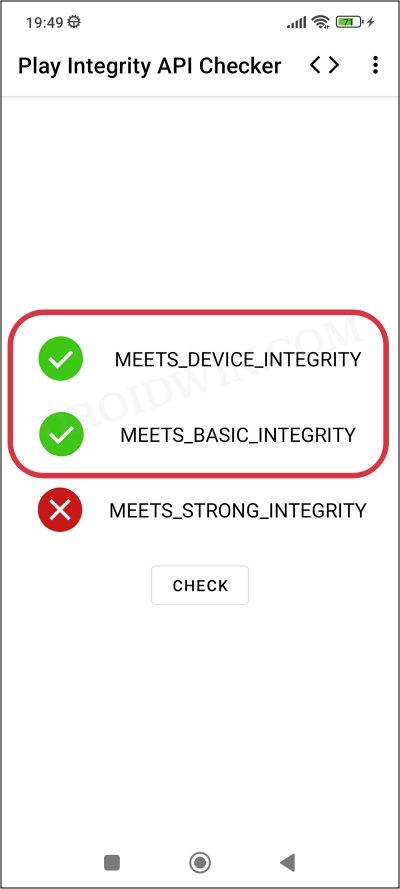
Fortunately, the fix is quite straightforward- you just have to pass the Play Integrity Test. For that, do check out our guide and the linked video on How to pass Meets Device and Basic Integrity via Play Integrity Fix .
That’s it. These were the various methods that should help you fix the issue of Google One VPN not working on your rooted/non-rooted Pixel device. We will be continuously updating this guide with more fixes as and when we get hold of the same. In the meantime, the aforementioned workarounds are your best bet.
- Google One Backup not working on Android: How to Fix
- How to Set a Custom Ringtone for Google Voice Incoming Calls
- Google Pay This phone can’t be set up to tap to pay [Fix]
- Make Google Pay work on Pixel Watch when the Phone is rooted

(Cancel Reply)
Δ
