Fix Instagram Error- Try again later: We limit how often you can do certain things
In this guide, we will show you the steps to fix the Instagram Error- Try again later: We limit how often you can do certain things. This multimedia-sharing social networking service hardly needs an introduction or two. What initially started as just a platform to share your memorable moments has now given birth to an altogether new industry, compromising of influencers across the globe. Likewise, many business platforms have jumped over to this bandwagon to extract maximum benefits from this service.
But in spite of all the goodies attached, it does have its fair share of issues that seems to bug users every now and then. Among them all, the app restricting some activities of a user seems to be among the most confusing as well as concerning ones for the end-users. This is because more often than not the users don’t even seem to have any clue as to why this error popped up in the first place.
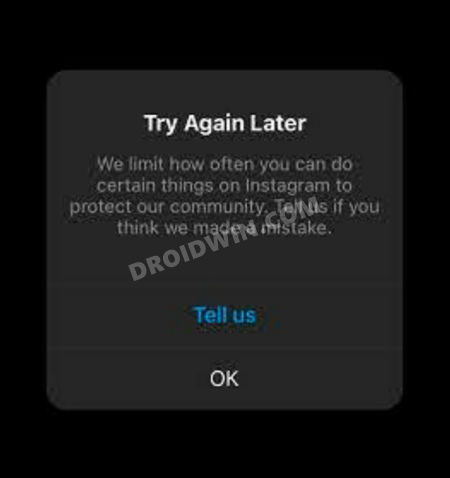
The error message in itself doesn’t do any good either as it doesn’t spell out much information behind the cause of this error. All these leads to chaos, frustrations, and despair among the userbase. Well, if you are also facing this issue, then fret not. In this guide, we will show you different methods to fix the Instagram Error- Try again later: We limit how often you can do certain things.
- Fix Instagram Error- Try again later: We limit how often you can do certain things Fix 1: Remove Link from your Bio Fix 2: Refrain from Spammy Behavior Fix 3: Check Instagram Servers Fix 4: Contact Instagram Support
- Conclusion
Fix Instagram Error- Try again later: We limit how often you can do certain things
There isn’t any universal fix as such for the aforementioned issue. You will have to try out each of the below-mentioned workarounds until one of them works out in your favor. So keeping that in mind, let’s get started.
Fix 1: Remove Link from your Bio
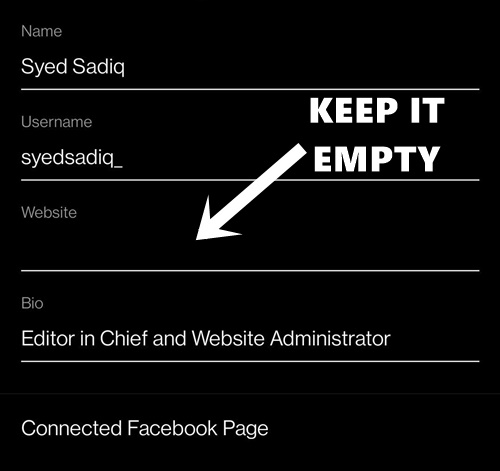
This is the major culprit for this issue. You should not have any spammy links in your bio. These might include the links to torrent sites, pirated file-hosting sites, betting sites, and most importantly the Linktree links. So make sure your bio doesn’t have any such links. Well, to be on the safer side, I would recommend you to keep the website section of your Bio empty for some time. Here’s how it could be done:
- Launch the Instagram app and tap on the profile icon situated at the bottom right.
- Then tap on the Edit Profile button.
- After this, delete the URL that is present in the Website or Bio section.
- Finally, tap on the checkmark icon present at the top right to save the changes.
- Once that is done, close the app and wait for some time. Your account should be up and running within a day or two.
However, after the said time period has elapsed and you are still unable to fix the Instagram Error- Try again later: We limit how often you can do certain things, then you should consider contacting Instagram Support (refer to Fix 4).
Fix 2: Refrain from Spammy Behavior
Mark it as a golden rule that you should never carry out any recurring activities in a matter of minutes. For example, if you are posting tons of content one after another, liking every other post, replying to every comment, then it might be categorized as a bot activity and you would then have to face consequences. The escape from this is fairly simple- refrain from performing such spammy activities and your account will be back with you in no time.
Fix 3: Check Instagram Servers
Well, if it is a server-side issue, then no matter how many different methods you try, you wouldn’t be able to fix the Instagram Error- Try again later: We limit how often you can do certain things. As surprising as it might sound, the same thing happened with quite a few users on August 3rd, 2021.
It sent the entire community into a frenzy. Fortunately, the issue got quickly resolved and everyone’s accounts were up and running normally again. So this begs for the all-important question- how to verify if it is indeed a server-side issue or not? For that, there are two important places to go:
First off, head over to the Down Detector Instagram server status page and check whether or not they are showing any red peaks in their graphs.
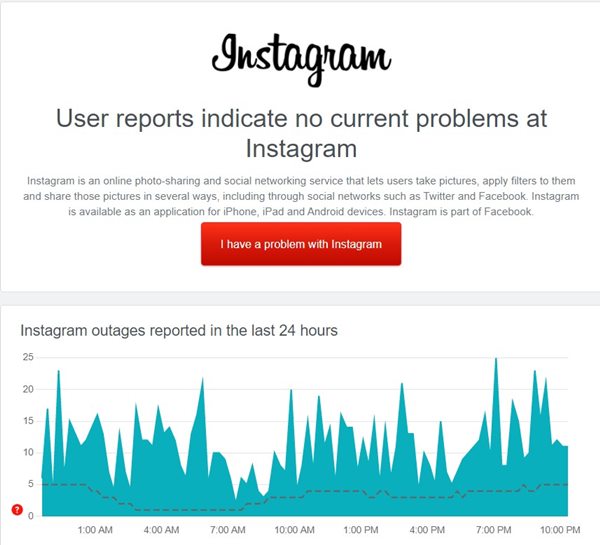
In case of server issues, the blue graph will be replaced with red ones
The next source is Instagram’s Twitter handle itself. They regularly tweet and let everyone knows if there are any issues with their service. Along the same lines, they would also let you know of the estimated time of fix. [TIP: you may also search #instagramdown on Twitter and get hold of the complete picture!]
And we’re back! If you were having a hard time earlier, your account should be working normally now. — Instagram Comms (@InstagramComms) August 2, 2021
