Fix iPhone & Mac stuck on Syncing Step 2 of 4 Preparing to Sync
In this guide, we will show you a nifty method to fix the issue of iPhone and Mac stuck on “Syncing (Step 2 of 4) – Preparing to Sync”. One of the biggest perks of stepping into the Apple domain is its closely knit ecosystem wherein all its devices are perfectly interlinked with each other. This in turn translates to the ease of data sync across all those devices. However, that is proving to be easier said than done.
While the bug regarding the inability to sync music between iPhone and Mac was yet to be ironed out, a new one has already made its way. As of now, numerous users have voiced their concern that their iPhone gets stuck on “Syncing (Step 2 of 4) – Preparing to Sync”. This tends to happen when they connect their device to their Mac via a Lightning-to-USB-C cable and try to perform a sync via the Finder. If you are also facing the same issue, then this guide will help you rectify it.
Fix iPhone stuck on Syncing (Step 2 of 4) – Preparing to Sync
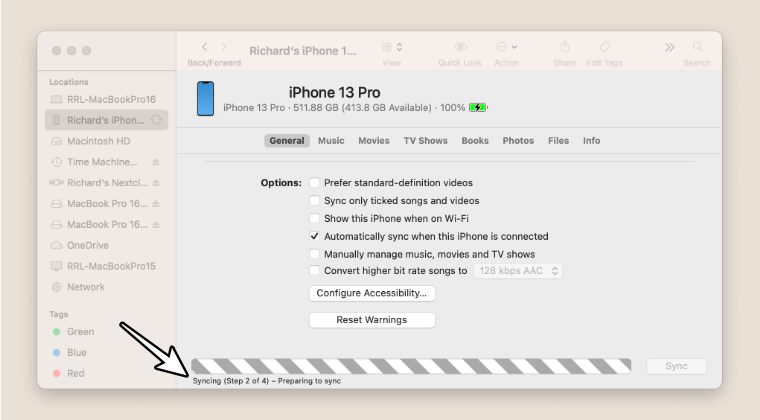
The culprit behind this issue is MDCrashReportTool. For the unaware, this process is used to gather the error logs from the iPhone (especially from app crashes) and ultimately delete them from the device upon a successful sync. However, with the latest update, this process has been corrupted and hence is conflicting with the usual sync process. So to rectify this issue, all you have to do is just force quit this process, which could be done as follows:
- Start the sync process between your iPhone and Mac via Finder.
- Then on your Mac, go to Launchpad > Others > Activity Monitor.
- Now select the MDCrashReportTool and click on X > Force Quit.
- Cannot Sync Music from iPhone to Mac on iOS 17 [Fixed]
- Yahoo Shared Calendar Sync Issue on iPhone: How to Fix
- iOS 17 syncs call history and voicemail on iPhones: How to Fix
- Apple iCloud Notes not syncing with iPhone/iPad: How to Fix

- Bruno 2 years ago Reply This helps to get to the next steps, but then syncing stops again at step 4
(Cancel Reply)
Δ
