Fix Lock Screen Notifications not working on Galaxy S23 Ultra
In this guide, we will show you various methods to fix the issue of Lock Screen notifications not working on Galaxy S23 Ultra. The latest flagships from the South Korean giant behold a slew of intriguing goodies and noteworthy features. On the flip side though, there are a few questionable decisions regarding the implementation of some of its features in its in-house OS skin [no, we aren’t only talking about the tons of bloatware that it has in its arsenal].
In this regard, the way it has designed the lock screen notifications to work might definitely raise a few eyebrows. While in some cases, it might indeed be bugged [which could happen to any OEM], but in the majority of reports that we have come across for this device, it’s just the poor or rather confusing implementation of this functionality that has led to this fiasco. With that said, the below-listed tweaks should help you rectify this issue. Follow along.
- Fix Lock Screen Notifications not working on Galaxy S23 Ultra FIX 1: Double Tap on the Notification Icon FIX 2: Toggle App Notifications FIX 3: Boot to Safe Mode FIX 4: Toggle Lock Screen Notifications FIX 5: Choose Detailed Notification Pop-Up Style FIX 6: Enable Notifications on AOD
Fix Lock Screen Notifications not working on Galaxy S23 Ultra
It is recommended that you try out each of the below-mentioned workarounds and then see which one spells out success. So with that in mind, let’s get started.
FIX 1: Double Tap on the Notification Icon
You could thank this section for the over-the-top infuriating introduction that you had just read above. In many cases, users are able to view the icon of the app from which they have received the alert but the actual content doesn’t show up. If that is the case with your device as well, then you’ll be glad to know that it’s not an issue but just how things work here in the OneUI ecosystem.
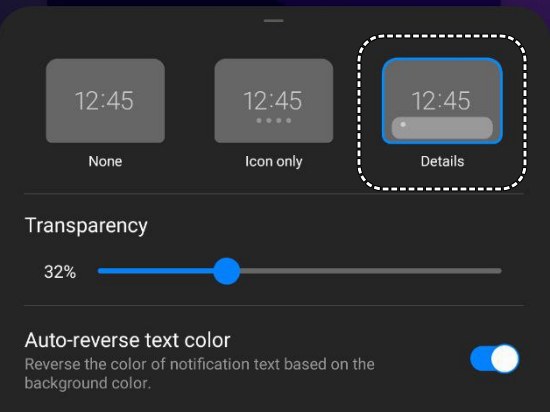
Fortunately, Samsung has given us granular control over this feature and you could change its settings by double tapping on the app’s icon and selecting Details. However, if you are not even able to view the app’s icon, then it might be due to a bug that could easily be rectified via the below-listed workarounds. So do give them a try right away.
FIX 2: Toggle App Notifications
Your first course of action should be to disable and re-enable the app’s notifications. This will refresh its underlying settings and could well rectify the issue that we are currently dealing with. So do give it a try using the below-listed steps and check out the results.
- Head over to the Settings menu on your device.
- Then search for App Notifications and select it.
- Now turn off the toggle next to the desired app.
- Wait for a few seconds and re-enable the toggle.
FIX 3: Boot to Safe Mode
In some cases, a third-party app or service might conflict with the proper functioning of numerous components of your device, and the current issue might just be the by-product of this. To verify and rectify this issue, you should first boot your phone to Safe Mode [as instructed below]. if everything is working well and good in this mode, then the culprit is indeed a third-party app that needs to be removed at the earliest. Here’s how all of this could be carried out.
- Press and hold the Power button to bring up the Power Menu.
- Then press and hold the Power Off option and tap on Safe Mode. Credits: Samsung
- Check if you are able to receive notifications from any system app.
- If you could, then boot your device back to normal mode.
- Then uninstall the recently installed apps one at a time, which are related to the notifications, until the issue is rectified.
FIX 4: Toggle Lock Screen Notifications
Next up, you should disable and re-enable Lock Screen Notifications on your device and check if it manages to fix the Lock Screen notifications not working issue on your Galaxy S23 Ultra. Here’s how it could be done:
- Head over to the Settings menu on your device.
- Then search for App Notifications and select it.
- Now choose an app and go to Lock Screen Notifications.
- Then select Hide Contents and wait for a few seconds.
- Now change it back to Show Content and check out the result.
FIX 5: Choose Detailed Notification Pop-Up Style
Likewise, you should also consider choosing Detailed Notification Pop-Up Style instead of Brief and check if it fixes the Lock Screen notifications not working issue on your Galaxy S23 Ultra. Do note that doing so will list out the complete information for a prompt [such as a WhatsApp message] as opposed to the earlier shorter one. So proceed ahead if that’s well and good,
- Head over to the Settings menu on your device.
- After that, search for Notification Pop-Up Style.
- Finally, choose Detailed and check out the result.
FIX 6: Enable Notifications on AOD
If you are using Always on Display, then you should instruct it to light up the display for new notifications. Here’s how it could be done:
- Head over to the Settings menu on your device.
- Then search Always On Display and select it.
- Now select Show for new notifications and check out the result.
- Fingerprint Scanner Icon missing from Galaxy S23 Ultra [Fix]
- Hey Google command not working in Galaxy S23 Ultra [Fix]
- How to Disable Camera Sound in Galaxy S23 Ultra
- How to Set Different SIMs for Calls and SMS in Galaxy S23 Ultra

(Cancel Reply)
Δ
Fingerprint Scanner Icon missing from Galaxy S23 Ultra [Fix]
In this guide, we will show you the steps to fix the issue of the Fingerprint Scanner Icon missing from the Galaxy S23 Ultra. The S series from the South Korean giant have established itself as the flagship flag-bearer in the Android domain. However, with great powers comes great responsibility and Samsung currently isn’t able to checkmark this accountability.
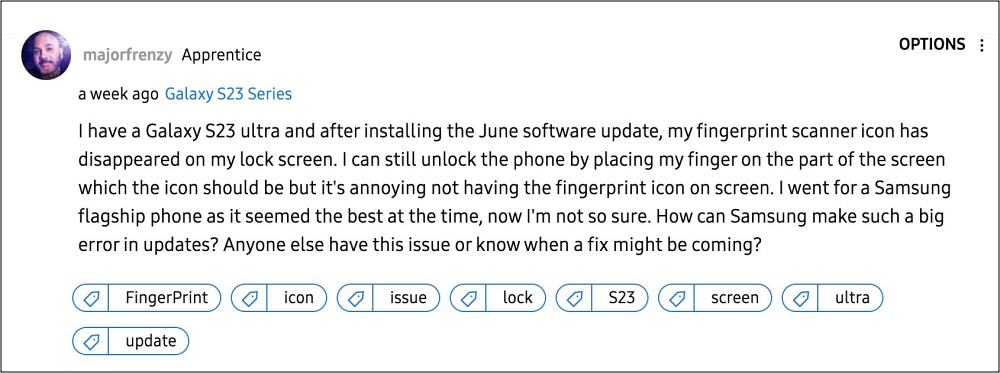
Its June update, on paper, should fix the underlying issues and enhance the overall performance of the OS but that seems to be far from the truth. Numerous users have voiced their concern that right after installing the latest June 2023 security patch, the Fingerprint Scanner Icon is missing from their Galaxy S23 Ultra.
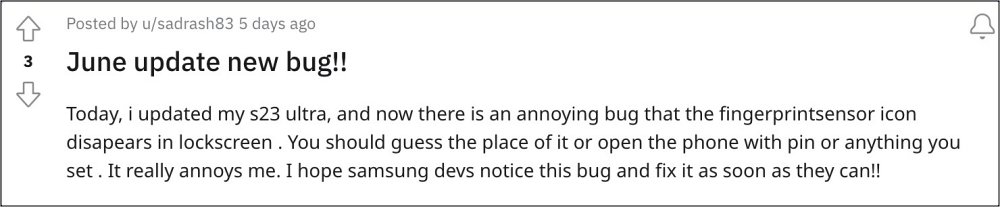
As a result of this, they have to randomly guess the position of the sensor on their screen after a plethora of tries, one of the attempts clicks and their device ultimately gets unlocked. On the other hand, some have bid adieu to this infuriating UI/UX behavior and switched to a different unlocking style altogether. If you don’t want to jump ships over to pattern or PIN, then this guide will help you rectify this fingerprint issue. Follow along.
Fix Fingerprint Scanner Icon missing from Galaxy S23 Ultra
As of now, the only workaround that is spelling out success for the users involves enabling both the “Fingerprint always on” and “Show icon when screen is off” features, then waiting for a few seconds and disabling both these features. This should fix the issue of the Fingerprint Scanner Icon missing from the Galaxy S23 Ultra.
As far as the official stance on this matter is concerned, the developers are yet to acknowledge this issue, let alone give out any ETA for the rollout of a fix. As and when any of these two things happen, we will update this guide accordingly. In the meantime, the aforementioned workarounds are your best bet.
- Hey Google command not working in Galaxy S23 Ultra [Fix]
- How to Disable Camera Sound in Galaxy S23 Ultra
- eSIM not working on Galaxy S23 Ultra: How to Fix
- How to Set Different SIMs for Calls and SMS in Galaxy S23 Ultra
(Cancel Reply)
Δ
