Fix Mac “You Shut Down Your Computer Because of a Problem”
In this guide, we will show you a couple of methods to disable the “You Shut Down Your Computer Because of a Problem” prompt on your Mac. Numerous users have voiced their concern that they are getting the aforementioned prompt on every restart of their Mac.
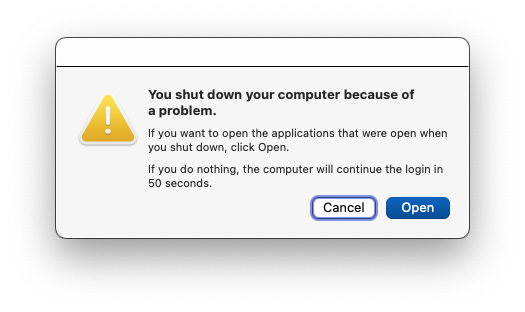
To rectify this issue, they have already tried the workarounds like restarting their Mac, installing the latest software update, booting to Safe Mode , resetting the PRAM/NVRAM, and verifying the integrity of the disks via Disk Utility, but none of them spelled out success.
If you are also getting bugged by this issue and the above-listed tweaks did no good, then this guide will make you aware of a couple of additional nifty workarounds that should surely fix the “You Shut Down Your Computer Because of a Problem” error message on your Mac. So without further ado, let’s check them out.
- Fix Mac “You Shut Down Your Computer Because of a Problem” Via Finder Via Third-Party App
Fix Mac “You Shut Down Your Computer Because of a Problem”
It is recommended that you try out each of the below-mentioned workarounds and then see which one spells out success for you. So with that in mind, let’s get started.
Via Finder
- Open Finder, click on Go > Go to Folder, and type in the below directory: /Library
- Then go to Logs > DiagnosticReports folder and search the following file: Sleep Wake Failure
- Now delete this file and then restart your Mac.
- Check if it disables the “You Shut Down Your Computer Because of a Problem” prompt on your Mac.
Via Third-Party App
- Download and install the Titanium Software on your Mac.
- Then launch it and run its Default Maintenance.
- Once done, restart your Mac and you will no longer get any prompts.
- Cannot change default browser for webloc files in Ventura [Fix]
- How to Stop Background Item Added Notification in Ventura
- Ventura Print Preview too large/Print Button hidden [Fix]
- Advanced Date and Time setting missing in Ventura [Fix]

(Cancel Reply)
Δ
Ventura Print Preview too large/Print Button hidden [Fix]
In this guide, we will show you various methods to fix the issue of the Print Preview screen being too large which in turn tends to hide the Print button in Ventura. The latest macOS build brings a slew of noteworthy features to the fore. On the flip. side though, it has taken some questionable decisions [such as the removal of network location] and issues with the second display are bugging users to this date.
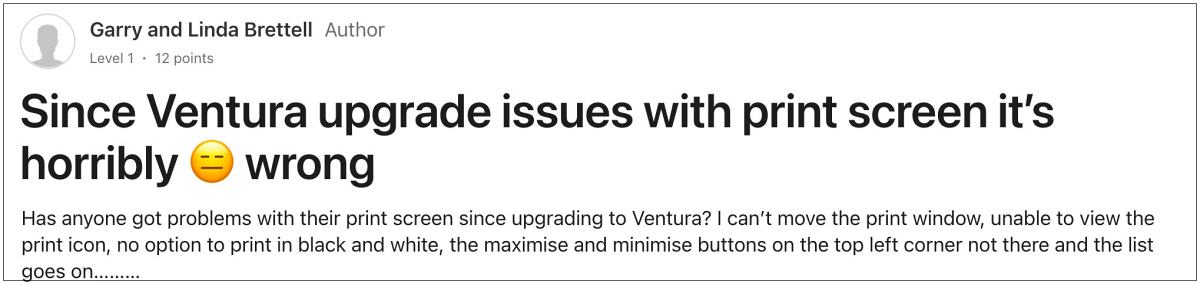
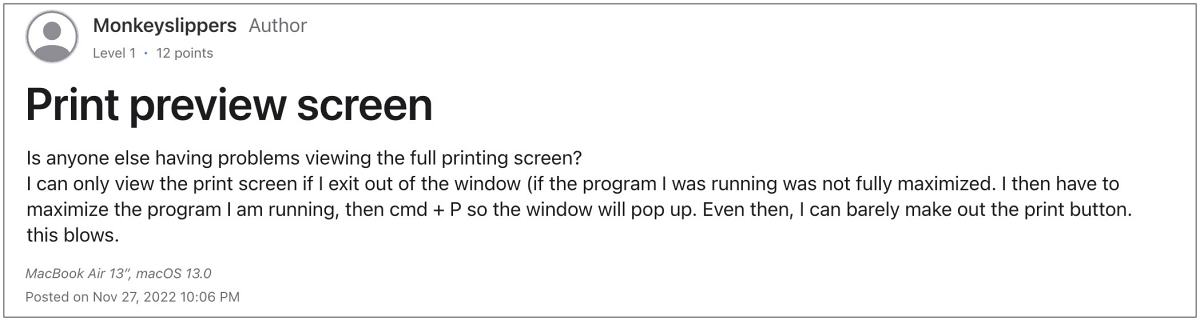
And now, there has been another entry to this list, which is mostly from the UI/UX point of view. In Ventura, the Print Preview window has been enlarged to such a degree that it ends up hiding the Print button or pushes it beyond the Dock . To make matter worse, you cannot even move this print window or maximize/minimize it.
This is resulting in a great deal of inconvenience [and infuriation] to the users as they are unable to take a printout of their documents. If you are also in the same boat, then this guide will make you aware of some nifty workarounds that should help you mitigate this issue. So without further ado, let’s check them out.
- Fix Ventura Print Preview too large/Print Button hidden FIX 1: Hide Expanded Menus FIX 2: Move Dock to the Left/Right FIX 3: Auto Hide Dock
Fix Ventura Print Preview too large/Print Button hidden
It is recommended that you try out each of the below-mentioned workarounds and then see which one spells out success for you. So with that in mind, let’s get started.
FIX 1: Hide Expanded Menus
First off, if there are any menus that you have expanded, then collapse them right away. This is because the expanded menus tend to take additional space and hence push the Print button beyond the dock.
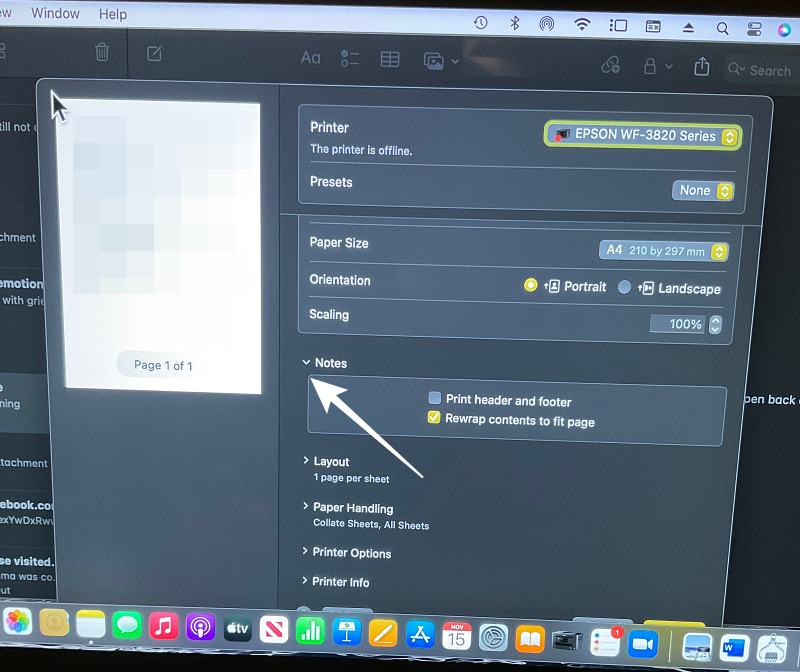
As you could see in the above image, the Note menu is expanded and hence it increases the Preview window size. So collapse it via the downward arrow and it will then push up the window, which in turn will bring up the Print button.
FIX 2:Move Dock to the Left/Right
You could also consider moving the Dock window to the left or right side of the desktop, instead of its default bottom position. Once you do so, you will then be able to easily access the print button. So refer to the below steps to give this tweak a try:
- Open System Settings and select Desktop & Dock from the left.
- Then go to Position on Screen and select either Left or Right.
- The Print button will no longer be hidden in Print Preview on Ventura.
FIX 3: Auto Hide Dock
If you don’t want to permanently send the dock to the left or right side, then let it remain at the bottom but at the same time, enable its Auto Hide feature. So as soon as you take the away from the dock, it will hide and you will then be able to access the Print button. Here’s how all of this could be carried out:
- Open System Settings and select Desktop & Dock from the left.
- Then enable the toggle next to Automatically Hide and Show the dock.
- Advanced Date and Time setting missing in Ventura [Fix]
- Excel crashing in SMB network drive on Ventura [Fix]
- Mac Ventura SMB: Items can’t be copied to folder error [Fix]
- Mac Spotlight Search not working on Ventura: How to Fix
- Ian Bruce 3 years ago Reply None of these suggestions worked for me. If I click on the printer info option (or watermark) the print button appears as it should have in the first place.
(Cancel Reply)
Δ
