Fix macOS 26.2 Messages: Cannot Send Image via Drag and Drop
Tahoe has been among the worst OS releases by the Cupertino giant. Initially, all the blames were put on Liquid Glass’s shoulder , and while it deserved that treatment, it isn’t the only one out there. Numerous other system apps have been getting bugged with an issue or two at frequent intervals. The latest one to make its way is Apple’s Messaging app.
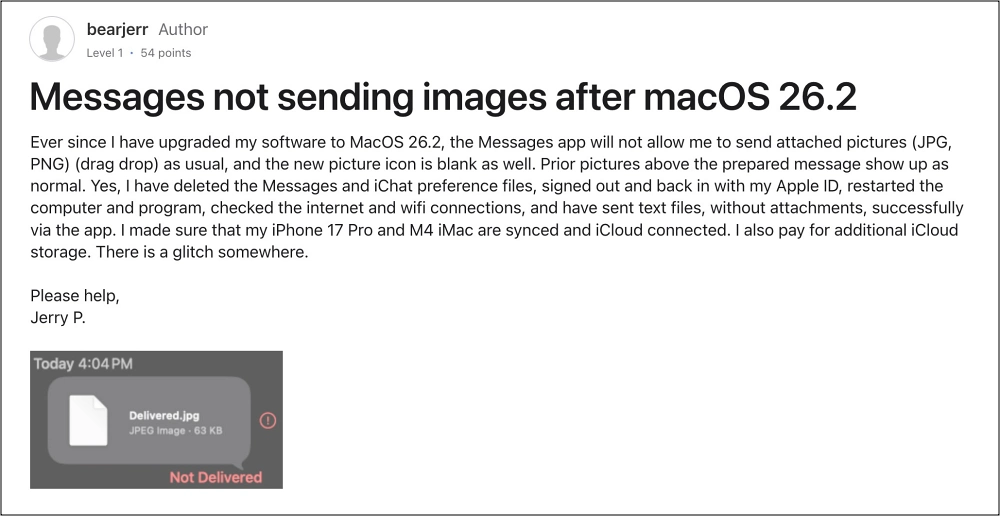
Numerous users have voiced their concern that when they try to drag and drop images to the Messages app and send them, they are greeted with the Not Delivered error message. Moreover, instead of the image preview, they just get a generic document image. The issue first came to light on macOS Tahoe version 26.2 with no fix in sight. Fortunately, we did manage to grab hold of some nifty workarounds that should help you rectify this issue. So without any further ado, let’s check them out.
- Fix macOS 26.2 Messages: Cannot Send Image via Drag and Drop FIX 1: Copy-Paste Instead of Drag and Drop! FIX 2: Change Location FIX 3: Convert Image FIX 4: Send Multiple Images
Fix macOS 26.2 Messages: Cannot Send Image via Drag and Drop

It is recommended that you try out each of the below-mentioned workarounds and then see which one spells out success. So with that in mind, let’s get started.
FIX 1: Copy-Paste Instead of Drag and Drop!
Instead of dragging and dropping the image in the Message field, you should copy the image via Command+C and paste it in the Message field via Command+V and then hit Send. You wouldn’t face any issue whatsoever.
FIX 2: Change Location
For many, the issue is only with the images present on the Desktop. If they place the image in any other location, such as Documents, then those images can easily be dragged, dropped, and sent via the Message app.
FIX 3: Convert Image
The issue seems to be with the JPG/JPEG/PNG formats; HEIC and WEBP formats seem to be free from this bug. To convert to HEIC, right-click on the image, select Convert Image, and choose HEIC. For WEBP, you can use any third-party app or website.
FIX 4: Send Multiple Images
It has also been noticed that the issue only appears when a single image is being sent. So you can duplicate the image and send two or more, and the issue wouldn’t be there. However, it doesn’t seem to be the most viable approach, and neither does it make sense [just think from the recipient’s point of view], but hey, for now, it is getting the job done, so it deserves a mention in this guide, albeit at the very end.
That’s it. These are the four different methods that should help you fix the issue of being unable to send images via drag and drop in the Messages app on macOS Tahoe 26.2. As far as the official stance on this matter is concerned, the developers are yet to acknowledge this issue, let alone give out any ETA for the rollout of a fix. As and when any of these two things happen, we will update this guide accordingly. In the meantime, the aforementioned workarounds are your best bet.
- How to Bring Back Launchpad on macOS Tahoe
- How to Disable Liquid Glass in macOS Tahoe [3 Methods]
- Spotlight not working in macOS Tahoe [Fixed]
- External Hard Disk not working on macOS Tahoe? This might fix it!
- Local/Online Video Stream Issue on macOS Tahoe [Fixed]

(Cancel Reply)
Δ
