Fix: Quick Look Preview with spacebar not working in macOS Monterey
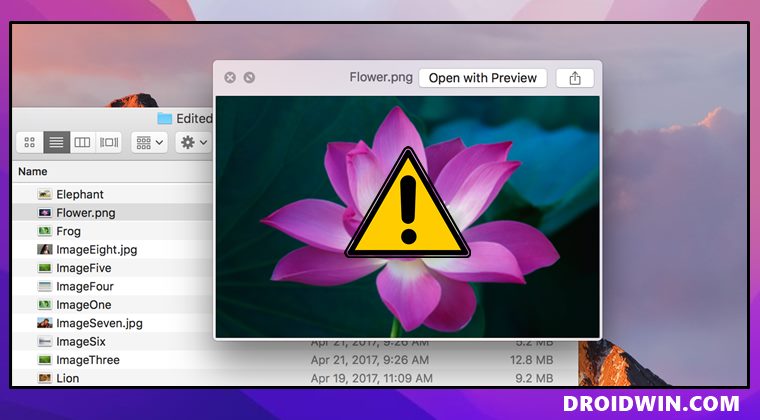
In this guide, we will show you the steps to fix the issue of Quick Look Preview with the spacebar not working in macOS Monterey. While it has only been a few days since the latest macOS made its way, however, a plethora of issues have already lined up. And while the dust was about to settle, it seems there’s a new unwanted entry in this list. This time around, users are reporting issues with Quick Look Preview. This is quite a handy feature that allows previewing an image or video without actually opening it.
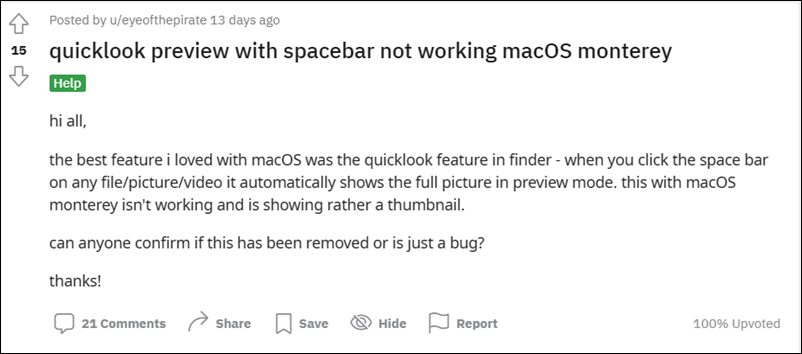
You just hover your mouse cursor over the desired image and hit Spacebar, and let it do the rest. However, it seems to be easier said than done. Quite a lot of users have voiced their concerns across Reddit that they are unable to make full use of this feature. When they are trying to view an image via the Quick Look Preview, then it only displays a small thumbnail that seems to be have been compressed beyond its limit. And the same applies to videos as well.
As opposed to earlier times when you could view the video on the preview screen, it will only show you a small distorted thumbnail in minimal quality. All this has made the feature literally unusable. With that said, there does exist a workaround that has been known to fix the issue of Quick Look Preview with the spacebar not working in macOS Monterey. And this guide shall make you aware of just that. So without further ado, let’s get started.

Fix: Quick Look Preview with spacebar not working in macOS Monterey
- Open the Activity Monitor on your Mac. You could do so by using the CMD + Spacebar shortcut and then typing Activity. Or go to Applications > Utililities > Activity Monitor.
- Go to Search (the magnifying glass present in the top right) and type Quick.
- Then select QuickLookUIService (Finder) from the search results.
- It shall open a new window, click on the Quit button situated at the bottom left.
- You will now get a pop-up asking “Are you sure you want to quit this process?”, click on Force Quit.
- Now close the Activity Monitor and with that, the Quick Look Preview issue stands rectified on your Mac.
UPDATE: Quick Look Preview not working in macOS Sonoma Beta [Fixed]
Numerous users have voiced their concern that Quick Look Preview is no longer working in the latest Beta build of macOS Sonoma. Fortunately, Apple has acknowledged this issue and will iron out this bug in the next patch. UPDATE: Apple has just rolled out a new beta update having version 23A5328b which has rectified the aforementioned issue.
- How to Install macOS on Windows 10 and Run Mac Apps
- How to Fix Norton 360 Not Working in macOS Big Sur
- Fix Apple Music Back Button Disappearing Issue on Mac
- How to Install Windows 11 on any PC using Virtual Machine

- Richard H Kraft 2 years ago Reply OR– go to System Settings/Accessibility/Keyboard and Deselect Full Keyboard Access.
- Armadillo 3 years ago Reply Did not work for me. Hitting image with spacebar opens Photoshop or Acrobat, original source program. Not QuickLook. HELP!!!!!!!
- Olga 3 years ago Reply I’ve been struggling, and struggling, and struggling with the tiny icons in the QL preview, for months, – and then I found your method, and the issue was solved in under 45 seconds. THANK YOU!!
- thiago 3 years ago Reply Amazing! Thank you!
- mehdi 3 years ago Reply Thanks a lot. Very helpful. it worked.
- Amateur6 3 years ago Reply Simpler fix: relaunch the Finder. Cmd-opt-esc, select Finder, click relaunch. 100% success rate for me, and much less scary for most than messing around in the Activity Monitor. If that doesn’t work, sure, do this.
- MJ 3 years ago Reply IT WORKED VERY WELL. THANK YOU
- M 3 years ago Reply Many thanks!
- Ann 3 years ago Reply Thank you, Sadique! Worked beautifully. 🙂
- Joe 3 years ago Reply This doesn’t work.
- Ivo 3 years ago Reply LOve you
- AR 3 years ago Reply 5 Star solution! Worked perfectly. Thank you!
- Mike 3 years ago Reply Thank you!!
- Donae P. 3 years ago Reply Thanks soooooo much! worked great!
- Juan 3 years ago Reply Love you guys! Worked fine.
- Maven 3 years ago Reply or you could just relaunch finder. that’s what I need. works evertime
- imzi 3 years ago Reply Love it. Thanks for this, worked in first shot.
- Ieva 4 years ago Reply It solved everything! Thanx!
- Mathias 4 years ago Reply great fix ! thanks. i hope it keeps working in this way. Why would Apple not address that issue?
- Oz 4 years ago Reply This worked for me also but I had to select “Force Quit” as the regular quit didn’t do anything. Thanks for the post it helped me a lot.
- Tabetha 4 years ago Reply Thank you!!!
- Tod 4 years ago Reply It works ! Thank you !
- EddieC 4 years ago Reply Thank you. That worked as described.
- Michaela 4 years ago Reply IT WORKED!!!! Thank you!
- Maronel 4 years ago Reply Worked great! Thank you
- Nick 4 years ago Reply worked! thanks!
- flo 4 years ago Reply thank youuuuuuuu
- Nikki 4 years ago Reply Thanks so much for this!!!!!!!
- Ana 4 years ago Reply Worked like a charm. THANK YOU!
- Tom 4 years ago Reply After the latest OS upgrade, spacebar to preview music no longer worked. Drove me nuts. These steps fixed it. Props. I am a former Mac tech at university and I couldn’t believe how obscure and complicated this was for a simple fix! But it worked, I can preview once again with the spacebar. Thanks.
- tony 4 years ago Reply Thank you so much!
- Gael 4 years ago Reply Thanks a lot it works perfect now !
- Mia 4 years ago Reply YOU ARE AMAZING! THANK YOU THANK YOU THANK YOU
- Claire 4 years ago Reply OMG thankew, been struggling w this for a week and found this! <3
- Elpida 4 years ago Reply Worked perfectly, thank you!
- Chiranjeet 4 years ago Reply Just what I was looking for! Gracias!!
- Quirin 4 years ago Reply Yes but after i do it and it works it keeps happening again. I cant keep doing this indefinitely?
- Lock 4 years ago Reply It worked well!!! Thank you for your instructions!!
- MIsha 4 years ago Reply Great fast fix . thank you so much for putting this out there 🙂
- andrea 4 years ago Reply amazing, worked perfectly thank you, I was going crazy and could not find cache to delete, thanks again
- Kim 4 years ago Reply The problem is, now instead of Preview opening, an image opens up in Photoshop. Of course I have a similar problem in Photoshop, it quits Photoshop if I touch the space bar. The image if I am working on it, now starts to save and quits as well as Photoshop shuts down.
- Kim D M Simmons 4 years ago Reply The problem is, now instead of Preview opening, an image opens up in Photoshop. Of course I have a similar problem in Photoshop, it quits Photoshop if I touch the space bar. The image if I am working on it, now starts to save and quits as well as Photoshop shuts down.
- MarkM 4 years ago Reply The space bar is also no longer working correctly in other software such as Photoshop (it performs the function of Cmd W and closes the window, with the added feature that if one holds it down for more than a split second, it closes without saving. Very aggravating if one is trying to use the space bar-hold to drag through an image when zoomed in, using the Wacom tablet). The space bar does not function at ALL in my virtual machine (Windows XP on VM Ware Fusion); that is, I cannot put a space between words). As well the quick preview in Bridge using the space bar does not work anymore either.
- Mark 4 years ago Reply Does not work for me. I force quit every instance of QuickLook in the Activity Monitor…
- Morgan 4 years ago Reply Thanks!! Just wanted to note this fix also works for Messages. Just look for QuickLookUIService(Messages) instead of finder, quit it and restart Messages. Voila.
- Tyler 4 years ago Reply Worked perfectly, thank you very much. Here’s hoping this is a permanent fix and won’t need to be a daily one until a big patch comes out.
- Cesar 4 years ago Reply It worked like a charm!! thank you
- Alice 4 years ago Reply I don’t have the QuickLookUIService (Finder) option, do you have other ways to fix this? Many thanks!
- Tom 4 years ago Reply Thank you, my friend! Worked!!!! Sadique Hassan 4 years ago Reply Thanks for the appreciation Tom
- Prashant Singh 4 years ago Reply Thanks a lot, you saved my day. Sadique Hassan 4 years ago Reply You’re welcome Prashant
(Cancel Reply)
Δ
