Fix Warzone Season 5 Reloaded Operating System Unsupported
In this guide, we will show you the steps to fix the Operating System Unsupported when trying to launch Warzone Season 5 on Windows 11. When it comes to battle royale games, then Warzone has fairly established itself as among the best in this domain, and with frequent intriguing updates, it only helps us in further cementing the aforementioned statement. Unfortunately though, there seems to be an exception this time around.
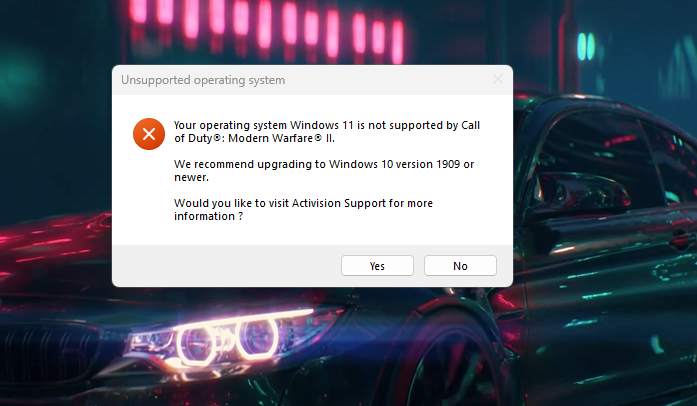
While the latest Season 5 update has brought in the likes of Lara Croft and Savage, but on the flip side, it has also paved the way for the bugs to enter. The most infuriating among them is the Operating System Unsupported error that many users are getting when trying to launch Warzone Season 5 on Windows 11. If you are also in the same boat, then this guide will help you out. Follow along for the fix.
- Fix Warzone Season 5 Reloaded Operating System Unsupported on Windows 11 For Beta Users For Dev and Canary Users
Fix Warzone Season 5 Reloaded Operating System Unsupported on Windows 11
For Beta Users
As of now, the below fix is only applicable to Windows 11 Beta build. Once it gets live for the Dev and Canary versions, we will update this section accordingly. [See next Section]
- Head over to the Start menu, search “Windows Update Settings” and open it.
- Then click “Update History”, scroll to the bottom, and click “Uninstall Updates”.
- Now uninstall every single listed item that says “Beta Channel Enablement”.
- Once done, restart your computer and check out the results.
For Dev and Canary Users
As of now, your only way out is to leave the Insider Preview build and go to the stable version which, for many of you, might be a hard pill to swallow. And that is completely understandable. But for the minority who are willing to take this step, they could head over to Settings > Update & Security > Windows Insider Program > Stop Insider Preview Builds and proceed with the on-screen instructions to get this job done.
That’s it. These were the steps to fix the Operating System Unsupported when trying to launch Warzone Season 5 on Windows 11. As far as the official stance on this matter is concerned, the developers are aware of this issue [check out this Trello board ], but they haven’t given out any ETA for the rollout of a fix. As and when that happens, we will update this guide accordingly. In the meantime, the aforementioned workarounds are your best bet.
- COD Warzone 2 and Modern Warfare 2 Dev Error 11557 [Fixed]
- COD Warzone 2: Recon Drone Hangs/Freeze Game [Fixed]
- Warzone 2.0 custom loadout & blueprint mods not working [Fixed]
- COD Warzone 2.0 Not Installed error on PS5 [Fixed]

(Cancel Reply)
Δ
Warzone 2.0 custom loadout & blueprint mods not working [Fixed]
In this guide, we will show you the steps to fix the issue of Warzone 2.0 custom loadout & blueprint mods not working. This sequel to the popular free-to-play battle royale video game follows in the footstep of its predecessor by having the Battle Royale game mode as the primary one that beholds a continuously shrinking map until the last player remains.
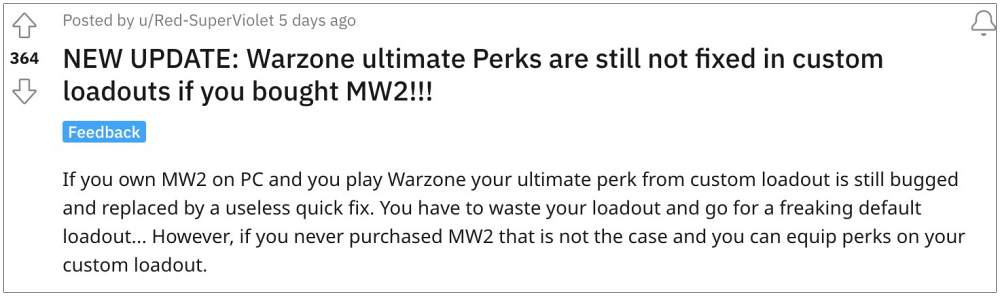
Moreover, it also beholds a slew of intriguing game modes and challenging missions but as of now, users are having to deal with an altogether different challenge. Numerous Warzone 2.0 players have voiced their concern that custom loadout & blueprint mods are not working along the expected lines.
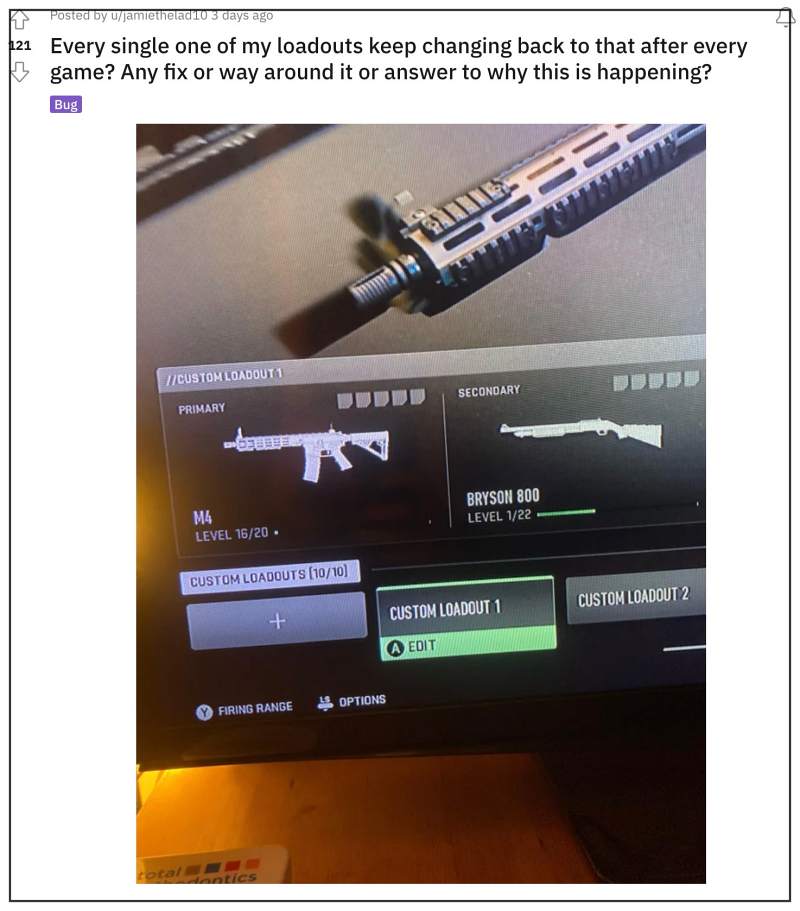
According to them, these mods and loadout revert to the default version on their own. The issue first came to light right after the developers rolled out a new patch. With that said, there does a nifty workaround that should help you rectify this bug. So without further ado, let’s check it out.
Fix Warzone 2.0 custom loadout & blueprint mods not working
Due to the recent buggy patch release, it is literally impossible to carry two custom blueprint weapons at the same time (even picking them up from a dead player backpack is currently not possible). So try out the below-listed steps to effectively address this issue:
- First off, make your blueprints and save them (it will work for edited pre-made blueprints as well)
- Then edit one attachment after saving the blueprint (select something that isn’t tuned like a magazine)
- Now switch the attachment back to the desired attachment after confirming that you want to disrupt the blueprint.
- Finally, repeat it for secondary the slot.
That’s it. This should help you fix the issue of Warzone 2.0 custom loadout & blueprint mods not working. As far as the official stance on this matter is concerned, the developers are aware of this issue, but they haven’t given out any ETA for the rollout of a fix. As and when that happens, we will update this guide accordingly. In the meantime, the aforementioned workarounds are your best bet.
- COD Warzone 2.0 Not Installed error on PS5 [Fixed]
- COD Warzone 2 Modern Warfare 2 random recoil bug [Fix]
- How to turn off SMBB in COD Modern Warfare 2
- COD Modern Warfare 2 Daily Challenge not working [Fix]
(Cancel Reply)
Δ
