Fix WiFi/Internet/Network not working in GSI ROM
In this guide, we will show you the steps to fix the WiFi/Internet/Network not working issue in GSI ROM. There is a huge disparity in the custom development, On one hand, we have the likes of Pixel 7 Pro, S23 Ultra, and Poco F4 that are being blessed with new custom ROM every other week. Then, on the other hand, are the likes of OnePLus Nord N100 for whom custom ROMs are a distant dream.
While there could be quite a few reasons for the same [kernel source not available, OEM being restrictive, or lack of unbrick tool], but there are still some lights at the end of the tunnel in the form of Generic System Images for such neglected devices. But since they are not specially built for your device [they are ‘generic’ after all!], so you are bound to face a few issues.
In this regard, many MediaTek users have voiced their concern that WiFi/Internet/Network is not working across any GSI ROM that they install. Well, this issue is majorly affecting the LineageOS, but since most of these ROMs use LineageOS as their base, the issue was bound to creep into these builds as well. With that said, we did come across a nifty workaround that should help you rectify this bug. So without further ado, let’s check it out.
- How to Fix WiFi/Internet/Network not working in GSI ROM STEP 1: Install Android SDK STEP 2: Enable USB Debugging STEP 3: Execute ADB Shell Command STEP 4: If Step 3 Didn’t Work
How to Fix WiFi/Internet/Network not working in GSI ROM
The below process will wipe off all the data from your device, so please take a complete device backup beforehand. Droidwin and its members wouldn’t be held responsible in case of a thermonuclear war, your alarm doesn’t wake you up, or if anything happens to your device and data by performing the below steps.
STEP 1: Install Android SDK
First and foremost, you will have to install the Android SDK Platform Tools on your PC. This is the official ADB and Fastboot binary provided by Google and is the only recommended one. So download it and then extract it to any convenient location on your PC. Doing so will give you the platform-tools folder, which will be used throughout this guide.

STEP 2: Enable USB Debugging
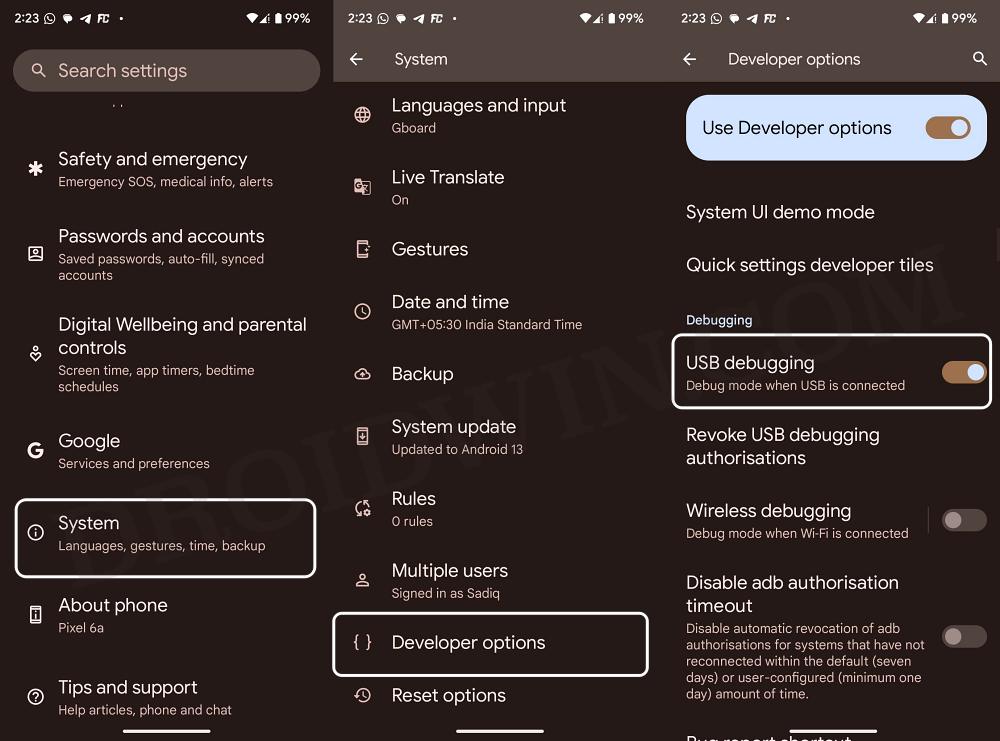
Next up, you will have to enable USB Debugging so that your device is recognizable by the PC in ADB mode. This will then allow you to execute the desired ADB Commands. So head over to Settings > About Phone > Tap on Build Number 7 times > Go back to Settings > System > Advanced > Developer Options > Enable USB Debugging.
STEP 3: Execute ADB Shell Command
- Connect your device to the PC via a USB cable. Make sure USB Debugging is enabled.
- Then head over to the platform-tools folder, type in CMD in the address bar, and hit Enter.
- This will launch the Command Prompt. So type in the below commands in the CMD window: adb shell settings put global restricted_networking_mode 0
STEP 4: If Step 3 Didn’t Work
If the aforementioned command didn’t work out, then root your GSI ROM via Magisk and proceed with the below steps:
- Download and install the Termux app from F-Droid.
- Then launch it and execute the following commands adb shell settings put global restricted_networking_mode 0 su -c settings put global restricted_networking_mode 0 su settings put global restricted_networking_mode 0
- The underlying network issue should now be fixed.
- How to Install any GSI ROM on Android without PC [Video]
- Download and Install Android 14 GSI ROM
- Fast Charging not working in GSI ROM: How to Fix
- Headphone Jack not working in Custom/GSI ROMs: How to Fix

- Yahya 7 months ago Reply Hello i tried this on android 15, but not worked. Help plzzz
- genoel 2 years ago Reply wtf Mode: Fastboot command : ADB ???????????????????????????????? Sadique Hassan 2 years ago Reply thanks for pointing it out. it was just a typo in the heading, it has been rectified.
(Cancel Reply)
Δ
