Flash Android 15 Custom ROMs on Poco F3/Mi 11X/Redmi K40
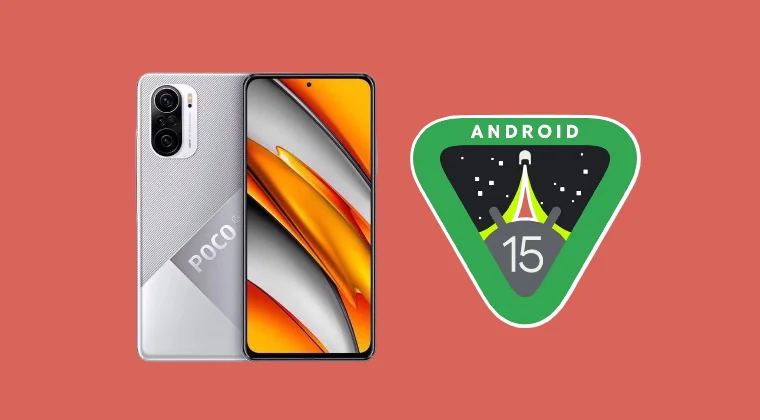
In this guide, we will show you the steps to flash the latest Android 15 custom ROMs on your Poco F3/Mi 11X/Redmi K40. When it comes to custom development, the devices from Xiaomi, especially its Poco series, have always been at the top of the list.
Not only are they blessed with numerous custom ROMs, but they are also among the first in the lineup to get the latest OS release. Thanks to this, the device has even received the fifteenth iteration of the OS. So, without any further ado, let’s make you aware of installing these Android 15 Custom ROMs on your Poco F3/Mi 11X/Redmi K40.
- Flash Android 15 Custom ROMs on Poco F3/Mi 11X/Redmi K40 Prerequisites Download Android 15 Custom ROMs How to Install crDroid Android 15 on Poco F3/Mi 11X/Redmi K40 How to Install LineageOS 22 Android 15 on Poco F3/Mi 11X/Redmi K40 Flash GenesisOS on Poco F3/Mi 11X/Redmi K40
Flash Android 15 Custom ROMs on Poco F3/Mi 11X/Redmi K40
Before starting, please take a backup of all the data on your device. Droidwin and its members wouldn’t be held responsible in case of a thermonuclear war, your alarm doesn’t wake you up, or if anything happens to your device, and data by performing the below steps.
Prerequisites
- Download and extract Android SDK Platform Tools on the PC.
- Then enable USB Debugging & OEM Unlocking on your device.
- Now, unlock the bootloader on your device via Mi Unlock Tool .
- Boot your device to the Fastboot Mode via the below command: adb reboot bootloader
Download Android 15 Custom ROMs
You may now get hold of the desired ROM from below. Make sure to transfer all the files inside the platform-tools. Likewise, rename the custom ROM to rom.zip.
crDroid: DOWNLOAD LINK

LineageOS: POCO F3 | REDMI K40 | MI 11X

GenesisOS: DOWNLOAD LINK
GApps: DOWNLOAD LINK

Magisk: DOWNLOAD LINK
How to Install crDroid Android 15 on Poco F3/Mi 11X/Redmi K40
- Download the desired custom recovery and extract the recovery.img file from it.
- Then transfer it to the platform-tools folder and rename it to recovery.img [if required]
- Now type in the below command to flash this recovery: fastboot flash recovery recovery.img
- Now type in the below command to boot to this recovery fastboot reboot recovery
- Then transfer the recovery ZIP file that you had downloaded to your device.
- Now go to Install, select the recovery ZIP, and swipe to flash. Once done, reboot to recovery.
- Then go to Wipe > Format Data > Type in YES > hit the checkmark.
- Now transfer the ROM ZIP file to your device.
- Then go to Install > select ROM ZIP > check “Retain TWRP” > swipe to flash.
- Once done, reboot to recovery. If you want to flash any other ZIP file [such as GApps or Magisk], then do so right now.
- Once done, go to Wipe > Format Data > Type in YES > hit the checkmark.
- Finally, select Reboot System Now to boot your Poco F3 to crDroid Android 15 build.
How to Install LineageOS 22 Android 15 on Poco F3/Mi 11X/Redmi K40
Before starting, please flash the firmware corresponding to your device and region. You may download the firmware from here .
POCO F3
| Device Model | Firmware Version |
|---|---|
| POCO F3 EEA | OS1.0.1.0.TKHEUXM |
| POCO F3 Global | OS1.0.2.0.TKHMIXM |
| POCO F3 Indonesia | OS1.0.1.0.TKHIDXM |
| POCO F3 Russia | OS1.0.2.0.TKHRUXM |
| POCO F3 Taiwan | OS1.0.1.0.TKHTWXM |
| POCO F3 Turkey | OS1.0.2.0.TKHTRXM |
REDMI K40
| Device Model | Firmware Version |
|---|---|
| Redmi K40 China | OS1.0.3.0.TKHCNXM |
MI 11X
| Device Model | Firmware Version |
|---|---|
| Mi 11X India | OS1.0.1.0.TKHINXM |
INSTALLATION STEPS [Same for all three phones]
- Flash the partition files via the below commands: fastboot flash boot boot.img fastboot flash vendor_boot vendor_boot.img
- Then reboot to the newly flashed recovery using: fastboot reboot recovery
- Now go to Factory Reset > Format Data > Factory Reset.
- After that, head to “Apply Update” > “Apply from ADB”.
- Now type in the below command to sideload the ROM: adb sideload rom.zip
- If you want to flash any other ZIP, then sideload it now.
- Finally, select the Reboot System Now to boot to the OS.
Flash GenesisOS on Poco F3/Mi 11X/Redmi K40
- Flash the partition files via the below commands: fastboot flash boot boot.img fastboot flash vendor_boot vendor_boot.img
- Then reboot to the newly flashed recovery using: fastboot reboot recovery
- Now go to Factory Reset > Format Data > Factory Reset.
- After that, head to “Apply Update” > “Apply from ADB”.
- Now type in the below command to sideload the ROM: adb sideload rom.zip
- If you want to flash any other ZIP, then sideload it now.
- Finally, select the Reboot System Now to boot to the OS.

(Cancel Reply)
Δ
