Flash Android 16 Nothing OS 4 via Fastboot Commands
In this guide, we will show you the steps to flash the latest Nothing OS 4 based on Android 16 via Fastboot Commands. The OEM has recently rolled out its latest OS with a slew of intriguing goodies . Some of the noteworthy ones include the likes of the Stretch Camera Preset, Pop-up View with two floating icons, two new lock screen clock faces, 2×2 Quick Settings tile support, and Extra Dark Mode.

To get this update, you just need to get yourself enrolled as a beta tester via the Beta Updater Hub app. So, when one could easily get this update via an APK file, why is there a need to manually flash it via Fastboot? That’s a great question, so let’s first answer it, and after that, we will list out the flashing steps as well. Follow along.
- Why Use Fastboot Commands Instead of OTA Updates If the Bootloader is Unlocked If the Device is Bricked For Rooting
- How to Flash Android 16 Nothing OS 4 via Fastboot Commands
Why Use Fastboot Commands Instead of OTA Updates
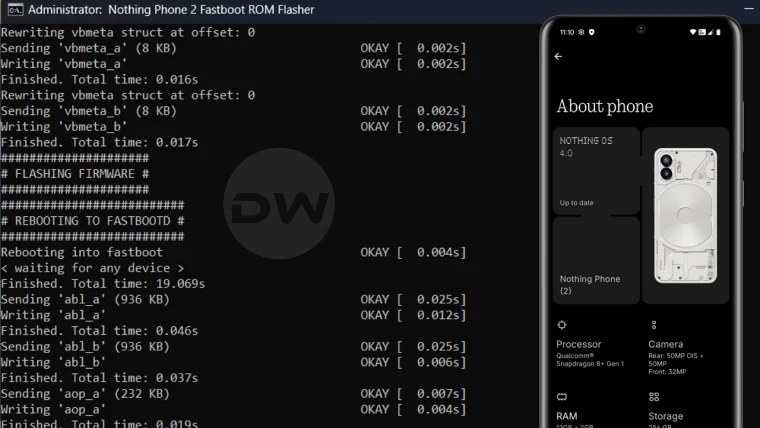
Using the built-in Updater to download and install the update wouldn’t come in handy in every scenario. There are a few situations wherein using the Fastboot approach will be your only way out. For instance:
If the Bootloader is Unlocked
In these cases, you wouldn’t be able to install updates from the updater app or the settings menu. So you’ll be left with no choice but to opt for the Fastboot method.
If the Device is Bricked
If your device is in a soft-bricked or bootloop state, then you wouldn’t use the built-in updater. You can only use the Fastboot ROM to bring your device back to life.
For Rooting
If you want to root your device, you’ll need the boot/init_boot file, which only the Fastboot ROM can give you.
Well, these are just some of the benefits of the Fastboot ROM; there can be a plethora of others. But without any further ado, let’s make you aware of the flashing steps right away.
How to Flash Android 16 Nothing OS 4 via Fastboot Commands

Before starting, please take a complete device backup. Droidwin and its members wouldn’t be held responsible in case of a thermonuclear war, your alarm doesn’t wake you up, or if anything happens to your device and data by performing the below steps.
- To begin with, download the Nothing OS 4 Fastboot ROM .
- Then download the Flashing Script for your device.
- Now select all the files > right-click on them > 7-ZIP > Extract to *.
- If the extraction fails, rename it from filename.7z.001.7z to filename.7z.001 and then retry extraction. You’ll not get any issues this time around.
- You will get all the extracted in 3 folders- boot, firmware, and logical. Place them into one single folder.
- Then transfer the flashing script inside that folder as well.
- Now boot your device to Fastboot Mode via the below command: adb reboot bootloader
- Then launch the flashing script and reply accordingly. For instance: Format Data: Y Flash across both slots: Y Disable Android Verified Boot: Y
- During the flashing, your device will also boot to the FastbootD Mode.
- Once the flashing is complete, hit Enter. The device will boot to the OS.
- How to Downgrade from Nothing OS 4 to 3: Android 16 to 15
- Download and Install Android 16 Nothing OS 4
- How to Disable or Remap Essentials Button on Nothing Phone 3/3A
- How to Unlock Hidden Snake Game on Nothing and CMF Phone

(Cancel Reply)
Δ
