Flash Firmware on Nothing Phone 2 via Fastboot Commands
In this guide, we will show you the steps to flash the firmware on your Nothing Phone 2 via Fastboot Commands. The second iteration in the Nothig lineup is following in the footsteps of its predecessor and has carved quite a name for itself in custom development. There’s no better way of cementing this statement than by having a look at its impressive collection of Android 14 custom ROMs.
However, before you can flash any custom ROM onto your Nothing Phone 2, it is of paramount importance to flash the firmware as well. Moreover, as opposed to the general notion, you’ll still have to flash the firmware even if you are on the latest update. This is because it might still be the case that only the current inactive slot has the latest OS whereas the inactive slot might still have an older OS version.
In such cases, if you end up flashing a ROM, then a soft brick or bootloop is on the cards. So to avoid discrepancies of any sort and to make sure that both the slots have the latest updates, it is of paramount importance that you install the newest firmware. So without any further ado, let’s make you aware of the flashing steps right away.
- Flash Firmware on Nothing Phone 2 via Fastboot Commands STEP 1: Install Android SDK STEP 2: Enable USB Debugging and OEM Unlocking STEP 3: Unlock Bootloader on Nothing Phone 2 STEP 4: Download Stock Firmware for Nothing Phone 2 STEP 5: Boot to Fastboot Mode STEP 6: Flash Firmware on Nothing Phone 2
Flash Firmware on Nothing Phone 2 via Fastboot Commands
Before starting, please take a backup of all the data on your device. Moreover, do note that this is firmware and not the complete Fastboot ROM, so the number of files to be flashed will be limited. And it goes without saying that Droidwin and its members wouldn’t be held responsible in case of a thermonuclear war, your alarm doesn’t wake you up, or if anything happens to your device and data by performing the below steps.
STEP 1: Install Android SDK

First and foremost, you will have to install the Android SDK Platform Tools on your PC. This is the official ADB and Fastboot binary provided by Google and is the only recommended one. So download it and then extract it to any convenient location on your PC. Doing so will give you the platform-tools folder, which will be used throughout this guide.
STEP 2: Enable USB Debugging and OEM Unlocking
Next up, you will also have to enable USB Debugging and OEM Unlocking on your device. The former will make your device recognizable by the PC in ADB mode. This will then allow you to boot your device to Fastboot Mode. On the other hand, OEM Unlocking is required to carry out the bootloader unlocking process.
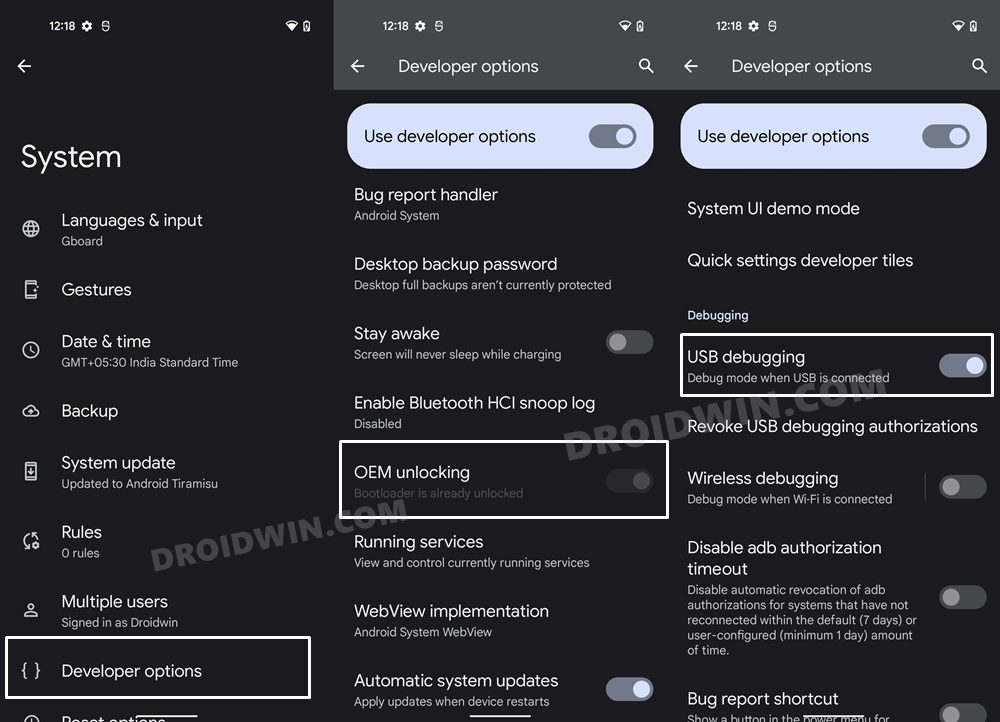
So head over to Settings > About Phone > Tap on Build Number 7 times > Go back to Settings > System > Advanced > Developer Options > Enable USB Debugging and OEM Unlocking.
STEP 3: Unlock Bootloader on Nothing Phone 2
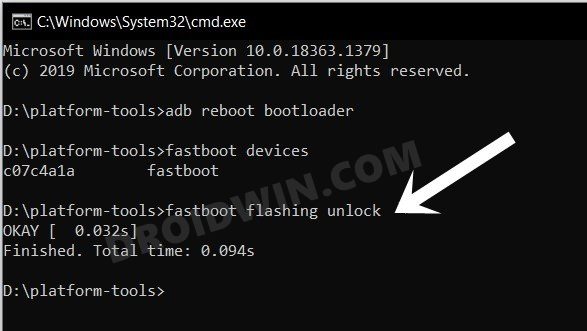
Next up, you will also have to unlock the device’s bootloader. Do keep in mind that doing so will wipe off all the data from your device and could nullify its warranty as well. So if that’s all well and good, then please refer to our detailed guide on How to Unlock Bootloader on Nothing Phone 2 .
STEP 4: Download Stock Firmware for Nothing Phone 2
- You can now grab hold of the firmware for your device from below: NothingOS Stock Firmware Collection
- You need to download the “-image-boot.7z”, “-image-firmware.7z, and “-image-logical.7z-001-003” (all 3 parts).
STEP 5: Boot to Fastboot Mode
- Now connect your device to the PC via a USB cable. Make sure USB Debugging is enabled.
- Then head over to the platform-tools folder, type in CMD in the address bar, and hit Enter. This will launch the Command Prompt.
- Type in the following command in the CMD window to boot your device to Fastboot Mode adb reboot bootloader
- To verify the Fastboot connection, type in the below command and you should get back the device ID. fastboot devices
- If you don’t get any serial ID, then install Fastboot Drivers on your PC.
STEP 6: Flash Firmware on Nothing Phone 2
- First off, download the firmware for your Nothing Phone 2. It is recommended that you download the full firmware instead of the incremental one.
- Then extract the firmware. If it is in the 7Z format, then select all > right-click> 7 ZIP > Extract to .
- On the other hand, if you are dealing with the payload.bin file, then you have to extract it via the Fastboot Enhance Tool .
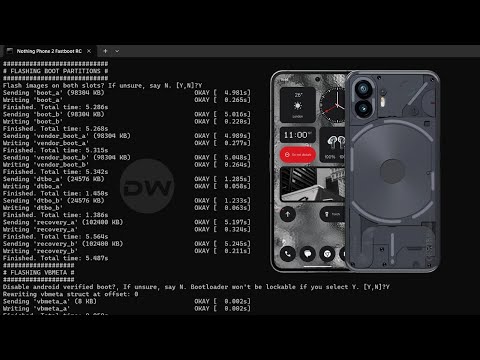
- Now download the Pong_Fastboot_Flasher script and transfer it to the firmware folder.
- Now run the script. It will ask for a format data, hit Y to answer Yes.
- It will ask if you wish to flash across both slots, reply Y because we want to make sure that both slots have the latest firmware.
- Then it will ask you to disable Android Verified Boot, type in Y.
- Next up, when the tool asks to flash the logical partition images such as system.img, reply Yes by typing Y.
- The flashing can take a few minutes. Once done, it is recommended to do a format data once again by using the below command: fastboot -w
- Finally, you may now reboot to the OS via the below command: fastboot reboot
- How to Bypass Indian SIM Card Lock on Nothing Phone 2
- Nothing Phone 2 Update Error 20: How to Fix
- How to Improve Sound Quality on Nothing Phone 2
- Nothing Phone 2 Lock Screen Alarm Bug Confuses Many!

(Cancel Reply)
Δ
