Flash LineageOS 21 Android 14 on Redmi Note 10 Pro/Max [Video]
In this guide, we will show you the steps to install the latest LineageOS 21 based on Android 14 onto your Redmi Note 10 Pro/Max. Well well, who saw it coming? It has only been a week or so since the official release of Android 14 and the custom ROMs are already lining up! What is even more impressive to note is the fact that even the non-flagships are being blessed with the latest OS build at the same time as their flagship counterpart.
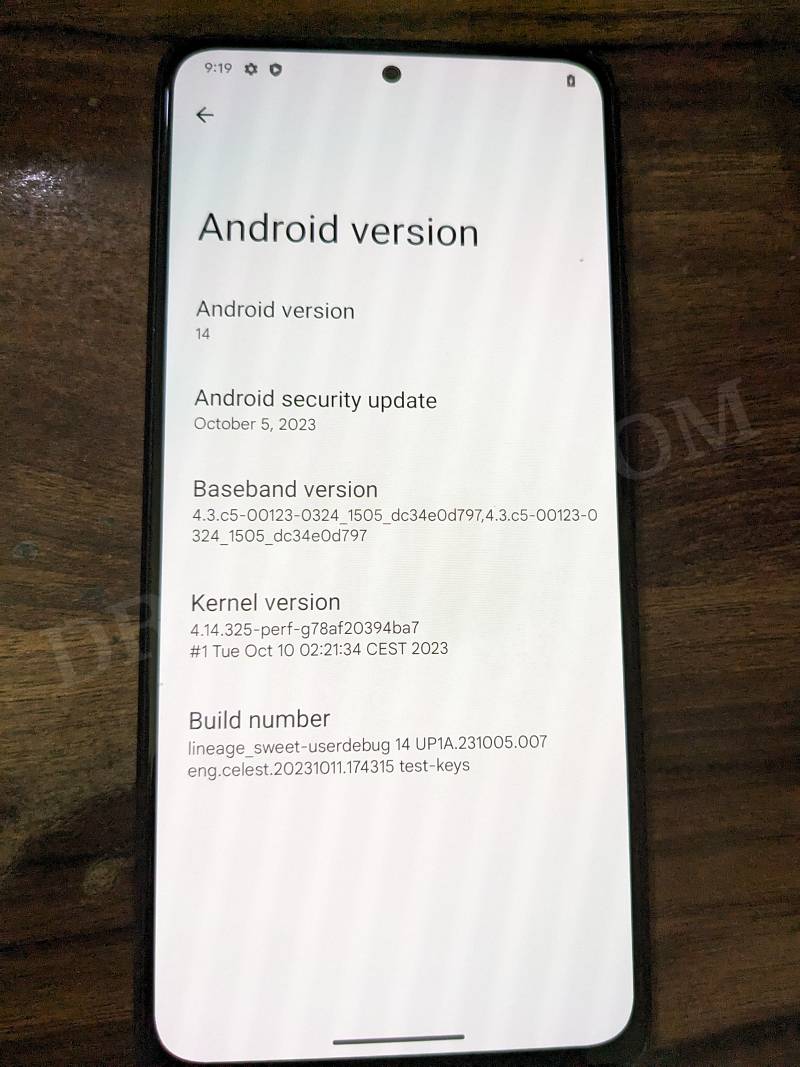
At the time of writing, LineageOS has already stepped its feet in this domain. For the unaware, this ROM offers a de-Googled ecosystem with just the crucial features. So a clean stock system without any bloatware coupled with a fast and snappy OS is on the cards. Add to it, a few tweaks of the latest OS build, and you couldn’t have asked for more! So without any further ado, let’s get started with the steps to install LineageOS 21 Android 14 on Redmi Note 10 Pro/Max.
- Flash LineageOS 21 Android 14 on Redmi Note 10 Pro/Max STEP 1: Install Android SDK STEP 2: Enable USB Debugging and OEM Unlocking STEP 3: Unlock Bootloader on Redmi Note 10 Pro/Max STEP 4: Update Firmware STEP 5: Download LineageOS 21 for Redmi Note 10 Pro/Max STEP 6: Boot to Fastboot Mode STEP 7: Flash LineageOS Recovery on Redmi Note 10 Pro/Max STEP 8: Format Data STEP 9: Install LineageOS on Redmi Note 10 Pro/Max STEP 10: Install GApps [Optional]
Flash LineageOS 21 Android 14 on Redmi Note 10 Pro/Max
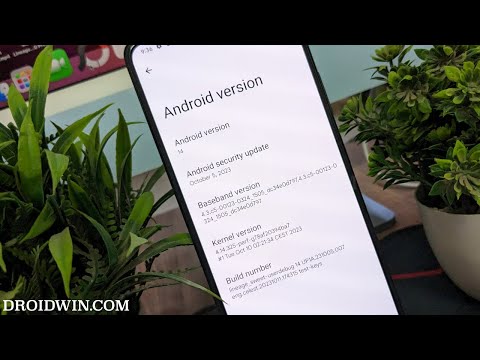
At the time of writing, the ROM is an unofficial build and is in the testing phase, so you might occasionally come across a few bugs and issues. Moreover, as of now, the ROM has included GApps for testing [so you may skip Step 10 for now]. Once it moves over to the official build, it will only be a Vanilla build. So keep these points in mind while flashing it.
Moreover, the process will wipe off all the data, so please take a backup beforehand. Droidwin and its members wouldn’t be held responsible in case of a thermonuclear war, your alarm doesn’t wake you up, or if anything happens to your device and data by performing the below steps.
STEP 1: Install Android SDK

First and foremost, you will have to install the Android SDK Platform Tools on your PC. This is the official ADB and Fastboot binary provided by Google and is the only recommended one. So download it and then extract it to any convenient location on your PC. Doing so will give you the platform-tools folder, which will be used throughout this guide to install LineageOS on Redmi Note 10 Pro/Max.
STEP 2: Enable USB Debugging and OEM Unlocking
Next up, you will also have to enable USB Debugging and OEM Unlocking on your device. The former will make your device recognizable by the PC in ADB mode. This will then allow you to boot your device to Fastboot Mode. On the other hand, OEM Unlocking is required to carry out the bootloader unlocking.
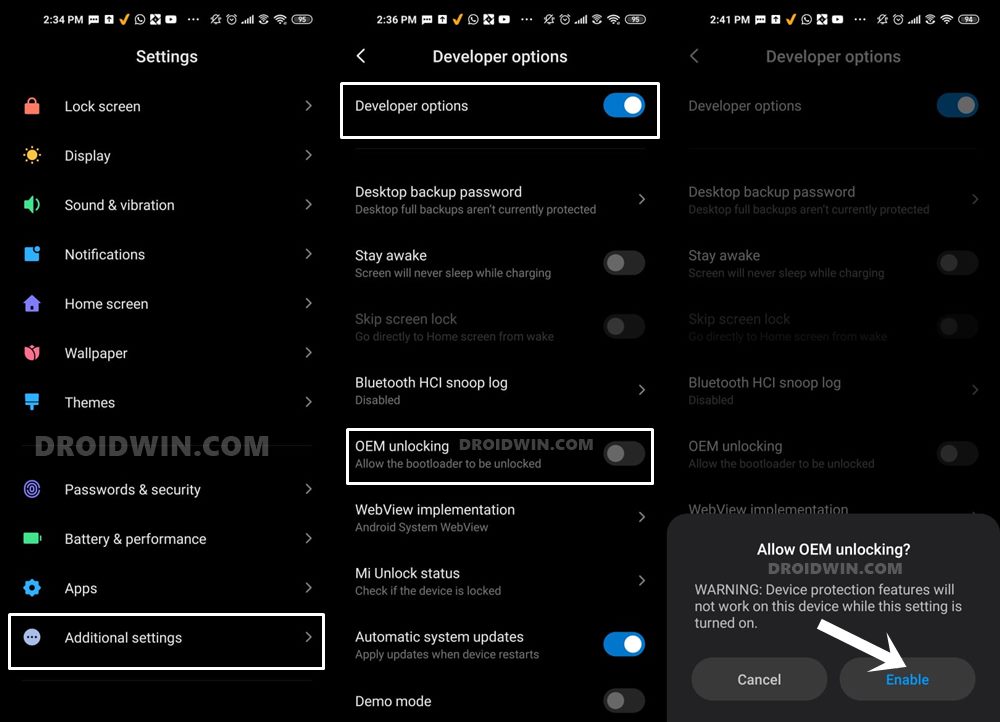
So head over to Settings > About Phone > Tap on Build Number 7 times > Go back to Settings > System > Advanced > Developer Options > Enable USB Debugging and OEM Unlocking.
STEP 3: Unlock Bootloader on Redmi Note 10 Pro/Max
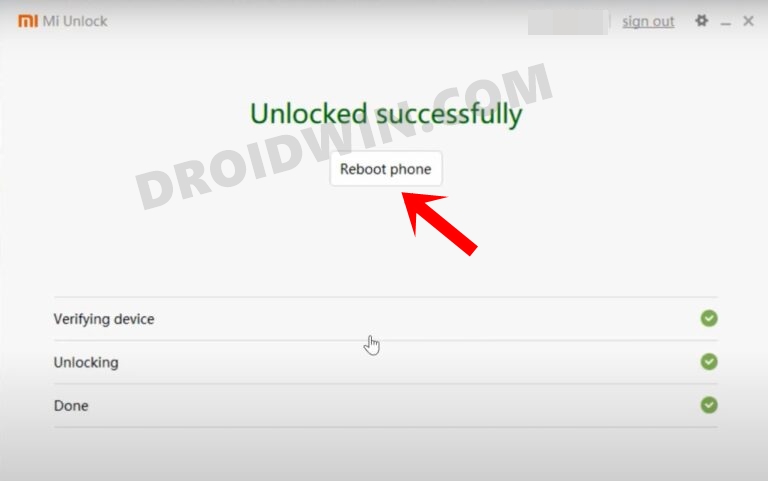
Next up, you will also have to unlock the device’s bootloader. Do keep in mind that doing so will wipe off all the data from your device and could nullify its warranty as well. So if that’s all well and good, then please refer to our detailed guide on How to Unlock Bootloader on any Xiaomi Device .
STEP 4: Update Firmware
Next up, you’ll have to firmware as instructed in the below-linked guide. So get this job done and then move over to the next step.
How to Flash/Update Firmware on Redmi Note 10 Pro
STEP 5: Download LineageOS 21 for Redmi Note 10 Pro/Max
- You may now grab hold of the LineageOS ROM for your device from the below link [Credit: XDA Senior Member Aryannn999]. LineageOS Android 14 for Redmi Note 10 Pro/Max: DOWNLOAD LINK
- Rename the ROM file to rom.zip and transfer it to the platform-tools folder on your PC.
STEP 6: Boot to Fastboot Mode
- Connect your device to the PC via a USB cable. Make sure USB Debugging is enabled.
- Then head over to the platform-tools folder, type in CMD in the address bar, and hit Enter. This will launch the Command Prompt.
- After that, type in the following command in the CMD window to boot your device to Fastboot Mode adb reboot bootloader
- To verify the Fastboot connection, type in the below command and you should get back the device ID. fastboot devices
- If you don’t get any serial ID, then please install Fastboot Drivers .
STEP 7: Flash LineageOS Recovery on Redmi Note 10 Pro/Max
- Now type in the below command to flash the recovery.img fastboot flash recovery recovery.img
- Then type in the below command to boot your device to LineageOS Recovery fastboot reboot recovery
STEP 8: Format Data
- From the LineageOS Recovery, go to Factory Reset.
- Then select Format Data/Factory Reset > Format Data.
- Your device will now undergo a reset.
- Once done, you shall get the “Data wipe complete” message.
STEP 9: Install LineageOS on Redmi Note 10 Pro/Max
- From the LineageOS Recovery, go to Apply Update > Apply from ADB.
- Then head over to the platform-tools folder, type in CMD in the address bar, and hit Enter.
- This will launch the Command Prompt. So type in the below command to flash the ROM file via Sideload: adb sideload rom.zip
- The process will now begin and once done, you shall get the Total xfer: 1.00x message [Got an error? See FAQ below].
- If you want to install GApps, then move over to the next step otherwise select Reboot System Now to boot to the OS.
STEP 10: Install GApps [Optional]
- Go to Advanced > Reboot to Recovery. Your device will reboot to Custom Recovery.
- Once done, go to Apply Update > Apply from ADB.
- Then download GApps from here , place it inside platform-tools folder, and rename it to gapps.zip
- Now type in the below command to flash the GApps file via Sideload: adb sideload gapps.zip
- You will get a Signature Verification failed message because the GApps package isn’t signed by LineageOS. That’s not an issue, just hit YES to proceed ahead.
- Once done, you may now finally reboot your device to the OS via “Reboot system now”.
- How to Flash/Update Firmware on Redmi Note 10 Pro
- Install EliteROM on Redmi Note 10 Pro/Max [Video]
- Install various Android 13 Custom ROMs on Redmi Note 10 Pro
- Root Redmi Note 10/Pro/Pro Max via Magisk without TWRP

(Cancel Reply)
Δ
