Flash Stock ROM via Lenovo Rescue and Smart Assistant
In this guide, we will show you the steps to flash the stock ROM on any Motorola device using the Lenovo Rescue and Smart Assistant. Motorola is among the very few OEMs that have an official tool for firmware flashing. And it does the job quite well in most cases [it does have a few shortcomings, which will be discussed in the next section].
But you might ask why there is a need to use this tool when you can easily install the OTA updates from the Settings menu? Well, that’s an excellent question! So let’s first answer this question, after which, we will list out the flashing steps as well. Follow along.
- Why is There a Need to Use Lenovo Rescue and Smart Assistant
- How to Flash Stock ROM via Lenovo Rescue and Smart Assistant
- Are There any Drawbacks of Lenovo Rescue and Smart Assistant?
Why is There a Need to Use Lenovo Rescue and Smart Assistant
While there exists a bunch of flashing methods [such as using the Fastboot Method or a flashing script ], however, Lenovo Rescue and Smart Assistant is the only method that does not require an unlocked bootloader. As a result of this, your device’s warranty stays intact.
Moreover, the tool provides a handy UI through which you can easily flash the ROM in just a few clicks, which cannot be said for the other two methods. Lastly, the official method always brings in a stamp of security, as opposed to unofficial ones. These reasons should be more than sufficient to draw your attention towards this tool. So without any further ado, let’s now make you aware of the flashing steps using it.
How to Flash Stock ROM via Lenovo Rescue and Smart Assistant
- Download and install the Lenovo Rescue and Smart Assistant Tool .
- Then launch it, agree to the Terms and Conditions, and log in to it. NOTE: You might need to allow adb.exe via Windows Firewall
- Go through the introductory steps if required, or simply skip them. Now, click on Phone.
- You’ll get four ways through which you can connect your device to the PC: IMEI WiFi Fastboot Model Selection
- As of now, select Fastboot Connection. Then refer to STEP 6,7,8 if you can access the OS, or 9 and 10 if you cannot access the OS.
- If you can access the OS, then enable USB Debugging and connect it to the PC via USB.
- Then download and extract the Android SDK Platforms on the PC.
- Now open Command Prompt inside platform-tools and type in the below command to boot to Fastboot Mode. adb reboot bootloader
- If you cannot access the OS [device is bricked or bootlooped], then long-press the Power key to turn off the device.
- Then press and hold the Power and Volume Down keys for a few seconds to boot it to Fastboot Mode.
- Once you are in Fastboot Mode via hardware keys or ADB command, type the below command to verify the Fastboot connection fastboot devices
- If you’re not getting any serial ID, then install Fastboot Drivers on your PC.
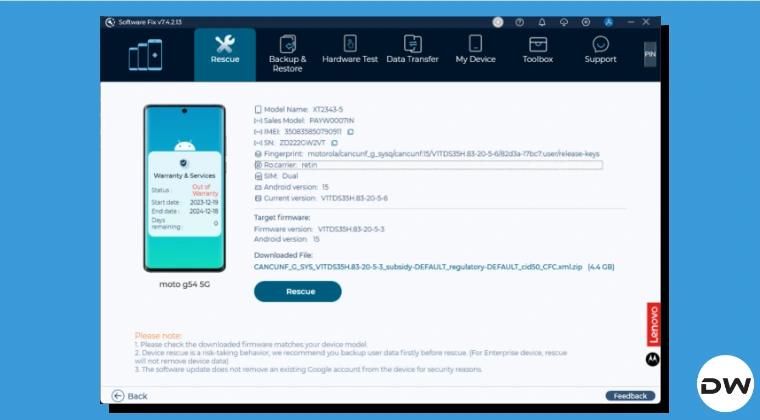
- It will list out your device information along with the firmware link. If it’s correct, then hit Download.
- Once the firmware is downloaded, you’ll get the Rescue button. Click on it to start the firmware flashing.
- You’ll get a prompt; click on Continue. Around the mid-way mark, you’ll be asked for a reset, click on Erase All Data.
- The flashing will now resume. Once done, you’ll get the Rescue Complete message, and your device will boot to the OS.
Are There any Drawbacks of Lenovo Rescue and Smart Assistant?
I did find one issue with this tool- it is unable to flash stock firmware if you are currently on a Custom ROM. In other words, you cannot use this tool to go from stock to a custom ROM. If you try to do so, you’ll be greeted with the “Software fix has detected that your device already has the latest firmware version” error. So what can be done in such cases? Well, you can use the Fastboot Method or the Flashing Script to go back to stock from a custom ROM.
- How to Go Back to Stock ROM From a Custom ROM on Motorola
- How to Flash Stock Firmware on Motorola [3 Methods]
- Cannot Unlock Motorola Bootloader: How to Fix
- Motorola Unbrick Tool: Unbrick any Moto Device via EDL Mode

(Cancel Reply)
Δ
