Flashing Unlock is Not Allowed: How to Fix
Recently, I was flashing a custom ROM on my Nothing Phone 2. To date, I have flashed 40+ ROMs on this device and haven’t faced any hurdles during flashing. But all good things must come to an end, doesn’t it? While flashing the Paranoid Android ROM [it’s a Fastboot-based ROM by the way], I was greeted with the following error message:
FAILED (remote: ‘Flashing is not allowed for Critical Partitions’)

I was like no issue, we just need to unlock the Critical Partition, and it will be fixed [or so I thought!]. Since my device was already in Fastboot Mode, I only had to execute the fastboot flashing unlock_critical command. But upon entering the said command, I was greeted with another error:
FAILED ( remote : ‘Flashing Unlock is not allowed ‘ ) fastboot: error: Command failed

To double-verify, I ran the fastboot flashing get_unlock_ability command only to find out that the Boolean value comes out to be False. This means I wasn’t even allowed to unlock the critical partition in the first place! In other words, if your device’s bootloader is unlocked and the OEM Unlocking toggle is greyed out but “disabled”, then you will face this issue [see image on the left].
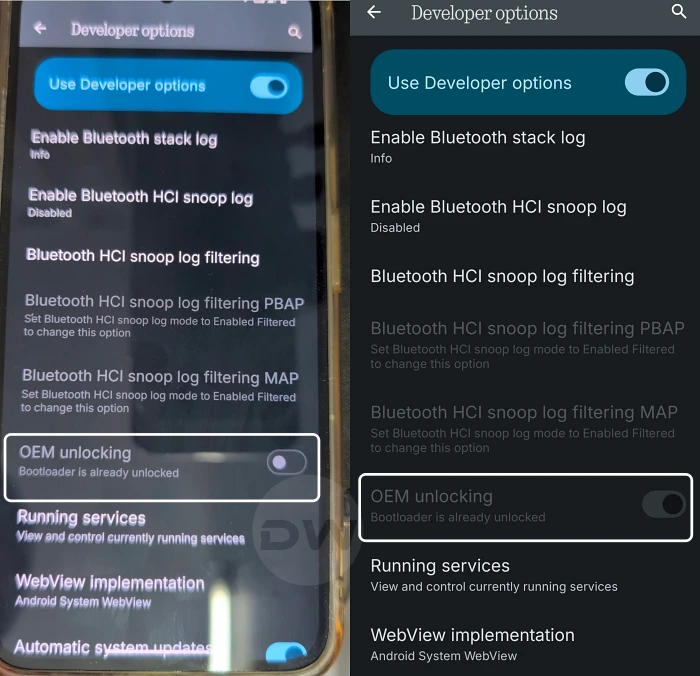
Left: Issue | Right Fixed!
So our ultimate aim is to “re-enable” that greyed-out OEM Unlocking toggle [see image on the right]. Once you do so, you’ll get the value 1 in the fastboot flashing get_unlock_ability and you’ll be able to unlock the critical partition with ease! And in this guide, we will show you how to do all this stuff. So without any further ado, let’s check them out.
- How to Fix Flashing Unlock is Not Allowed FIX 1: Fastboot Flashing Unlock FIX 2: OEM Unlock Toggle
How to Fix Flashing Unlock is Not Allowed

It is recommended that you try out each of the below-mentioned workarounds and then see which one spells out success. So with that in mind, let’s get started. Droidwin and its members wouldn’t be held responsible in case of a thermonuclear war, your alarm doesn’t wake you up, or if anything happens to your device and data by performing the below steps.
FIX 1: Fastboot Flashing Unlock
While this might sound like an obvious workaround for most of you, but trust us, we have seen numerous instances wherein users had not unlocked the bootloader and were straightaway trying to unlock the critical partitions. If you are also doing the same, then stop right now and first unlock the device’s bootloader via the fastboot flashing unlock command [ detailed guide ]. Once that is done, you may retry unlocking critical partitions and check if you’re still getting the Flashing Unlock is Not Allowed error ornot. If yes, then move over to our next fix.

FIX 2: OEM Unlock Toggle

You also need to enable the OEM Unlock toggle. If the bootloader is currently locked, then as of now, you’ll be able to easily re-enable OEM Unlocking toggle and rectify the issue. So go to Settings > About Phone > Tap on Build Number 7 times. Then go to Settings > System > Developer Options > Enable OEM Unlocking and USB Debugging. Then boot your device to Fastboot Mode via adb reboot bootloader , and unlock the bootloader via the fastboot flashing unlock command [ detailed guide ]. After that, unlock the critical partitions via fastboot flashing unlock_critical, and the underlying problem will be fixed.

However, if your device’s bootloader is unlocked, the OEM Unlock toggle will be disabled and greyed out. So, how to enable it in such a case? Let’s find out!
- To begin with, root your device using Magisk / KernelSU / APatch app.
- Next, download and extract Android SDK Platform Tools on your PC.
- Then, enable USB Debugging and connect your device to PC via USB.
- After that, open Command Prompt inside platform-tools and type in adb shell su -c ‘resetprop ro.boot.flash.locked 1’
- You’ll get a prompt on your device. Make sure to grant it permission.
- Then, go to Developer Options. You’ll be able to enable OEM Unlock.
- Once done, boot your device to the Fastboot Mode via the command: adb reboot bootloader
- Next, type in the below command and you should now get the value 1. fastboot flashing get_unlock_ability
- Finally, you can unlock the critical partition via the below command: fastboot flashing unlock_critical
- Cannot Enable OEM Unlocking in iodeOS ROM? Try this Fix!
- How to Bypass the 2 Week Waiting Time for OEM Unlocking on Tecno
- Samsung Removes OEM Unlocking from One UI 8!
- OEM Unlock Missing on OnePlus: How to Fix

(Cancel Reply)
Δ
