Flash/Update Android 12 on OnePlus 9 Pro via Fastboot Commands
In this guide, we will show you the steps to flash/update to the Android 12 firmware onto your OnePlus 9 Pro device via Fastboot Commands. Keeping all the buzz surrounding the ColorOS and OxygenOS aside, there’s no denying the fact that the offering from this Chinese OEM is still among the most active players in the custom development. Be it for flashing custom ROMs, installing a custom recovery, or gaining administrative access, there’s a lot to look forward to.
Talking about Custom ROMs, the ever-so-popular LineageOS has just made its way over to the ninth iteration of OnePlus. Since it is based on Android 12, you will first have to update the device’s vendor firmware to this build. And in this guide, we will show you how to do just that. Given here are the detailed instruction steps to flash/update to the Android 12 firmware onto your OnePlus 9 Pro device via Fastboot Commands. Follow along.
- Flash/Update Android 12 Firmware on OnePlus 9 Pro via Fastboot Commands STEP 1: Install Android SDK STEP 2: Download OnePlus 9 Pro Android 12 Firmware STEP 3: Extract OnePlus 9 Pro Payload.bin STEP 4: Boot OnePlus 9 Pro to FastbootD Mode STEP 5: Flash/Update Android 12 Firmware on OnePlus 9 Pro via Fastboot Commands
Flash/Update Android 12 Firmware on OnePlus 9 Pro via Fastboot Commands
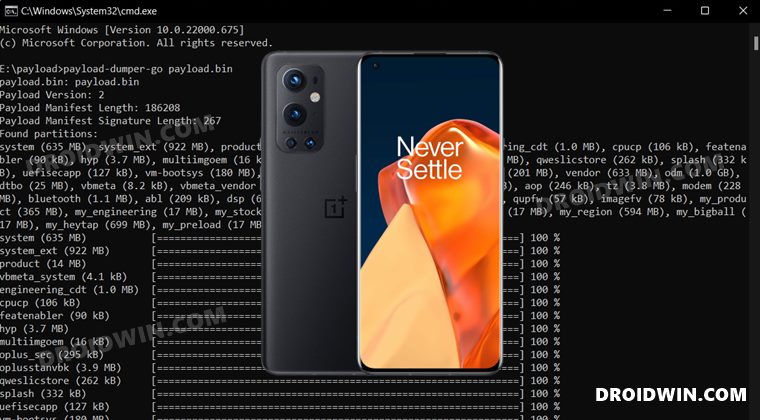
The below instructions are listed under separate sections for ease of understanding. Make sure to follow the same sequence as mentioned. Droidwin and its members wouldn’t be held responsible in case of a thermonuclear war, your alarm doesn’t wake you up, or if anything happens to your device and data by performing the below steps.
STEP 1: Install Android SDK

First and foremost, you will have to install the Android SDK Platform Tools on your PC. This is the official ADB and Fastboot binary provided by Google and is the only recommended one. So download it and then extract it to any convenient location on your PC. Doing so will give you the platform-tools folder, which will be used throughout this guide.
STEP 2: Download OnePlus 9 Pro Android 12 Firmware
Next up, you will have to get hold of the stock firmware for your OnePlus 9 Pro device. At the time of writing, the official site of OnePlus hasn’t uploaded the Android 12 firmware. So you will have to opt for other trustworthy sources, such as XDA or the Oxygen Updater app, links for both have been shared below
OnePlus 9 Pro Android 12 Firmware:

XDA Download Link | Oxygen Updater App
STEP 3: Extract OnePlus 9 Pro Payload.bin
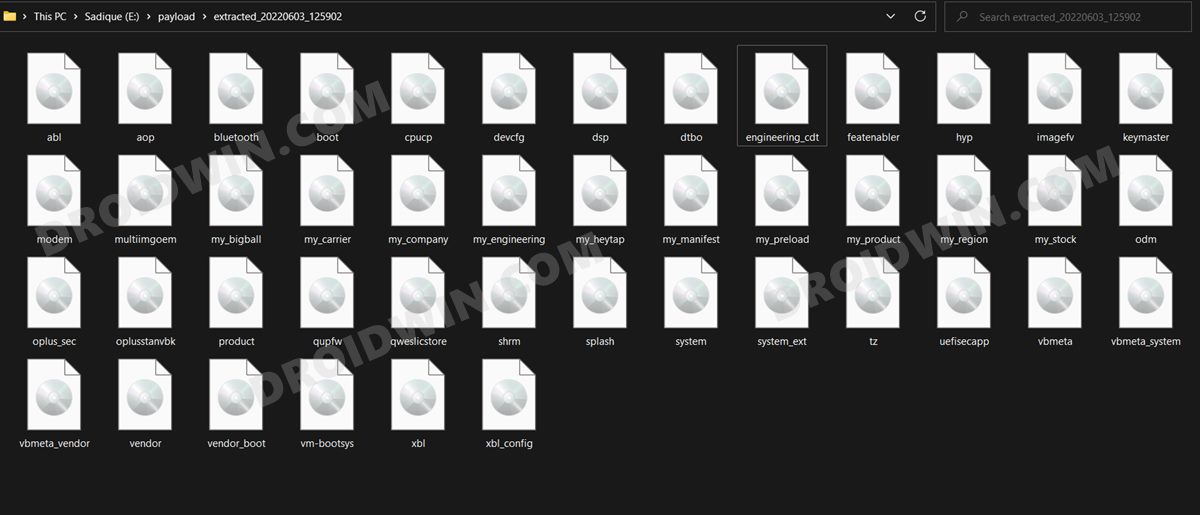
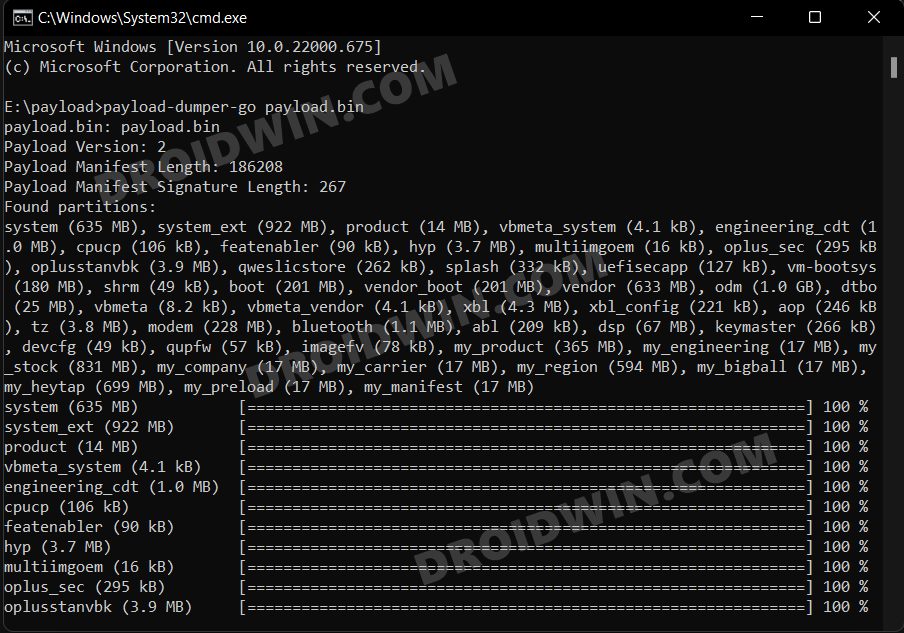
Once you have downloaded the firmware, extract it to any convenient location on your PC. Doing so shall give you a couple of files, including the payload.bin. And we will have to extract this file to get hold of all the partition files. So refer to our guide on How to Extract the OnePlus Payload.bin file. Once extracted, you will get the required partition files, transfer all of them to the platform-tools folder.
STEP 4: Boot OnePlus 9 Pro to FastbootD Mode
You will now have to boot your device to the FastbootD Mode to flash the partition files. For that, you may check out our comprehensive tutorial on How to Boot to FastbootD Mode [3 Methods] or refer to the below shorter instructions –
- Connect your device to the PC via USB cable. Make sure USB Debugging is enabled.
- Then head over to the platform-tools folder, type in CMD in the address bar, and hit Enter. This will launch the Command Prompt.
- After that, type in the following command in the CMD window to boot your device to Fastboot Mode adb reboot bootloader
- Finally, execute the below command to boot to FastbootD Mode from Fastboot fastboot reboot fastboot
STEP 5: Flash/Update Android 12 Firmware on OnePlus 9 Pro via Fastboot Commands
Now just execute the below commands in the CMD window that is opened in the platform-tools folder. Moreover, as soon as you execute the last command, your device will automatically boot to the Android 12 OS.
fastboot flash --slot=all abl abl.img

fastboot flash --slot=all aop aop.img

fastboot flash --slot=all bluetooth bluetooth.img

fastboot flash --slot=all cpucp cpucp.img

fastboot flash --slot=all devcfg devcfg.img

fastboot flash --slot=all dsp dsp.img

fastboot flash --slot=all engineering_cdt engineering_cdt.img

fastboot flash --slot=all featenabler featenabler.img

fastboot flash --slot=all hyp hyp.img

fastboot flash --slot=all imagefv imagefv.img

fastboot flash --slot=all keymaster keymaster.img

fastboot flash --slot=all modem modem.img

fastboot flash --slot=all multiimgoem multiimgoem.img

fastboot flash --slot=all oplus_sec oplus_sec.img

fastboot flash --slot=all oplusstanvbk oplusstanvbk.img

fastboot flash --slot=all qupfw qupfw.img

fastboot flash --slot=all qweslicstore qweslicstore.img

fastboot flash --slot=all shrm shrm.img

fastboot flash --slot=all splash splash.img

fastboot flash --slot=all tz tz.img

fastboot flash --slot=all uefisecapp uefisecapp.img

fastboot flash --slot=all vm-bootsys vm-bootsys.img

fastboot flash --slot=all xbl_config xbl_config.img

fastboot flash --slot=all xbl xbl.img

fastboot reboot
- OnePlus 9 Pro T-Mobile Modem Retention and Data Fix
- Convert OnePlus 9 Pro T-Mobile to EU via MSM Tool [Without unlock.bin]
- How to Switch between ColorOS and OxygenOS in OnePlus 9 Pro
- Screen Flickering in OnePlus 9/Pro after Android 12 update [Fixed]

- Greg 3 years ago Reply I’m getting error operation not permitted when flashing modem.img. Any idea how to fix this?
- Артём 3 years ago Reply how to boot from different slot ?
- hapo 3 years ago Reply can i use the same for oneplus 9 device also?
(Cancel Reply)
Δ
