Folder Icons Missing in Notes App on iOS 26 [Fixed]
A couple of days back, one of our readers reached out to me with a very peculiar issue- there was no folder icon in the Notes app on his iPhone running the latest iOS 26. I shared a bunch of usual workarounds with him, but they didn’t seem to do any good. I usually get the folder icons if I hit that left arrow at the top left a few times.
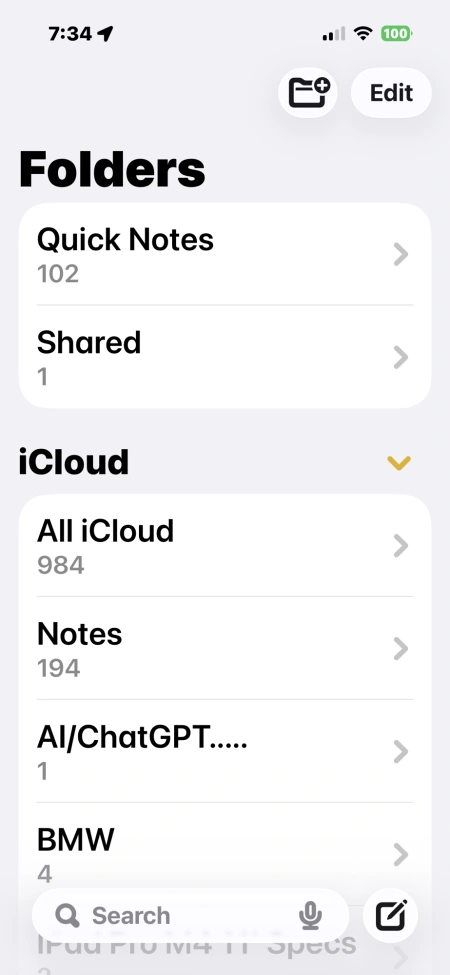
However, in his case, even the left arrow wasn’t available. If he opens a group, there’s a ‘back’ arrow, but it takes him back to the main page. So I did some further debugging on this problem for this issue and ultimately found a workaround, which I will share with you all in this guide. So without any further ado, let’s get started.
Fix Folder Icons Missing in Notes App on iOS 26

The fix is fairly simple- all you need to do is simply decrease the font size on your device! Yes, it’s as simple as that. If you have the font size increased too much, then it wouldn’t show you the folder icon. So head over to Settings > Scroll down to Display & Brightness > tap Text Size > Drag the slider to the left to decrease the font size.

- How to Remove Black Bar over Keyboard in iOS 26
- \ Full Page Screenshot Not Working on Safari iPhone iOS 26 [Fixed]
- iOS 26 Ruined Contacts App! Here’s How to Fix It
- iPhone Stuck at ‘Charge Battery’ screen while installing iOS 26 [Fix]

(Cancel Reply)
Δ
