Full Page Screenshot Not Working on Safari iPhone iOS 26 [Fixed]
There aren’t many things that I usually hate in the tech domain, but Apple’s latest iOS for its iPhone is an exception. I am left seriously scratching my head about how this Liquid Design got the pass from Tim Cook and his team. Well, I can go on a long rant on this, but that isn’t the topic of discussion for now.

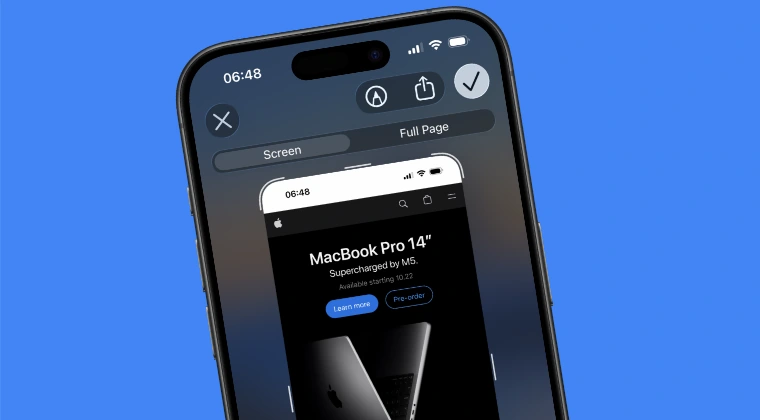
Full Page Screenshots Not Working
Right now, we are instead focused on one of the many bugs present in iOS 26- the full page screenshot not working on the Safari app on the iPhone. This isn’t a universal issue; while it bugs my iPhone 17 Pro Max, my other half’s iPhone 16 Pro Max is free from this problem, both of the latest iOS 26 build. So to rectify this issue, I tried numerous workarounds, none of which worked out in my favor.

Working Full Page Screenshots
Then I did some research and found a couple of additional tweaks, two of which surprisingly rectified this problem [surprising because they aren’t directly linked with the issue at hand]. So without any further ado, let’s make you aware of both these fixes. Follow along.
- Fix Full Page Screenshot Not Working on Safari on iPhone iOS 26 FIX 1: Change Safari’s Location FIX 2: Remove App Lock
Fix Full Page Screenshot Not Working on Safari on iPhone iOS 26
It is recommended that you try out both the fixes and see which one spells out success. So on that note, let’s get started.
FIX 1: Change Safari’s Location
If the Safari app is present inside any folder, then the Full Page Screenshot might not work. So, remove it from the folder and place it on the home screen to rectify this problem.
FIX 2: Remove App Lock
If you have put an app lock on Safari [such as Face ID], then please remove it or else this feature will not function along the expected lines.
- Permanently Remove Google Chrome Prompt in Safari
- How to Enable 120Hz Refresh Rate in Safari on iOS 18
- Google Search Bar Disappearing Behind Safari [Fixed]
- Comprehensive Guide to Fix Safari is Infected on Mac

(Cancel Reply)
Δ
