Google AI Edge Gallery: Use AI Offline on your Device!
Here’s everything you need to know about the Google AI Edge Gallery, its features, and how to make full use of it. Follow along.
- What is Google AI Edge Gallery?
- Features of Google AI Edge Gallery
- How to Install and Use Google AI Edge Gallery
What is Google AI Edge Gallery?
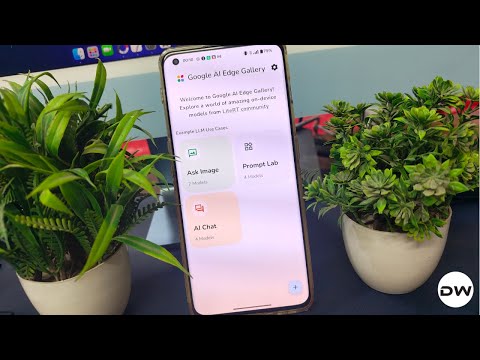
Well, this could be one of the most useful apps in the AI domain to date. The Google AI Edge Gallery is an app that holds numerous Generative AI models, all of which could be run directly on your device, without the need for any internet connection whatsoever. It supports both Android and iPhone, though for the latter, there’s still some work to be done.

Write an equation on a piece of paper, take its photo, and give it to this app- it will solve the equation within seconds. Upload your bill and ask it to categorize items, it’s just a piece of cake for him. Ask him any questions in any format [even the coding ones will do] and he will solve it with a blink of an eye.

And yes, there’s also the ever-so-popular AI chat involving multi-turn conversations. Impressed? There’s more! Let’s show you all the intriguing features that the Google AI Edge Gallery holds. Follow along.
Features of Google AI Edge Gallery
Here are some of the noteworthy features that this AI app beholds in its arsenal:
- 📱 Run Locally, Fully Offline: Experience the magic of GenAI without an internet connection. All processing happens directly on your device.
- 🤖 Choose Your Model: Easily switch between different models from Hugging Face and compare their performance.
- 🖼️ Ask Image: Upload an image and ask questions about it. Get descriptions, solve problems, or identify objects.
- ✍️ Prompt Lab: Summarize, rewrite, generate code, or use freeform prompts to explore single-turn LLM use cases.
- 💬 AI Chat: Engage in multi-turn conversations.
- 📊 Performance Insights: Real-time benchmarks (TTFT, decode speed, latency).
- 🧩 Bring Your Own Model: Test your local LiteRT .task models.
- 🔗 Developer Resources: Quick links to model cards and source code.
How to Install and Use Google AI Edge Gallery
NOTE: An active internet connection is only required for the first time to download the AI models. Once done, you may use the entire app and all the AI models completely offline. With that in mind, let’s get started.

- Grab the APK file from GitHub , install it, and launch it.
- Now complete the Captcha and sign in to Hugging Face. If you’re getting Error 418, then refer to this guide to fix it .
- Now, accept their Terms and Conditions.
- Once done, come back to the app and download the desired AI model.
- I’m using the Gemma-….B-in-int4, which is around 4.4 GB for all three use cases [see below].
- How to Enable Gemini Live on any Android Device
- How to Enable Gemini in Google Messages
- Guide to make Gemini work on Lock Screen
- How to Enable and Use Gemini in Unsupported Country

(Cancel Reply)
Δ
