Google Chrome Deleted Bookmarks Re-Appear [Fixed]
In this guide, we will show you a nifty workaround that should help you fix the issue of deleted bookmarks re-appearing in Google Chrome. When it comes to the browser domain, then the default offering from the Silicon Valley giant is sufficient enough for the masses to get their job done. However, in spite of all the goodies that it beholds, there are still a few rough edges that need polishing.
One among them is its infuriating behavior with the bookmakers wherein even if you delete them, they tend to re-appear and res-sync automatically after a while. Initially, to counter this issue, I created a new folder, named it Trash, and placed all those bookmarks under that directory.
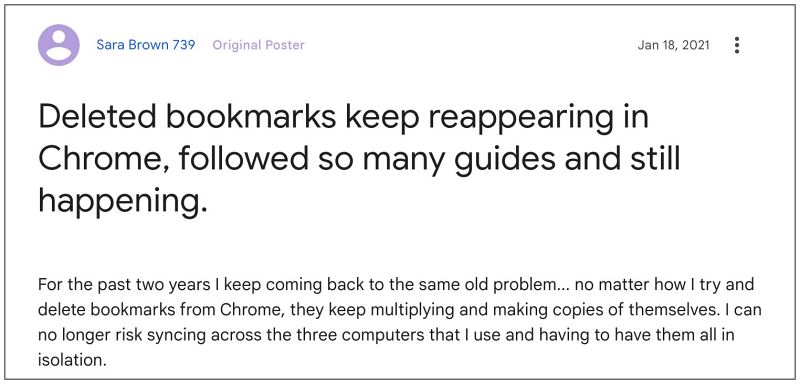
While it did the job, but it wasn’t the most effective way. So I did further research and stumbled upon a nifty workaround that would help you put an end to this fiasco once and for all. So without further ado, let’s check it out.
Fix Google Chrome Deleted Bookmarks Re-Appear
One of the most common culprits behind. this issue could be the fact that the Google account which you are using to log into the Chrome browser is also currently logged in another device as well [it could be any device- Android, iOS, Mac, or Windows]. So once you delete the bookmark from your primary device in which you are using Chrome, that change might not get reflected upon the secondary device [maybe its currently offline or Chrome is lying idle for some time]
As a result of this, even if you remove the bookmarks from the primary device, it might have no impact on the secondary. And the next time when you pick up your secondary device, it will currently be in that stage wherein the bookmarks weren’t deleted. So it will then start its own sync process which in turn will end up restoring the deleted bookmarks on your primary device. While this entire situation is no doubt all messed up, there does exist a method that could help you out. Follow along.
- Launch Chrome, click on the overflow icon, and select Bookmarks > Bookmark Manager.
- Then click on the overflow icon next to the bookmarks that you want to remove and select Delete.
- Once done, click on the overflow icon at the extreme top right and select Export Bookmarks.
- Now give it a name of your choice [leave the extension HTML], select the location, and hit Save.
- Once done, delete all the bookmarks. use Ctrl+A to select all the bookmarks and hit Delete.
- Now pick up your secondary device, launch Chrome, and make sure that the changes are synced there as well.
- So both your primary and secondary devices [signed in via the same Google account] should have no bookmarks.
- Now go to your primary device, launch Chrome, and head over to the Bookmarks Manager.
- Then click on the overflow icon at the top right and select Import Bookmarks.
- Now select the bookmarks HTML file that you had earlier exported and click Open.
- All your bookmarks will now be imported. Once done, make sure that the changes are synced across your other device as well.
- Google Chrome Limits Bookmark Sync on Mobile and Desktop
- How to turn off the Chrome Custom Share menu on Android
- Google Chrome Print feature not working: How to Fix
- How to Disable Side Search Panel in Google Chrome

(Cancel Reply)
Δ
Google Chrome Print feature not working: How to Fix
In this guide, we will show you a potential method that should help you fix the issue of Google Chrome Print feature not working. When it comes to the browser domain, then there’s no denying the fact that the offering from the Silicon Valley giant is one of the best in this domain. However, in spite of all the goodies that it has to offer, it occasionally faces a few roadblocks as well.
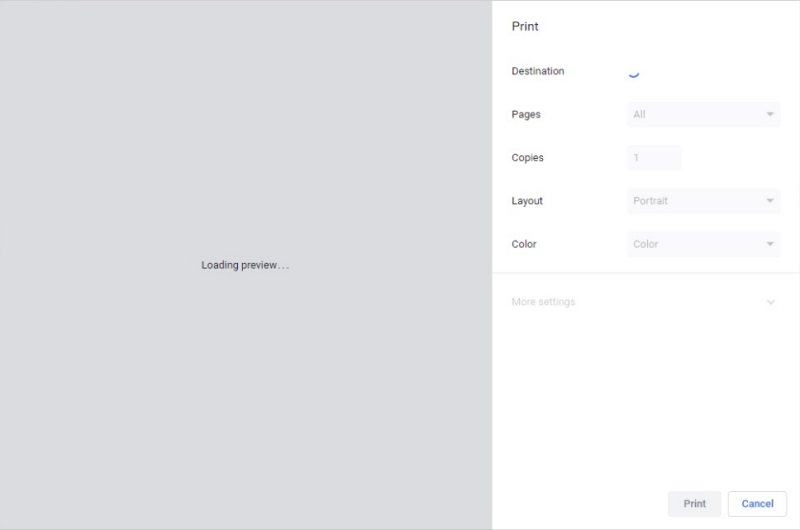
In this regard, numerous users have voiced their concern that the Print function is not working along the expected lines in the Chrome browser. Whenever they try to print a webpage or any file, the browser either suddenly crashes or gets stuck loading the print preview. If you are facing this issue, then this guide will make you aware of a nifty workaround to rectify this bug. Follow along.
Fix Google Chrome Print feature not working
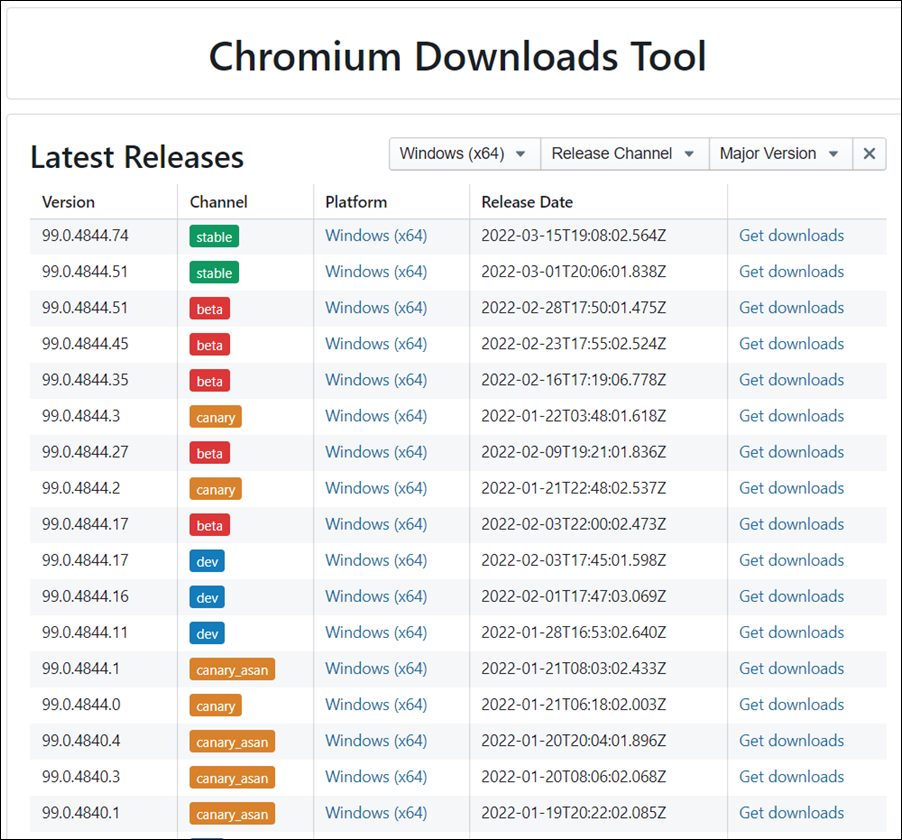
The culprit behind this issue is the latest update released by Google for the Chrome browser. So to rectify it, you’ll have to downgrade the app to an older version. But since it is a system app, you wouldn’t be able to do so the normal way, instead, you’ll have to take the help of ADB Commands. For that, do check out our guide on How to Downgrade Google Chrome on Windows 11
That’s it. These were the steps to fix the issue of Google Chrome Print feature not working. As far as the official stance on this matter is concerned, the developers are aware of this issue, but they haven’t given out any ETA for the rollout of a fix. As and when that happens, we will update this guide accordingly. In the meantime, the aforementioned workarounds are your best bet.
- Google Chrome Limits Bookmark Sync on Mobile and Desktop
- How to Disable Side Search Panel in Google Chrome
- Fix Chrome displays search result instead of website on home page
- How to Disable Chrome Hover Cards Preview [v111]
(Cancel Reply)
Δ
