Google Downloading Notification on Pixel: How to Remove
In this guide, we will show you various methods to remove the Google Downloading Notification from your Pixel device. While most of the alerts could easily be swayed away from the notification panel just via a simple left or right swipe, some alerts are persistent in nature and just refuses to go away until they have done their intended task. Unfortunately, that could take ages.
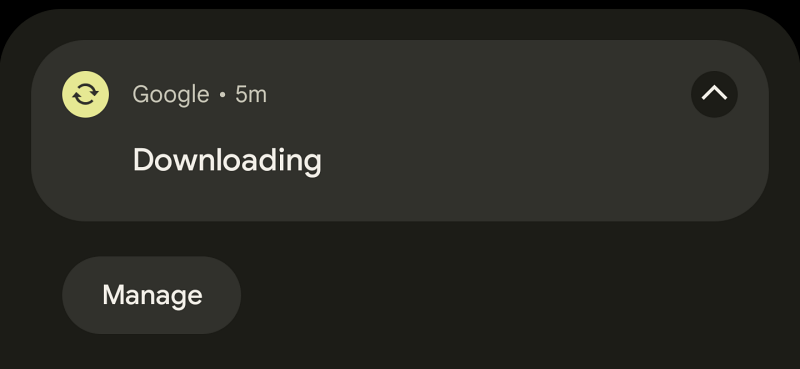
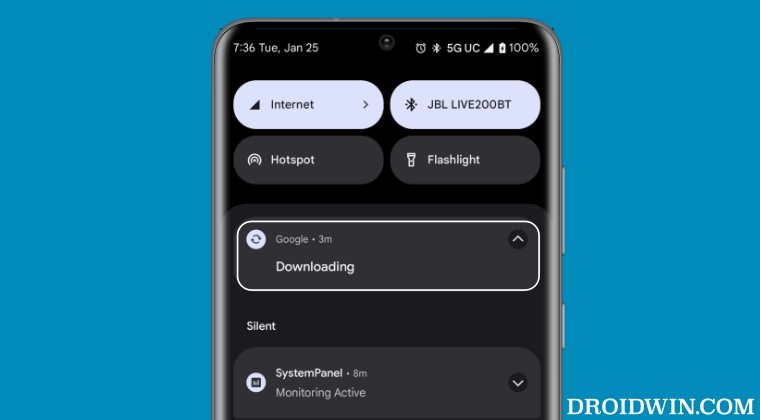
So having an unwanted alert making a permanent abode on your device for such a long time frame might not translate to the best of user experience. And one such prompt from the Silicon Valley giant falls exactly in this category. Many users have voiced their concern that they are unable to remove the Google Downloading Notification from their Pixel devices. If you are also in the same boat, then this guide will help you out. Follow along for the fixes.
- How to Remove Google Downloading Notification on Pixel FIX 1: Disable Data Download Notification Channel FIX 2: Force Stop Google App FIX 3: Update the Offline Voice
How to Remove Google Downloading Notification on Pixel
It is recommended that you try out each of the below-mentioned workarounds and then see which one spells out success. So with that in mind, let’s get started.
FIX 1: Disable Data Download Notification Channel
- To begin with, head over to Settings > Apps > All Apps.
- Then select the Google App and go to its Notification section.
- Now disable the toggle next to D ata Download Notification Channel.
- This should remove the Google Downloading Notification from your device.
FIX 2: Force Stop Google App
- To begin with, head over to Settings > Apps > All Apps.
- Then select the Google App and tap on Force Stop > OK.
- This will remove the Google Downloading Notification.
FIX 3:Update the Offline Voice
- Launch the Google App, tap on your profile, and select Settings.
- Then go to Voice > Offline Speech Recognition > Languages.
- Now manually install the pending language updates. That’s it.
- Pixel 7 Pro Bluetooth name changing to random strings! [Fix]
- Fix Pixel 7 notification sound not working when watch is connected
- Ambient Mode conflicts with Tap/Lift to Check Phone on Pixel 7 Pro
- Pixel 7 Pro Home screen layout automatically reset: How to Fix

- Adam 2 years ago Reply Tried the last option, it made most sense as it was a new phone pixel 7 Many thanks
(Cancel Reply)
Δ
